
14 Claude Code Features Every Engineer Should Know
A beginner-friendly guide to the features that make Claude Code powerful: CLAUDE.md, directory structure, permissions, plan mode, checkpoints, skills, hooks, MCP, plugins, context, slash commands, compaction, agents, and rules. Everything you need to know to get started successfully.
14 features, one CLI, and a learning curve that's steeper than it needs to be. That's Claude Code in a nutshell.
I've been using Claude Code daily for months now, building websites, automating workflows, orchestrating multi-agent teams, and writing the blog posts you're reading. Along the way, I've watched people bounce off the tool because they didn't know where to start. Not because they lacked skill. Because Claude Code has a lot of surface area and no obvious map.
This post is that map. These are the features I wish someone had explained to me on day one, in the order that matters most when you're getting started. I'm not going to walk you through installation or deep configuration (I've covered those in Getting Started with Claude Code and Configuring Claude Code). Instead, I'll focus on what each feature is, why it matters, and how it fits into the bigger picture.
Who This Post Is For
This is an introductory guide. If you've never used Claude Code, or you've tried it but felt lost, this is your starting point. If you're already building multi-agent pipelines and writing custom hooks, you probably know most of this already, but you might find the mental model useful.
1. CLAUDE.md: Your Project's Memory#
Every project has context that Claude Code needs to know: what framework you're using, how to run the build, what conventions your team follows, what to avoid. Without that context, Claude starts from zero every session. It guesses at your stack, suggests patterns you don't use, and misses constraints you care about.
CLAUDE.md is the fix. It's a markdown file at the root of your project that Claude reads automatically at the start of every session. Think of it as a briefing document. You write it once, and Claude remembers it forever (or at least every time it opens your project).
A simple CLAUDE.md might look like this:
# Project: My App

## Stack
- Next.js 16 with App Router
- TypeScript strict mode
- Tailwind CSS v4
- Supabase for database and auth

## Commands
- Build: `npm run build`
- Test: `npm test`
- Lint: `npm run lint`

## Conventions
- Use server components by default
- All API routes go in src/app/api/
- Never commit .env files
That's it. Fifteen lines that save you from repeating yourself every session.
Keep It Short
Every line in CLAUDE.md costs context window tokens. Stick to facts that Claude can't infer from your codebase: build commands, naming conventions, team preferences, and anything that would surprise Claude if it guessed wrong. If your codebase already follows standard patterns, you don't need to document them.
The thing about CLAUDE.md is that it scales. A new project might have 10 lines. A mature project might have 50. I keep mine focused on commands, file structure conventions, and anything that's unique to the project. The goal is "enough context to be helpful" without "so much context that it crowds out the actual work."
2. Organizing Your .claude Directory#
Once you start customizing Claude Code beyond a CLAUDE.md file, you'll quickly end up with agents, skills, hooks, rules, scripts, and settings scattered everywhere. The .claude/ directory is where all of that lives, and how you organize it matters more than you might expect.
Here's the structure I recommend for beginners:
.claude/
├── settings.json          # Project permissions and tool config
├── settings.local.json    # Your personal overrides (gitignored)
├── rules/                 # Modular instruction files
│   ├── coding-style.md
│   └── git-workflow.md
├── commands/              # Custom slash commands
│   └── build-and-test.md
├── agents/                # Agent definitions
│   └── code-reviewer.md
├── skills/                # Reusable skill instructions
│   └── refactor/
│       └── SKILL.md
├── hooks/                 # Shell scripts for lifecycle events
│   └── pre-commit.sh
└── scripts/               # Utility scripts agents call
    └── validate.sh
You don't need all of these on day one. Start with settings.json for permissions and maybe a rules/ folder for instructions you want Claude to always follow. Add the other directories as your needs grow.
Don't Put Everything in CLAUDE.md
A common beginner mistake is cramming all rules, agent definitions, and workflow instructions into CLAUDE.md. That file should stay focused on project-specific facts. General coding rules go in rules/. Agent behavior goes in agents/. Reusable workflows go in skills/. This separation keeps each file small, focused, and maintainable.
The key principle: many small files beat few large files. A rules/coding-style.md file with 20 lines is easier to update, easier to share across projects, and easier to disable (just delete it) than a 200-line monolithic config buried inside CLAUDE.md.
There's also a user-level .claude/ directory at ~/.claude/ that applies to every project on your machine. Project-level rules live in .claude/ inside the repo. User-level rules (your personal standards, universal preferences) live in ~/.claude/. Both get loaded automatically.
Swipe to see the full diagram · Tap to enlarge
3. Permissions: Controlling What Claude Can Touch#
By default, Claude Code asks for permission before doing anything that modifies your system: editing files, running commands, installing packages. This is sensible for a tool that can execute arbitrary code, but it gets tedious fast when you're approving the same safe operations over and over.
The permissions system lets you dial this in. You define what Claude can do without asking, what requires approval, and what's blocked entirely.
Swipe to see the full diagram · Tap to enlarge
Permissions live in settings.json (or .claude/settings.json at the project level):
{
  "permissions": {
    "allow": [
      "Read",
      "Glob",
      "Grep",
      "Bash(npm run build)",
      "Bash(npm test)"
    ],
    "deny": [
      "Bash(rm -rf *)",
      "Bash(git push --force)"
    ]
  }
}
The allow list specifies tools and commands Claude can run without asking. The deny list blocks specific operations entirely. Everything not in either list triggers an approval prompt.
Start Restrictive
When you're new to Claude Code, start with a minimal allow list: read operations, your build command, and your test command. Add more permissions as you build trust with the tool. It's much safer to gradually expand access than to start with full access and discover the hard way what should have been restricted.
The practical effect is significant. Once you've dialed in your permissions, Claude Code stops interrupting you for routine operations. You stay in flow. The tool reads files, runs tests, checks builds, all without you clicking "approve" on every action.
4. Plan Mode: Review Before Execution#
Sometimes you want Claude to think before it acts. Plan mode does exactly that: Claude analyzes the problem, proposes a step-by-step plan, and waits for your approval before executing anything.
You can toggle plan mode with Shift+Tab during a conversation. When it's active, Claude presents its proposed approach as a structured plan rather than immediately making changes. You can approve the plan, edit individual steps, or reject the whole thing and ask for a different approach.
This is especially valuable for:
- Large refactors where you want to see the full scope before changes start
- Unfamiliar codebases where you want to verify Claude understands the structure
- Destructive operations where a wrong move could break things
- Learning situations where you want to understand the "why" behind each step
Use Plan Mode for Big Changes
If the task involves modifying more than a handful of files, turn on plan mode. Reviewing a plan takes 30 seconds. Undoing a bad refactor takes 30 minutes. The ROI on that pause is enormous.
Plan mode isn't something you need to use all the time. For small, well-understood changes ("add a loading spinner to this button"), just let Claude work. For anything with scope or risk, the plan-first approach gives you a checkpoint before anything happens.
5. Checkpoints: Your Safety Net#
Every time Claude Code makes a change to your project, it automatically creates a checkpoint. A checkpoint is a snapshot of your project's state at that moment. If Claude makes a change you don't like, or if something breaks three steps into a multi-step task, you can revert to any previous checkpoint instantly.
You don't need to configure this. It happens automatically. You don't need to remember to save. It's always there.
The command to revert is simple: type /undo or press Ctrl+Z in the Claude Code interface. Claude will show you the available checkpoints and let you pick which one to restore.
Checkpoints vs. Git Commits
Checkpoints are not git commits. They're internal to Claude Code and exist only during your session. They're a safety net for experimentation, not a replacement for version control. Once you're happy with a set of changes, commit them to git as you normally would. Think of checkpoints as "undo history" and git as "permanent history."
This feature single-handedly removes the anxiety of letting Claude make changes. You can say "refactor this entire module" knowing that if the result isn't what you wanted, you're one command away from getting your code back. That confidence changes how you interact with the tool. You try bigger things, experiment more, and recover faster.
6. Skills: Reusable Workflows You Can Invoke#
Skills are instructions that tell Claude how to perform a specific task. They live in markdown files and can be invoked like slash commands, but they're more powerful because they can include multi-step workflows, decision trees, and references to other tools.
A skill is a directory with a SKILL.md file inside it:
.claude/skills/
└── code-review/
    └── SKILL.md
The SKILL.md file describes the workflow:
# Code Review Skill

Review the current changes for:
1. Code quality (naming, structure, patterns)
2. Security issues (hardcoded secrets, SQL injection, XSS)
3. Performance concerns (unnecessary re-renders, missing indexes)
4. Test coverage (are the changes tested?)

Output a structured report with severity levels:
- CRITICAL: Must fix before merge
- HIGH: Should fix before merge
- MEDIUM: Consider fixing
- LOW: Nice to have
Once defined, you invoke it with /code-review and Claude follows those instructions every time. The skill name comes from the directory name.
Skills Replace Repetitive Prompts
If you find yourself typing the same instructions across multiple sessions ("review this code for security issues, check for..."), that's a skill waiting to be created. Write it once, invoke it forever. The time investment pays off after the second or third use.
Skills can also be shared across projects by placing them in ~/.claude/skills/ (user-level) rather than .claude/skills/ (project-level). I use project-level skills for project-specific workflows and user-level skills for things I want everywhere, like my blog writing pipeline.
7. Hooks: Automation at Key Moments#
Hooks are shell scripts that run automatically at specific points in Claude Code's lifecycle. They let you inject custom logic without manually remembering to do it every time.
There are four hook types:
| Hook | When It Fires | Example Use |
|---|---|---|
| PreToolUse | Before Claude runs a tool | Block edits to sensitive files |
| PostToolUse | After Claude runs a tool | Auto-format code after edits |
| Stop | When Claude finishes a task | Send a notification, run tests |
| SessionEnd | When the session closes | Archive session logs |
Hooks are defined in your settings file, not as standalone scripts (though they call standalone scripts). A hook configuration looks like this:
{
  "hooks": {
    "PreToolUse": [
      {
        "matcher": "Edit|Write",
        "command": "bash .claude/hooks/protect-env.sh"
      }
    ],
    "Stop": [
      {
        "command": "bash .claude/hooks/notify.sh"
      }
    ]
  }
}
Hooks Run Automatically
Once configured, hooks fire every time their trigger condition is met. A buggy PreToolUse hook can block Claude from doing anything. A slow PostToolUse hook can make every edit feel sluggish. Test your hooks carefully before deploying them, and keep them fast (under 1 second for PreToolUse/PostToolUse).
The most practical hook for beginners is a Stop hook that sends a system notification when Claude finishes a long task. If you kick off a build or a multi-file refactor and switch to another window, the notification tells you when it's done. Small convenience, real quality-of-life improvement.
8. MCP: Connecting Claude to External Tools#
MCP (Model Context Protocol) is how Claude Code talks to external services. Databases, APIs, file systems, cloud services: if there's an MCP server for it, Claude can use it as a tool.
MCP servers run locally on your machine and expose specific capabilities to Claude. The server handles authentication, data formatting, and API communication. Claude just calls the tool by name.
For example, connecting Claude to GitHub:
{
  "mcpServers": {
    "github": {
      "command": "npx",
      "args": ["-y", "@modelcontextprotocol/server-github"],
      "env": {
        "GITHUB_PERSONAL_ACCESS_TOKEN": "your-token-here"
      }
    }
  }
}
With this configured, Claude can create issues, review pull requests, search repositories, and manage branches, all through conversation. No switching to a browser, no copying and pasting URLs.
What MCP Servers Exist?
The MCP ecosystem is growing. Popular servers include GitHub, Slack, PostgreSQL, filesystem access, web search, and memory systems. Anthropic maintains a registry of available servers, and the community contributes new ones regularly. Check the MCP server directory for the current list.
MCP is one of the features that transforms Claude Code from "smart text editor" to "development platform." When Claude can query your database, read your Slack messages, and push to your repo, the range of tasks it can handle expands dramatically.
9. Plugins: Extending Claude Without Writing Code#
Plugins are pre-built configurations that add capabilities to Claude Code without requiring you to write agent definitions, hooks, or MCP configurations from scratch. They're community-contributed bundles that you install and they just work.
The most well-known plugin is everything-claude-code, which adds a comprehensive set of rules, agents, and workflow patterns. Installing a plugin typically means adding it to your settings and letting Claude Code pull in the configuration.
Plugins as Starting Points
Plugins are excellent for getting started quickly, but treat them as a starting point rather than a final answer. Most developers end up customizing the configurations they install, trimming rules they don't need and adding project-specific ones. I started with a community plugin and trimmed about 40% of the content because it was eating context tokens without adding value for my workflow.
The plugin ecosystem is still young, but it's growing. Plugins can provide rules files, agent definitions, skill definitions, hook scripts, and MCP server configurations. They're the fastest way to go from "fresh install" to "useful setup."
10. Context: Pointing Claude at What Matters#
Context is everything Claude Code knows about your project at any given moment. This includes the files it's read, the conversation history, the rules and CLAUDE.md content it loaded, and the results of any tool calls it's made. Managing context well is the difference between Claude giving good answers and Claude giving confused ones.
There are several ways to feed context to Claude:
- CLAUDE.md and rules load automatically at session start
- File references in your prompts (just mention a file path and Claude reads it)
- @-mentions to explicitly include specific files:
@src/components/Button.tsx - Glob patterns to point Claude at groups of files: "look at all the files in src/api/"
- MCP resources that pull in data from external tools
Context Is Finite
Claude Code has a context window, a limit on how much information it can hold at once. Every file it reads, every conversation message, every tool result takes up space in that window. When the window fills up, older context gets pushed out. This is why keeping CLAUDE.md concise matters, and why compaction (covered below) exists.
The practical lesson: be specific about what you want Claude to look at. "Fix the bug in my app" forces Claude to search broadly, burning context on files that don't matter. "Fix the pagination bug in src/components/DataTable.tsx" points it directly at the right place. Better context in means better answers out.
11. Slash Commands: Quick Actions#
Slash commands are built-in shortcuts you invoke with the / prefix. They're not skills (though they look similar). They're hardcoded into Claude Code itself and handle common operations.
The ones you'll use most:
| Command | What It Does |
|---|---|
/help | Shows available commands and usage tips |
/clear | Clears the conversation history |
/compact | Manually triggers context compaction |
/undo | Reverts to a previous checkpoint |
/init | Generates a CLAUDE.md from your project |
/review | Reviews uncommitted changes |
/cost | Shows token usage and estimated cost |
You can also create custom slash commands by adding markdown files to .claude/commands/. A file at .claude/commands/deploy.md becomes /deploy. This bridges the gap between built-in commands and full skills: quick instructions without the overhead of a skill directory.
Start with /init
If you're setting up Claude Code on an existing project and don't have a CLAUDE.md yet, run /init. Claude will analyze your project structure, detect your framework and tools, and generate a starting CLAUDE.md for you. It won't be perfect, but it's a much better starting point than an empty file.
12. Compaction: Managing the Context Window#
Long sessions with Claude Code eventually fill up the context window. When that happens, Claude starts losing track of earlier parts of the conversation. It might forget a decision you made 20 messages ago, re-read a file it already analyzed, or lose the thread of a multi-step task.
Compaction is the solution. It compresses the conversation history by summarizing older messages while keeping recent context intact. Claude Code triggers compaction automatically when the context window gets close to full, but you can also trigger it manually with /compact.
What compaction keeps:
- Recent messages (the last few exchanges)
- Active task context (what you're currently working on)
- Key decisions and file references
What compaction summarizes or drops:
- Older conversation turns
- Detailed tool output from early in the session
- Intermediate reasoning that led to resolved decisions
Compaction Loses Detail
When compaction runs, some context is lost. If you made an important decision early in a long session, Claude might not remember the reasoning behind it after compaction. For critical context, save it somewhere persistent: CLAUDE.md, a rules file, or a comment in the code. Don't rely on the conversation alone for information that needs to last.
The practical implication: if your sessions tend to run long (an hour or more of active conversation), be aware that Claude's memory degrades over time. Breaking large tasks into shorter, focused sessions often produces better results than one marathon session that relies on compaction to keep things coherent.
13. Agents and Subagents#
Agents are custom-defined personas that Claude Code can become or spawn. An agent definition is a markdown file that describes a specific role, its tools, its model, and its instructions. When Claude reads that definition, it operates according to those constraints.
---
platform: portable
description: "Security reviewer agent"
model: opus
tools: [Read, Grep, Glob]
---
The power of agents comes from specialization and parallelism. Instead of one Claude session doing everything, you can define a team: a code reviewer that only reads code and reports findings, a security auditor that checks for vulnerabilities, a test writer that generates test cases.
Subagents take this further. Claude Code can spawn child agents that run in parallel, each handling a different part of a larger task. The parent agent coordinates the work, collects the results, and integrates them.
Swipe to see the full diagram · Tap to enlarge
Agents Are Advanced
You don't need agents on day one. They're powerful, but they add complexity. Start with Claude Code as a single assistant. Once you find yourself repeating patterns ("always review the code after writing it," "always check for security issues before committing"), that's when agents make the work easier. They codify those patterns so you don't have to remember them.
I use agents extensively now. My blog writing pipeline is a five-agent team. My game development workflow uses six specialized agents. But I built up to that over weeks, not days. Start simple. Add agents when you have a clear reason.
14. Rules#
Rules are modular markdown files that persist instructions across sessions. They live in ~/.claude/rules/ (user-level, applies everywhere) or .claude/rules/ (project-level, applies to this repo only).
Each rule file covers one concern:
# Security Rules

- Never hardcode secrets (API keys, passwords, tokens)
- Use environment variables or a secret manager
- Validate all user inputs at system boundaries
- Use parameterized queries for database access
Rules load automatically at the start of every session, just like CLAUDE.md. The difference is organizational: CLAUDE.md is project facts (stack, commands, structure), while rules are behavioral instructions (what to do, what to avoid, how to work).
Keep Rules Concise
Every rule costs context tokens. Write rules as direct instructions, not explanations. "Never use em dashes" is better than "Em dashes should be avoided because they create a specific typographic pattern that..." Claude doesn't need to be convinced. It needs to be told.
I organize my rules by domain: coding-style.md, git-workflow.md, testing.md, security.md, and so on. Each file is 10 to 30 lines. Together they establish the guardrails for every session without consuming significant context.
How These Features Fit Together#
These features aren't isolated. They form a layered system where each piece builds on the others.
The foundation is CLAUDE.md and rules. They establish what Claude knows and how it behaves before you type a single prompt.
The safety layer is permissions and checkpoints. They control what Claude can do and let you recover when something goes wrong.
The workflow layer is skills, hooks, and slash commands. They automate repetitive tasks and inject logic at key moments.
The integration layer is MCP and plugins. They connect Claude to external tools and extend its capabilities.
The scaling layer is agents, subagents, and compaction. They let you handle bigger, longer, more complex tasks than a single conversation can manage.
The guidance layer is plan mode and context management. They give you control over how Claude approaches problems and what information it works with.
You don't need all of these to be productive. Start with CLAUDE.md, learn the slash commands, and get comfortable with permissions. That alone will carry you through your first weeks. Add the other features as the need arises, not before.
What's Next#
If you haven't installed Claude Code yet, start with Getting Started with Claude Code. If you're ready to dive deeper into configuration, Configuring Claude Code covers the setup details for rules, hooks, MCP, and more.
The features in this post are the building blocks. How you combine them depends on what you're building and how you work. The developers I've seen succeed with Claude Code aren't the ones who learned every feature on day one. They're the ones who started simple, noticed friction, and added the right feature to remove it.
That's the real map: not "learn everything," but "learn what you need, when you need it."
This is post 13 in the Claude Code Workflow series. The configuration that powers my setup (rules, agents, skills, hooks, and scripts) lives in the public claude-code-config repo.
Written by Chris Johnson. If you're just getting started with Claude Code and something in this post was unclear, let me know. This guide is meant to be a living reference, and the best way to improve it is hearing what didn't land.
Weekly Digest
Get a weekly email with what I learned, summaries of new posts, and direct links. No spam, unsubscribe anytime.

Related Posts
How I replaced three separate Google Workspace MCP integrations with a single gws CLI skill, why CLI beats MCP for large API surfaces, and the four-tier safety system that keeps destructive operations from running without confirmation.
A practical walkthrough of the 5 Node.js MCP servers I run with Claude Code: sequential-thinking, memory, context7, github, and project-tools. What they do, how to configure them on Windows, and what I learned testing each one.
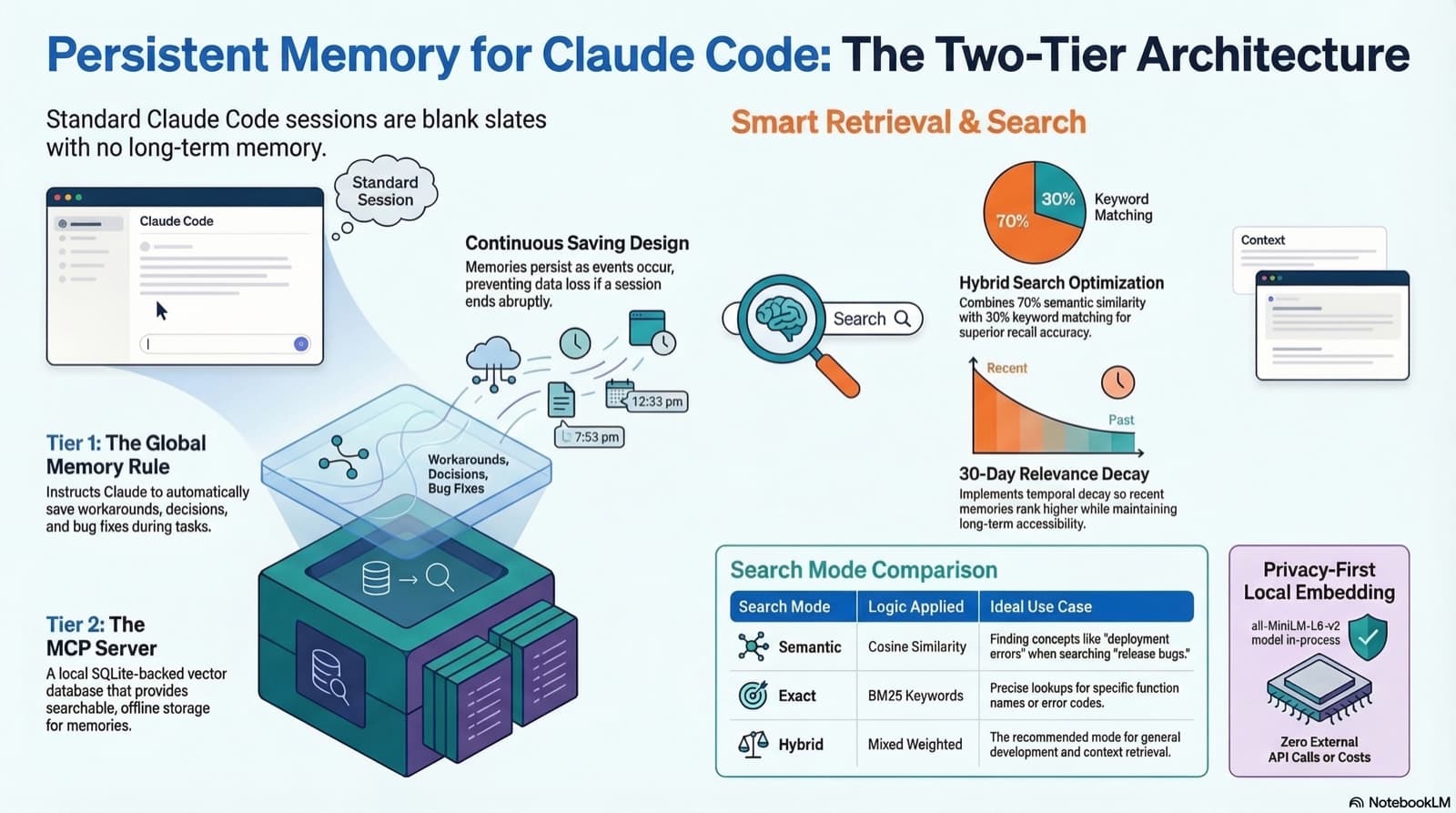
How to give Claude Code real persistent memory using a global rule file and a vector database MCP server, so context survives across sessions without any manual effort.
Comments
Subscribers only — enter your subscriber email to comment