
MCP Servers: The Missing Piece in Your Claude Code Setup
A practical walkthrough of the 5 Node.js MCP servers I run with Claude Code: sequential-thinking, memory, context7, github, and project-tools. What they do, how to configure them on Windows, and what I learned testing each one.
Claude Code ships with powerful built-in tools: file reading, bash execution, web search. For most tasks, that's enough. But somewhere around week two of daily use, you start noticing the gaps. You want Claude to reason through a complex problem step by step without losing the thread. You want it to remember entities across sessions. You want it to look up current library docs instead of hallucinating from training data. You want direct GitHub API access without copy-pasting URLs.
That's where MCP servers come in.
MCP (Model Context Protocol) lets you extend Claude Code with custom tools that run as local processes. Configure a server once, and Claude gets access to new capabilities that persist across every session. Think of it as installing plugins, except the plugins are Node.js processes that expose tools Claude can call just like any other tool.
I've been running 5 MCP servers in my setup for the past few weeks. Today I sat down and properly tested each one. Here's what they actually do, how to set them up (including the Windows-specific gotchas), and what I learned along the way.
What Is MCP?
The Model Context Protocol is an open standard that lets AI assistants connect to external tools and data sources. An MCP server is a process that exposes a set of tools over a standard interface. Claude Code acts as the client, discovering and calling those tools as part of its normal workflow.
The Five Servers#
Here's a quick overview before we dig in:
| Server | Package | What It Does |
|---|---|---|
| sequential-thinking | @modelcontextprotocol/server-sequential-thinking | Structured chain-of-thought reasoning |
| memory | @modelcontextprotocol/server-memory | Persistent knowledge graph across sessions |
| context7 | @context7/mcp-server | Live documentation lookup for any library |
| github | @modelcontextprotocol/server-github | Full GitHub API access |
| project-tools | custom Node.js | Cached project metadata across repos |
Configuration: Where It Lives#
All MCP servers are configured in ~/.claude.json under the mcpServers key. This is your global Claude Code config, separate from any project-level settings. Here's the relevant section of mine:
{
  "mcpServers": {
    "sequential-thinking": {
      "command": "cmd",
      "args": ["/c", "npx", "-y", "@modelcontextprotocol/server-sequential-thinking"]
    },
    "memory": {
      "command": "cmd",
      "args": ["/c", "npx", "-y", "@modelcontextprotocol/server-memory"]
    },
    "context7": {
      "command": "cmd",
      "args": ["/c", "npx", "-y", "@context7/mcp-server"]
    },
    "github": {
      "command": "cmd",
      "args": ["/c", "npx", "-y", "@modelcontextprotocol/server-github"],
      "env": {
        "GITHUB_PERSONAL_ACCESS_TOKEN": "your_token_here"
      }
    },
    "project-tools": {
      "command": "cmd",
      "args": ["/c", "node", "C:/ClaudeProjects/claude-code-config/mcp-servers/project-tools/index.js"],
      "env": {
        "PROJECT_ROOT": "C:/ClaudeProjects",
        "CLAUDE_CONFIG": "C:/ClaudeProjects/claude-code-config"
      }
    }
  }
}
Update, October 2026
I archived my claude-code-config repo on October 26, 2026. It stays public as a read-only snapshot, so links to it still work, but it no longer tracks my live setup, and parts of what it held have changed or been removed since. My vector memory system now carries what a shared config used to.
Windows Requires cmd /c npx
On Windows with Git Bash, bare npx invocations fail silently due to MSYS2 path mangling. The MCP process launcher needs "command": "cmd" with "args": ["/c", "npx", "-y", ...]. This took me an embarrassingly long time to figure out. If your MCP servers appear in the config but don't show up as available tools in a session, this is almost certainly the problem.
The -y flag on npx auto-accepts the install prompt, so the server starts without user interaction. For packages you use constantly, you can pre-install them globally (npm install -g @modelcontextprotocol/server-memory) to skip the install step on each session start.
Server 1: Sequential Thinking#
Package: @modelcontextprotocol/server-sequential-thinking
The sequential-thinking server gives Claude a structured scratchpad for working through complex reasoning chains. Instead of generating a wall of text and hoping the logic holds together, Claude can step through a problem explicitly, one thought at a time, with the ability to revise earlier steps when new information changes the picture.
The core tool is mcp__sequential-thinking__sequentialthinking. Each call takes:
thought: The current reasoning stepthoughtNumber: Position in the chain (1, 2, 3...)totalThoughts: Estimated total steps (adjustable as you go)nextThoughtNeeded: Whether to continueisRevision: Whether this step revises an earlier onerevisesThought: Which step number is being reconsidered
Here's what a 3-step chain looks like in practice:
Thought 1 (of 5): "The user wants to pick between REST and GraphQL for a new API.
I should start by identifying the decision criteria before recommending either."

Thought 2 (of 5): "Key criteria: team familiarity, client diversity, query flexibility needs,
caching requirements. Let me weight each for this use case."

Thought 3 (of 5, revision of 2): "Actually, they mentioned mobile clients specifically.
That changes the caching weight significantly. REST with HTTP caching becomes more attractive."
What's happening: Each thought is its own tool call. The chain builds context incrementally, and the revision mechanism lets Claude correct itself mid-chain rather than starting over.
Why this matters: For complex architectural decisions, debugging sessions, or anything where the reasoning chain matters as much as the conclusion, sequential-thinking makes the logic explicit and auditable. You can see exactly where a conclusion came from. And because revisions are first-class, the chain reflects real reasoning rather than a polished-after-the-fact justification.
When to Lean on This Server
Sequential-thinking shines for multi-constraint problems: picking a technology stack, debugging a race condition, planning a refactor that touches many files. For straightforward tasks, it's overkill. Let Claude decide when to use it rather than prompting for it explicitly.
Server 2: Memory#
Package: @modelcontextprotocol/server-memory
This one is genuinely useful in a way that surprised me. The memory server maintains a persistent knowledge graph across sessions: entities, relations between them, and observations attached to each entity.
The available tools are:
| Tool | What It Does |
|---|---|
create_entities | Add new nodes to the graph |
create_relations | Link entities with typed relationships |
add_observations | Attach facts to existing entities |
read_graph | Dump the entire graph |
search_nodes | Find entities by name, type, or observation content |
open_nodes | Fetch specific entities by name |
delete_entities | Remove nodes and their relations |
delete_observations | Remove specific facts from an entity |
When I tested it today, I called read_graph and got back 5 entities representing my project metadata: the CJClaude_1 project, the claude-code-config repository, the cryptoflexllc site, the project conventions, and a session context entity tracking what I'd been working on.
{
  "entities": [
    {
      "name": "CJClaude_1 Project",
      "entityType": "Project",
      "observations": [
        "Learning project for Claude Code exploration",
        "Located at C:/ClaudeProjects/CJClaude_1",
        "Uses PowerShell hooks for session archiving and activity logging"
      ]
    },
    {
      "name": "claude-code-config",
      "entityType": "Repository",
      "observations": [
        "Stores shared configuration: rules, skills, agents, MCP servers",
        "Located at C:/ClaudeProjects/claude-code-config"
      ]
    }
  ]
}
What's happening: The knowledge graph persists in a JSON file managed by the server process. Each session, Claude can read the graph to recall project context, update it with new observations, and build up a structured picture of your work over time.
Why this matters: Claude Code's context window is ephemeral. Every new session starts fresh. Memory bridges that gap. Instead of re-explaining your project structure every session, you encode it once as entities and observations, and Claude can retrieve exactly what it needs with a targeted search_nodes call rather than reading every file from scratch.
Knowledge Graph vs. Plain Text Notes
You could accomplish something similar by maintaining a MEMORY.md file. The graph approach has one advantage: queryability. search_nodes("authentication") returns exactly the entities and observations mentioning auth, without loading everything. For large, long-running projects, that targeted retrieval matters.
The Memory File Lives in Your Home Directory
The memory server stores its graph at ~/.claude-memory/memory.json (or similar, depending on version). This file may contain sensitive project context you've added over time. It's not transmitted anywhere except to your local Claude session, but be aware it exists and back it up if you're building up important project context.
Server 3: Context7#
Package: @context7/mcp-server
Context7 is the one I reach for most often in active development sessions. It provides live documentation lookup for any library or framework, pulling from a curated index of package documentation with code examples.
Two tools:
resolve-library-id: Takes a library name, returns a Context7 library IDquery-docs: Takes a library ID and a question, returns relevant docs and code examples
When I tested it today, I resolved "nodejs" and got back /nodejs/node with a note that it indexes 18,524 code snippets for Node.js. A follow-up query-docs call for "how to create an HTTP server" returned current, accurate code examples with version-appropriate syntax.
Library: /nodejs/node
Name: Node.js
Description: Node.js JavaScript runtime
Code Snippets: 18,524
Source Reputation: High
Benchmark Score: 95
What's happening: Context7 maintains a continuously updated index of library documentation. When you call query-docs, it does a semantic search over that index and returns the most relevant snippets. No training cutoff. No hallucinated API methods that were removed in v4.
Why this matters: LLMs have training cutoffs and they hallucinate API details. This is especially painful for rapidly-evolving libraries. If you're building with something that releases frequently (Next.js, shadcn, Prisma, any active npm package), Context7 means Claude is working from current docs rather than month-old training data.
Use resolve-library-id First
Always call resolve-library-id before query-docs. The library ID format is /org/project and must be exact. For example, React is /facebook/react and Next.js is /vercel/next.js. Guessing the ID format and passing it directly to query-docs fails silently.
The quality of results depends heavily on how specific your query is. "How do I use useEffect?" returns generic documentation. "How do I clean up a WebSocket connection in useEffect?" returns exactly the cleanup pattern you need. Treat it like a search engine: specificity wins.
Server 4: GitHub#
Package: @modelcontextprotocol/server-github
The GitHub MCP server wraps the GitHub REST API into tools Claude can call directly. No more "here's the repo URL, go look at it." Claude can search code, read files, list issues, create PRs, and inspect pull request diffs without ever leaving the conversation.
The tool surface is substantial:
| Category | Key Tools |
|---|---|
| Repos | search_repositories, create_repository, get_file_contents |
| Issues | create_issue, list_issues, update_issue, add_issue_comment |
| Pull Requests | create_pull_request, get_pull_request, list_pull_requests, merge_pull_request |
| Code | search_code, push_files, create_or_update_file |
| Branches | create_branch, update_pull_request_branch |
I tested it with a search_repositories call for "claude-code" and got back 493 results with full metadata. The tool made a real API call, returned structured data, and Claude could reason over the results immediately.
The configuration requires a GitHub Personal Access Token:
"github": {
  "command": "cmd",
  "args": ["/c", "npx", "-y", "@modelcontextprotocol/server-github"],
  "env": {
    "GITHUB_PERSONAL_ACCESS_TOKEN": "ghp_yourtoken"
  }
}
What's happening: The server authenticates with GitHub's API using your token and translates tool calls into REST API requests. Results come back as structured JSON that Claude can analyze, filter, and act on within the same conversation turn.
Why this matters: The friction of context-switching is real. Opening a browser, navigating to GitHub, copying a PR diff, pasting it into the conversation... that workflow interrupts flow and bloats your context with unformatted text. The GitHub MCP server keeps everything in the conversation. You can ask "what are the open PRs with failing checks in my cryptoflexllc repo?" and get an actionable answer without leaving Claude Code.
Token Scopes
Your GitHub PAT only needs the scopes you actually use. For reading repos and creating PRs: repo, read:user. For code search across organizations: add read:org. Avoid generating an all-permissions token for an MCP server. Principle of least privilege applies here exactly as it does everywhere else.
Server 5: Project-Tools (Custom)#
This one I built myself during the context optimization work covered in post 5 of this series. It's a custom Node.js MCP server that exposes cached project metadata so Claude doesn't have to re-derive it from scratch each session.
The server lives at C:\ClaudeProjects\claude-code-config\mcp-servers\project-tools\index.js and exposes 5 tools:
| Tool | What It Returns |
|---|---|
repo_status | Git status for all 4 repos (branch, modified files, ahead/behind, recent commits) |
blog_posts | Blog post inventory with frontmatter metadata (title, date, tags, word count) |
style_guide | Cached blog style guide and MDX component reference |
validate_blog_post | Style rule validation for a given .mdx file path |
session_artifacts | Count and summary of session transcripts, todos, activity log |
The key design choice is a 60-second cache. Blog posts don't change mid-session. Git status rarely changes in under a minute. Loading fresh data on every call is wasteful. The cache means the first call does real I/O, subsequent calls within the window return instantly.
When I tested repo_status today, it returned git status for all 4 repos in one call: current branch, list of modified files, commits ahead/behind remote, and the 3 most recent commits with hashes and messages. That's data that previously required 4 separate bash calls.
{
  "repos": [
    {
      "name": "CJClaude_1",
      "branch": "main",
      "modifiedFiles": ["CHANGELOG.md"],
      "recentCommits": [
        "9e0cc97 chore: migrate all paths from OneDrive to C:\\ClaudeProjects",
        "531967a chore: add original Bang Bang game assets and update settings",
        "1ac6fda chore: add original Second Conflict game files and update settings"
      ]
    }
  ]
}
What's happening: The server reads from the filesystem on first call, caches the result in memory, and returns cached data on subsequent calls within the TTL window. Because it's a persistent process (not spawned per-call like a bash script), the cache survives between tool invocations within the same session.
Why this matters: This is the custom MCP pattern that pays for itself. You build a server once that knows your specific project structure, and every session starts with instant access to that context. The blog_posts tool alone replaced a pattern where Claude would search the filesystem, read each frontmatter block, and reconstruct the post inventory from scratch every time I started a blog writing session.
The Custom Server Pattern
If you find yourself running the same bash commands at the start of every session, that's a candidate for a custom MCP tool. The bar is lower than it sounds: a Node.js MCP server is maybe 150 lines of boilerplate plus your actual logic. The @modelcontextprotocol/sdk package handles all the protocol plumbing.
Testing Methodology#
I didn't just assume the servers were working because they appeared in the config. Here's the test I ran for each one:
- Start a fresh session (ensures the server process launches cleanly)
- Make a real tool call (not a dry-run, an actual invocation that touches external state or returns real data)
- Verify the output is what the server should return (not a cached or hallucinated response)
- Try an edge case (missing parameter, empty result set, network failure if applicable)
For sequential-thinking: completed a 3-step thought chain, verified the revision mechanism updated earlier context correctly.
For memory: called read_graph, verified the 5 entities matched what I'd populated in previous sessions, then added an observation and confirmed it persisted.
For context7: resolved two libraries (Node.js and React), queried docs for a specific API pattern, verified the returned code examples matched current documentation.
For github: searched repositories, listed issues on my private repo, fetched file contents from a known path. All three returned accurate data.
For project-tools: called repo_status with no filter (all repos), verified the git data matched what git status returned directly, then called again within 60 seconds to confirm the cache hit returned identical data without I/O.
Why Test What You've Already Configured?
MCP servers are processes. Processes fail: wrong Node version, missing package, changed file path, environment variable not inherited. Configuration is just the intent. Testing confirms the actual behavior. I've had servers that appeared healthy in claude mcp list but silently returned errors on every tool call because a dependency had shifted.
What I Learned: The Practical Gotchas#
Context window budget is real. Each MCP server you enable adds startup overhead and tool definitions to your context. I keep a limit of 10 active servers. Beyond that, you're burning context on tool listings that you'll rarely use. Be selective.
Background agents cannot access MCP tools. If you're using Claude Code's Task tool to spawn subagents, those subagents run without MCP access. The tools are only available in the main session. This is a current limitation of Claude Code's architecture, not a configuration issue. Design your agent workflows accordingly: do MCP calls in the orchestrator session, pass results to subagents as text.
npx -y starts fresh servers on every session. The -y flag skips the confirmation prompt, but npx still downloads the package if it's not cached locally. First session of the day can be slow while packages download. Pre-install the packages you use constantly to avoid this.
Environment variables in ~/.claude.json are process-level. The env block in your server config sets environment variables for the server process only, not for Claude Code or your terminal. Your GitHub token in the MCP config does not leak into your shell sessions.
Test with real calls, not just claude mcp list. The list command shows configured servers, not working servers. A server can be listed and completely broken. The only way to know a tool works is to call it.
Custom Servers and Node Version Compatibility
If you're running a custom MCP server, pin the Node version requirement in your package.json and test it on the Node version actually installed on your machine. I had a custom server that worked in development but failed in Claude Code's process context because of a subtle difference in how ES module resolution worked across Node versions.
Putting It Together#
Here's how these five servers interact in a real session flow:
Starting a blog writing session:
- Call
project-tools/blog_poststo see what's published and what's in the backlog - Call
project-tools/style_guideto load the current style rules into context - Call
context7/resolve-library-id+query-docsif the post covers a specific library
Debugging a GitHub Actions failure:
- Call
github/list_pull_requeststo find the failing PR - Call
github/get_pull_request_filesto see what changed - Use
sequential-thinkingto reason through the failure systematically - Call
github/create_pull_request_reviewonce the fix is ready
Starting any session:
- Call
project-tools/repo_statusto see all 4 repos at a glance - Call
memory/search_nodeswith a relevant term to pull in prior context - Proceed with work, updating
memorywith new observations worth keeping
The pattern is: reach for cached/fast sources first (project-tools, memory), then external APIs (github, context7), then structured reasoning (sequential-thinking) when the problem warrants it.
Lessons Learned#
-
Configure once, benefit every session. The upfront cost of setting up an MCP server is real. The per-session benefit compounds. Five minutes of configuration for a tool you use daily is a good trade.
-
Build custom servers for project-specific patterns. The generic servers cover the common cases. Your project has specific patterns (your repo structure, your blog conventions, your team workflows) that no generic server knows. That's where custom servers earn their keep.
-
The Windows
cmd /c npxpattern is non-negotiable. Document this for yourself now. Every time you add a new MCP server on Windows and it doesn't work, check this first. -
Keep your MCP footprint lean. Ten servers max. Add a server when you have a clear use case, not because the package exists. Dead servers waste context budget and slow startup.
-
Memory is a habit, not a feature. The memory server is only as useful as the entities you've put in it. Invest 30 seconds at the end of each session to add meaningful observations and the graph becomes genuinely useful. Skip that habit and it stays empty.
-
Test every server, every time you change the config. Not
claude mcp list. Actual tool calls. Config changes break things in non-obvious ways.
The MCP ecosystem is still young. The servers I've described here represent maybe 10% of what's available and growing. But these five cover the high-value use cases for a development workflow: reasoning, memory, documentation, source control, and project context. Start here, build from there.
Weekly Digest
Get a weekly email with what I learned, summaries of new posts, and direct links. No spam, unsubscribe anytime.

Related Posts
How I replaced three separate Google Workspace MCP integrations with a single gws CLI skill, why CLI beats MCP for large API surfaces, and the four-tier safety system that keeps destructive operations from running without confirmation.
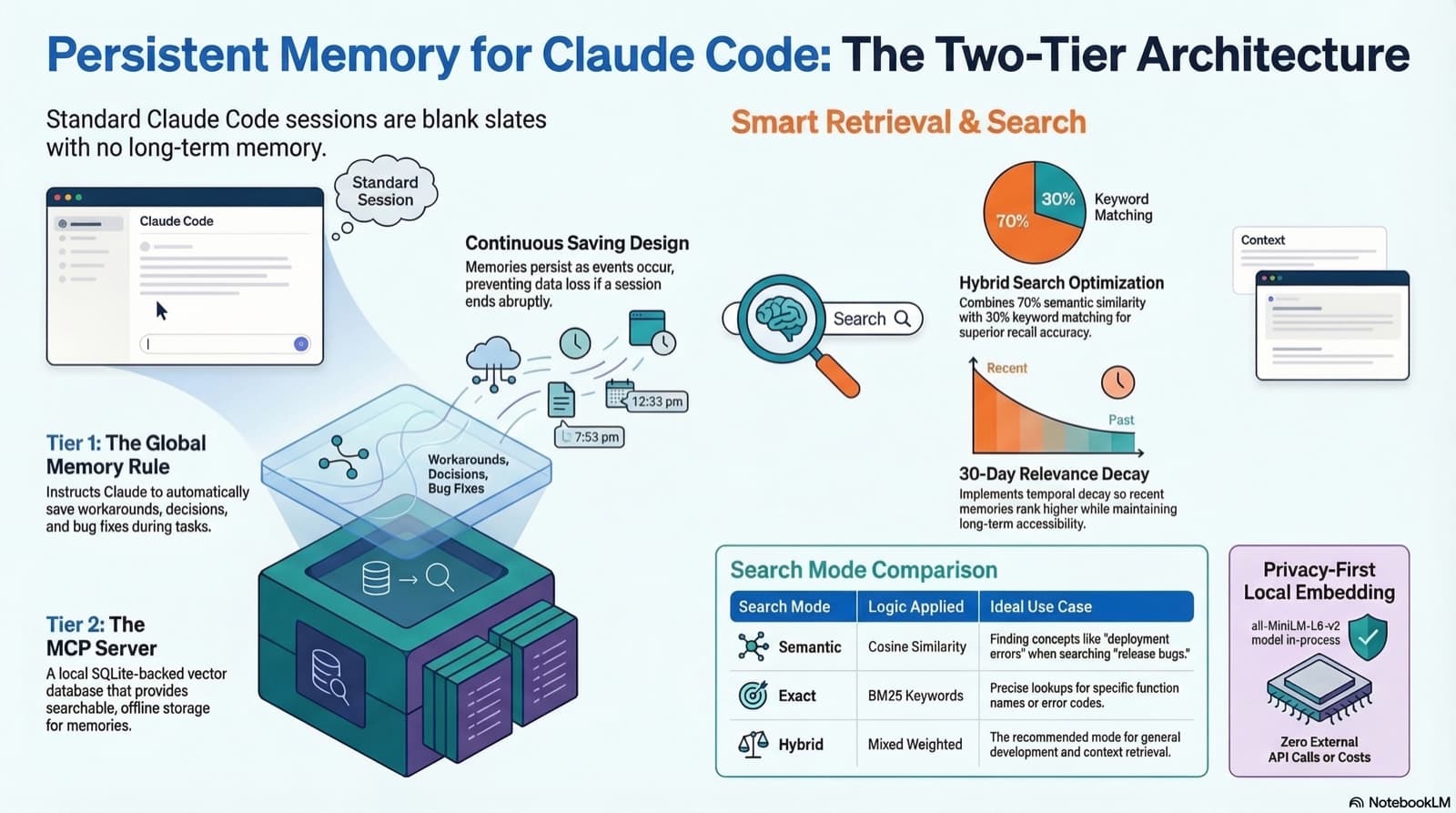
How to give Claude Code real persistent memory using a global rule file and a vector database MCP server, so context survives across sessions without any manual effort.
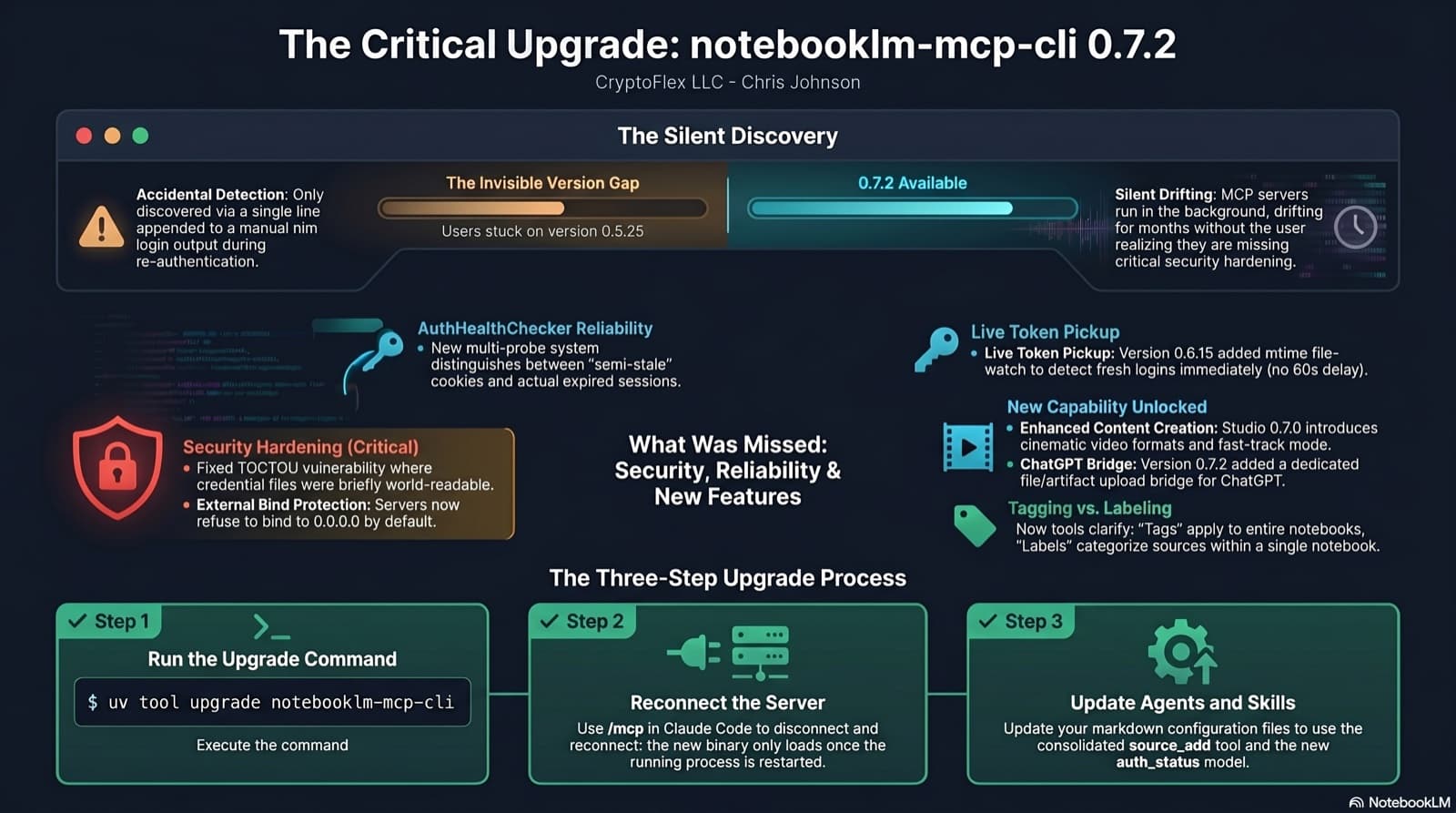
I was two minor versions behind on notebooklm-mcp-cli and had no idea until a re-auth banner interrupted a session. The gap was 0.5.25 to 0.7.2. Security fixes, auth reliability improvements, and new features I was missing the whole time. Here is the three-part upgrade that most people stop after step one.
Comments
Subscribers only — enter your subscriber email to comment