
Automating Session Wrap-Up: Building a Custom Claude Code Command
How I built a 12-step /wrap-up slash command that automates end-of-session documentation across multiple repos - pulling latest, extracting learned skills, cleaning global state, updating changelogs, committing in Hulk Hogan's voice, and pushing. A step-by-step breakdown of every function and why it exists.
Every session with Claude Code ends the same way. You've written code, fixed bugs, learned something new, and now you need to document it all. Update the changelog. Write the README narrative. Extract learned patterns. Clean up the config files that accumulated one-off permissions. Clean out stale transcripts. Commit across multiple repos. Push everything to GitHub.
It takes 10-15 minutes. It's not hard. And that's exactly why it's dangerous - it's easy enough to do, but tedious enough to skip. And when you skip it, you lose the context. Next session, you're staring at git log trying to remember what you did and why.
So I did what any reasonable person would do: I made Claude Code do it for me.
What We're Building#
A slash command called /wrap-up that you type at the end of any session. It handles everything:
- Pulls latest from all repos and surveys for uncommitted changes
- Reviews what happened in the session
- Updates your changelog with a properly formatted entry
- Adds to your README narrative (if the session was significant)
- Updates your persistent memory file
- Extracts reusable patterns as learned skills
- Cleans up stale transcripts and todo files
- Cleans up accumulated permission bloat in your settings
- Stages changes in any affected repos
- Commits everything with detailed messages (in Hulk Hogan's voice)
- Pushes to GitHub (after asking you first)
- Shows you a final summary table
One command. Zero things forgotten.
The Raw Command File#
Before I break this down, here's the complete command file. This lives at ~/.claude/commands/wrap-up.md - user-level, so it works from any project.
---
description: "End-of-session wrap-up: update docs, clean up, commit and push all repos"
---

# /wrap-up - End of Session Documentation & Cleanup

You are an end-of-session wrap-up agent. Your job is to document
everything that was done in this session, clean up accumulated
artifacts, and push all changes to GitHub.

## Repository Locations

| Repo | Local Path | Remote | Purpose |
|------|-----------|--------|---------|
| CJClaude_1 | D:\...\CJClaude_1 | chris2ao/CJClaude_1 (public) | Learning journal |
| cryptoflexllc | D:\...\cryptoflexllc | chris2ao/cryptoflexllc (public) | Website |
| (ops repo) | D:\...\(redacted) | (private) | Ops docs |
| (config repo) | ~/.claude | (private) | Config |

## Execution Steps

Run these in order. Do NOT skip steps. Ask the user before pushing.

### Step 1: Pull Latest and Survey All Repos
### Step 2: Review Session Context
### Step 3: Update CHANGELOG.md
### Step 4: Update README.md
### Step 5: Update MEMORY.md
### Step 6: Extract Learned Skills
### Step 7: Clean Up Global State
### Step 8: Clean Up settings.local.json
### Step 9: Update Other Repos
### Step 10: Commit All Changes
### Step 11: Push to GitHub
### Step 12: Final Report
(I've shortened the repo paths and step details for readability - the real file has full absolute paths and detailed instructions under each step.)
That's the skeleton. Now let's walk through each piece and understand what's actually happening under the hood.
How Custom Commands Work in Claude Code#
Before diving into the steps, let's understand the mechanism. Claude Code supports custom slash commands - markdown files that act as instructions Claude follows when you invoke them.
There are two places to put them:
~/.claude/commands/- user-level, works in every project.claude/commands/- project-level, only works in that repo
Each file needs YAML frontmatter with at least a description field:
---
description: "What this command does"
---

# Instructions for Claude go here
When you type /wrap-up in a session, Claude reads this file and follows the instructions. It has access to the full conversation history, all its normal tools (Read, Write, Edit, Bash, Grep, Glob), and the context from your CLAUDE.md and rules files.
That's it. No SDK, no API, no build step. Just a markdown file with clear instructions.
Why This Matters
This is one of Claude Code's most underappreciated features. You're essentially writing a system prompt for a specific task. The more precise your instructions, the more reliable the output. Think of it like writing a runbook that an extremely capable junior developer will follow to the letter.
The key insight: you're not writing code, you're writing instructions for an agent. The quality of the output depends entirely on the quality of your instructions.
Step-by-Step Breakdown#
Step 1: Pull Latest and Survey All Repos#
First, run `git pull` on ALL four repos in parallel to ensure local
copies are in sync with GitHub. Then run `git status` and
`git diff --stat` on all four repos. Identify which repos have
changes (staged, unstaged, or untracked files). Report findings
to the user before proceeding.

If a pull fails due to conflicts, STOP and alert the user.
Do not attempt to auto-resolve merge conflicts.
What's happening: Claude uses the Bash tool to first git pull all four repos in parallel, then runs git status and git diff --stat across all four repository paths. The word "in parallel" is important - Claude Code can execute multiple independent tool calls simultaneously. Eight commands (four pulls + four statuses) that would run sequentially in ~8 seconds finish in ~2 seconds when parallelized.
Why this matters: You need the full picture before making changes. Maybe someone pushed to a repo since your last pull. Maybe you forgot to commit something from an earlier session. Maybe there are staged changes you didn't mean to include. The pull ensures you're not working on stale state, and the survey surfaces everything before any automated changes happen.
Why the Conflict Check
Auto-resolving merge conflicts is a recipe for lost work. If a pull fails, the command stops entirely and lets you handle it manually. This was added after a session where I realized the original version didn't pull at all - it just surveyed. That meant if you'd been working across multiple sessions without pulling, you could end up pushing without the latest remote changes.
Claude Code feature used: The Bash tool with parallel execution. Claude can dispatch multiple independent Bash commands in a single turn, and they execute concurrently.
Step 2: Review Session Context#
Analyze the conversation history to identify:
- What tasks were completed
- What was learned (new patterns, gotchas, fixes)
- What failed and why
- Any new learned skills extracted
- Any config changes made
- Any security-relevant actions taken

Compile a concise summary of the session.
What's happening: Claude reviews the entire conversation from the current session. It has full access to every message, tool call, and result from the session. This is just analysis - no tools are called.
Full Session Context
This is the step that makes automated documentation possible. Claude doesn't just know what files changed (that's what git diff is for). It knows why they changed, what was tried first, what failed, and what the reasoning was. That context is gold for a changelog entry but would take you 10 minutes to write manually.
Slash commands execute within the current session, so they inherit the full conversation history. This is fundamentally different from a hook (which only gets a JSON payload about a specific event) or a standalone script (which has no session context at all).
Step 3: Update CHANGELOG.md#
Add a new dated entry at the TOP of the changelog (below the header).
Follow the existing format exactly:

## YYYY-MM-DD - [Brief descriptive title]

### What changed
- **Action verb** description of what was done

### What was learned
1. Numbered list of key takeaways

Rules:
- Use bold action verbs: **Fixed**, **Added**, **Removed**...
- Include technical details (file paths, error messages, commands)
- Document failures and dead ends, not just successes
- If security actions were taken, add a ### Security note subsection
What's happening: Claude uses the Read tool to read the current CHANGELOG.md, then the Edit tool to insert a new entry at the top. The format template and rules ensure consistency across sessions - every entry looks the same whether it was written at 9 AM or midnight.
Why this matters: The instructions are specific about how to write the entry: bold action verbs, technical details, documenting failures. Without these instructions, you'd get generic entries like "Updated some files." With them, you get entries like:
- **Validated** both active tokens: gh CLI (OS keyring) authenticated
  as yourusername, MCP GitHub server PAT (gho_* OAuth, 40 chars) API
  check OK, 4,888/5,000 remaining
Document Failures
The "document failures" rule is especially important. Most changelogs only record successes. But the failed approaches are where the real learning happens. If you tried three things and only the third one worked, all three should be documented - future you will thank present you.
Claude Code features used: Read tool and Edit tool. The Edit tool does exact string replacement, which is safer than rewriting the entire file. It finds a specific string in the file and replaces it, preserving everything else.
Step 4: Update README.md#
If the session involved significant new work (not just minor fixes),
add a new Phase entry to the narrative. Follow the existing style:
- Brief paragraph describing what happened and why
- Mention key technical details
- Note any architectural decisions or direction changes

If the session was minor, skip this step and note that no README
update was needed.
What's happening: Claude makes a judgment call. Not every session deserves a new Phase in the README narrative. A quick bug fix? Skip it. Building a new feature, running a security audit, creating a new command? That gets a Phase entry.
Give Decision-Making Criteria
This is a good example of giving Claude decision-making authority within bounds. The instruction doesn't say "always update" or "never update" - it says "if significant." Claude has the full session context to make that call.
If you find Claude's judgment about "significant" doesn't match yours, make the criteria more explicit. Instead of "significant new work," you could say "any session that created new files, modified architecture, or extracted learned skills."
Step 5: Update MEMORY.md#
Update MEMORY.md if:
- New learned skills were extracted
- New key learnings were discovered
- Project architecture changed
- New repos were created
- Blog posts were added

Keep MEMORY.md under 200 lines. Be concise.
What's happening: Claude Code has a persistent auto-memory system. Each project gets a MEMORY.md file that's automatically loaded into the system prompt at the start of every session. This is how Claude "remembers" things across sessions - it reads this file every time.
Cross-Session Context
MEMORY.md is your cross-session context. If you extracted a new learned skill today, future sessions need to know about it. If you created a new repo, it should be in the inventory. The 200-line limit forces conciseness - this file is loaded into every session's context window, so bloat costs you real capability.
This is different from the MCP memory server (which stores structured entities/relations). MEMORY.md is a flat markdown file injected into the system prompt. Simple but effective.
Step 6: Extract Learned Skills#
Analyze the session for reusable patterns worth saving as learned
skills. Look for:

- Error resolutions: non-obvious fixes, silent failures, misleading
  error messages
- Debugging techniques: tool combinations, diagnostic patterns that
  worked
- Workarounds: platform quirks, library gotchas, version-specific
  fixes
- Integration patterns: how tools/systems interact in unexpected ways

Process:
1. Review the session for non-trivial problems that were solved
2. Skip trivial fixes (typos, simple syntax) and one-time issues
3. For each extractable pattern, create a skill file at
   ~/.claude/skills/learned/[pattern-name].md
4. Ask the user to confirm before saving each skill
5. If new skills were extracted, update the skills count in MEMORY.md
What's happening: This is the step that makes Claude Code get smarter over time. After every session, the wrap-up agent reviews what happened and looks for patterns worth preserving. Not every session produces a new skill - sometimes it's just routine work. But when you solve a tricky problem, the pattern gets extracted and saved.
Why this was added: Originally, skill extraction was a separate step you had to remember to do. I'd run the everything-claude-code plugin's /learn command sometimes, but often forgot. By building it into the wrap-up flow, it happens automatically. Every session gets reviewed for extractable patterns as part of the standard cleanup.
What makes a good skill: The instructions are specific about what qualifies. A typo fix? Not a skill. Discovering that PowerShell's $input variable silently returns nothing when invoked via -File parameter? That's a skill - it's non-obvious, platform-specific, has no error message, and will waste hours if you hit it again.
The Confirmation Step
The confirmation step is important. Claude proposes each skill and waits for approval before saving. This prevents low-quality or duplicate skills from accumulating. You're the quality gate.
Real example: During one session, I discovered that HEREDOC commit message bodies with parentheses get captured as garbage permission entries in settings.local.json. That became skill #11, a pattern I never would have documented manually but that saves time every time it's encountered.
Claude Code features used: Read tool to analyze session context, Write tool to create new skill files, and Edit tool to update MEMORY.md with the new skill count. The skill file format is standardized:
# Descriptive Pattern Name

**Extracted:** 2026-02-08
**Context:** Brief description of when this applies

## Problem
What went wrong and why it's non-obvious

## Solution
The fix or workaround

## When to Use
Trigger conditions: how to recognize this situation
Step 7: Clean Up Global State#
Clean accumulated Claude Code data that causes bloat and can trigger
interactive mode freezes:

1. ~/.claude/projects/ transcripts: For each project directory under
   ~/.claude/projects/, delete all .jsonl transcript files and session
   subdirectories (UUIDs), keeping ONLY the memory/ directory and
   its contents.

2. ~/.claude/todos/ stale files: Delete all *.json files in
   ~/.claude/todos/.

Report what was cleaned (file counts and space freed).
Why This Cleanup Exists
This step exists because of a specific debugging session where Claude Code's interactive mode froze completely - it would launch but wouldn't accept keyboard input, not even Ctrl+C. The root cause turned out to be stale global state that had accumulated over many sessions. After cleaning ~/.claude/projects/ and removing stale entries from ~/.claude.json, the freeze resolved.
The key insight: this cleanup needs to happen regularly, not just when things break. Building it into the wrap-up flow means the state never accumulates to problematic levels.
What's happening: Claude Code stores full conversation transcripts as .jsonl files under ~/.claude/projects/. After a few days of intensive use, this directory balloons - I had 47 transcripts totaling 34MB after just two days. Stale todo files accumulate too (67 JSON files in ~/.claude/todos/). This step cleans both.
What gets preserved: The memory/ directory under each project is preserved - that's where MEMORY.md lives, and losing it would mean losing cross-session context. Everything else (transcripts, session subdirectories) is expendable.
Claude Code features used: Bash tool with rm commands. The instructions are explicit about what to keep vs. delete - the memory directory is sacrosanct, everything else can go.
Step 8: Clean Up settings.local.json#
Read .claude/settings.local.json and remove accumulated one-off
permission entries. Keep:
- General wildcard permissions (Bash(git:*), Bash(npm:*), etc.)
- WebSearch and WebFetch domain permissions
- MCP tool permissions
- Hook configurations (never modify hooks)

Remove:
- Very specific one-off Bash commands
- Redundant entries already covered by wildcards
- Session-specific file paths in permission entries
What's happening: This is housekeeping that most people never think about. Every time Claude runs a command and you approve it, that specific command string gets added to settings.local.json as an allowed permission. Over a long session, this list balloons with hyper-specific entries like:
"Bash(powershell.exe -NoProfile -ExecutionPolicy Bypass -File \"D:\\Users\\specific\\path\\temp-script.ps1\")"
That entry will never match again. It's dead weight. Meanwhile, a general Bash(powershell.exe:*) already covers all PowerShell execution.
Why this matters: Permission bloat slows down Claude Code's permission matching and clutters your config. It's like never clearing your browser history - technically it still works, but it accumulates cruft. This step is the equivalent of a settings.local.json garbage collector.
The HEREDOC Permission Bug
This step also catches a sneaky bug I discovered - HEREDOC commit message bodies with parentheses get captured as garbage permission entries by the auto-approve system. So a commit message containing "(like this)" would end up as a permission entry. The cleanup step catches and removes these automatically. (This became learned skill #11.)
Claude Code features used: Read tool and Edit tool to surgically remove redundant entries. The instructions are specific about what to keep vs. remove, so Claude doesn't accidentally delete your hook configuration.
Step 9: Update Other Repos#
For each repo with changes:
- cryptoflexllc: If site changes were made, ensure build passes
- (ops repo): If deployment or operational changes were documented
- (config repo): If new skills were extracted or rules modified
What's happening: This is conditional logic. Not every session touches every repo. The command checks which repos have changes (from Step 1) and only acts on those that need attention. For the website repo, it even verifies the build passes before committing - you don't want to push broken code just because it's end-of-session.
Claude Code feature used: The Bash tool for build verification (npx next build) and git operations. Claude tracks the state from Step 1 and only processes repos that had changes.
Step 10: Commit All Changes#
For each repo with changes, create commits following conventional
commit format: docs:, fix:, feat:, chore:

CRITICAL: Commit message body must be written in the persona of
Hulk Hogan. The subject line stays professional, but the body
should be a detailed explanation written as if Hulk Hogan himself
is explaining what went down.
What's happening: Commits use conventional commit format for the subject line (docs:, feat:, fix:, etc.), which is machine-parseable and widely adopted. The body contains the detailed technical explanation.
And yes, the body is written in the voice of Hulk Hogan. Because if you're going to read commit history, it should at least make you smile. Here's a real example:
docs: Final session wrap-up - git pull safety, Sonnet routing, command discovery

Well let me tell you something, brother! The Hulkster just ran wild on
this session and here's what went down. First we leg-dropped the wrap-up
command into shape by adding git pull to Step 1 - because running wild
without pulling latest is like entering the ring without stretching,
brother! Then we body-slammed the Sonnet routing confusion...
Persona as a Pattern
Beyond the entertainment value, there's a real lesson here. Claude Code will follow whatever persona or style instructions you give it. This isn't just a gimmick - the same technique works for matching your team's commit message style, writing in a specific technical voice, or following corporate documentation standards. The persona is the proof of concept; the pattern is universally useful.
The HEREDOC format is specified explicitly because multi-line strings in bash are finicky:
git commit -m "$(cat <<'EOF'
docs: Brief description

Let me tell you something, brother! The Hulkster just ran wild on
this codebase and here's what went down...
EOF
)"
Claude Code features used: Bash tool for git add and git commit. The single-quoted 'EOF' is important - it prevents shell expansion of special characters in the commit message body.
Step 11: Push to GitHub#
Ask the user for confirmation before pushing. Show them:
- Which repos have commits ready to push
- A one-line summary of each commit

Then push all repos.
The Safety Valve
Everything up to this point is local - you can review, amend, or undo it. Pushing is irreversible (for public repos especially). So the command explicitly pauses and asks for confirmation. This follows Claude Code's own design philosophy - it always asks before taking actions that affect shared state.
What's happening: The command shows you exactly what's about to be pushed so you can catch anything unexpected.
Windows PATH Note
On Windows with Git Bash, the GitHub CLI isn't in PATH by default. The command includes a workaround:
export PATH="$PATH:/c/Program Files/GitHub CLI" && git push
This kind of platform-specific detail is exactly what makes custom commands valuable - you encode the workaround once and never think about it again.
Step 12: Final Report#
Present a summary table:

| Repo | Action | Commit | Status |
|------|--------|--------|--------|
| CJClaude_1 | Updated CHANGELOG, README | abc1234 | Pushed |
| (config repo) | Added skill #11 | def5678 | Pushed |
| cryptoflexllc | No changes | - | Clean |
| (ops repo) | No changes | - | Clean |
What's happening: A clean summary so you know exactly what happened. Short hash for each commit (clickable if you're in a terminal that supports it), clear status for each repo.
Why a table: Tables are scannable. After a 2-hour session, you don't want to read paragraphs - you want to glance and confirm. The table format makes it obvious at a glance which repos were touched, what was committed, and whether the push succeeded.
The Safety Rails#
The command includes an "Important Notes" section that acts as a set of guardrails:
- Never commit secrets. If you find tokens, keys, or passwords
  in staged files, STOP and alert the user.
- Never force push. Always use regular git push.
- PowerShell from Git Bash: Write temp .ps1 files instead of
  inline commands. Git Bash strips $ from PowerShell variables.
- Read before editing. Always read files before modifying them.
- Preserve history. Never delete changelog entries or README phases.
These aren't just nice-to-haves. Each one comes from a real mistake:
The Secrets Rule
This rule exists because I once had a GitHub PAT show up in a config file that was about to be committed to a public repo. Claude caught it because the rule told it to look. Without the explicit instruction, it might have committed the file without checking.
The Force Push Rule
Force pushing to a public repo's main branch can overwrite other people's work. This rule is non-negotiable. Regular git push will fail safely if there are upstream changes - that's by design.
The PowerShell Rule
I wasted 20 minutes debugging why $env:USERPROFILE was empty in a PowerShell command - turns out Git Bash was eating the $ before PowerShell ever saw it. The workaround: write a temp .ps1 file and execute it, instead of using inline PowerShell commands from bash. (This is now learned skill #8.)
Read Before Editing
Claude's Edit tool does exact string matching. If you try to edit a file you haven't read, you're guessing at the content and the edit will fail. This rule prevents wasted tool calls and ensures edits always target the right content.
Preserve History
The whole point of a changelog is history. Deleting old entries defeats the purpose. This rule is simple but essential - the wrap-up agent should always append, never delete.
How It Evolved#
The /wrap-up command didn't start as a 12-step process. It evolved through real use:
Version 1 (10 steps): The original command covered the basics - survey repos, update docs, clean settings, commit, push, report. It worked but had gaps.
Adding git pull (Step 1): After a session where I realized I'd been working on stale state because I hadn't pulled before making changes, I added git pull as the first action. The conflict check was added at the same time - if a pull fails, everything stops.
Adding Extract Learned Skills (Step 6): I kept forgetting to run /learn at the end of sessions. The patterns I'd solved would be lost because I'd skip the extraction step when I was tired. Building it into the wrap-up flow means it happens automatically - every session gets reviewed for extractable patterns.
The Freeze That Added Step 7
Step 7 (Clean Up Global State) was born from a crisis. Claude Code's interactive mode froze completely - it launched but wouldn't accept keyboard input. The root cause was 47 transcript files (34MB) accumulated over two days, plus 67 stale todo JSON files. After adding this cleanup step, the problem never recurred. Prevention beats debugging.
Current version (12 steps): Pull + survey, review, changelog, readme, memory, skill extraction, global cleanup, settings cleanup, other repos, commit, push, report. Each step exists because something went wrong without it.
Why You Should Build Your Own#
You probably don't have four repos to synchronize, don't write changelogs in a specific format, and definitely don't need Hulk Hogan commit messages. That's not the point.
The point is: you have repetitive end-of-session tasks that you sometimes skip. Maybe it's running tests before committing. Maybe it's updating a JIRA ticket. Maybe it's writing a standup summary. Maybe it's just making sure you didn't leave console.log statements in the code.
Whatever your version of "wrap-up" is, you can encode it as a slash command. Here's the template:
---
description: "What this command does in one line"
---

# /your-command - Title

You are a [role description]. Your job is to [primary objective].

## Context
[Any paths, URLs, conventions, or constraints Claude needs to know]

## Steps
[Numbered, ordered steps with specific instructions for each]

## Important Notes
[Safety rails, edge cases, things to never do]
The key principles:
1. Be Specific
"Update the changelog" is vague. "Add a new dated entry at the TOP, using bold action verbs and including technical details" is actionable. The more precise your instructions, the more consistent the output.
2. Include the Format
Show Claude exactly what the output should look like. Templates, examples, and format rules eliminate guesswork. If you want a table, show a table. If you want bullet points with bold verbs, show that format.
3. Add Safety Rails
Think about what could go wrong and add explicit instructions to prevent it. "Never force push" costs one line and prevents real damage. "Never commit secrets" costs one line and prevents a breach.
4. Give Decision-Making Criteria
"Update the README if significant" is good, but "Update the README if new files were created, architecture changed, or learned skills were extracted" is better. Explicit criteria produce consistent decisions.
5. Encode Your Gotchas
Every environment has quirks. Git Bash eating PowerShell variables. PATH not being set correctly. Build commands needing specific flags. Put them in the command so Claude handles them automatically.
6. Let It Evolve
Start with the basics and add steps as you discover gaps. Every time something goes wrong that the command should have caught, add a step or a safety rail. The best commands are grown, not designed.
What This Looks Like in Practice#
Here's what happens when I type /wrap-up at the end of a session:
-
Claude pulls all four repos in parallel, then runs
git statuson each. It reports: "All pulls successful. CJClaude_1 has modified CHANGELOG.md and settings.local.json. the config repo has 2 new files in skills/learned/. The other two repos are clean." -
It reviews the session and drafts a changelog entry. I see the entry before it's written and can adjust it.
-
It decides whether the session warrants a new README phase. If I disagree, I just say so.
-
It updates MEMORY.md with any new skills or learnings.
-
It analyzes the session for extractable patterns: "Found one non-trivial pattern: HEREDOC commit bodies polluting permissions. Create skill #11?" I confirm.
-
It cleans global state: "Deleted 6 transcript files (124KB) from ~/.claude/projects/. Removed 4 stale todo files."
-
It cleans up my settings file: "Removed 7 one-off permission entries, kept 15 general permissions."
-
It shows me what's about to be committed and pushed, and waits for my "go ahead."
-
It pushes and shows the summary table.
Total time: about 2 minutes, versus 10-15 minutes doing it manually. And nothing gets forgotten.
The Bigger Picture#
This command is part of a broader pattern I've been building with Claude Code: making the tedious parts automatic so I can focus on the interesting parts. Session logging hooks capture what tools were used. The /learn command extracts reusable patterns. The /wrap-up command handles documentation, skill extraction, cleanup, and deployment.
Each piece is simple on its own - a markdown file, a PowerShell script, a JSON config. But together, they create an environment where the boring maintenance work happens automatically and consistently.
The learned skills are the most interesting piece. After 14 skills extracted over four days, Claude Code noticeably makes fewer mistakes. It recognizes PowerShell stdin issues before hitting them. It knows to use cmd /c for MCP servers on Windows. It redacts tokens instead of echoing them. Each skill makes every future session slightly better.
That's the real value of Claude Code's extensibility. Not that it can do things you can't do - but that it can do things you won't do. The documentation you'll skip when you're tired. The cleanup you'll forget when you're excited about the next feature. The commit message you'll shortcut to "misc fixes." The skill extraction you'll skip because you're done for the day.
Build the command once. Let it evolve. Run it every session. Never lose context again.
Written by Chris Johnson and edited by Claude Code (Opus 4.6). The website source is at github.com/chris2ao/cryptoflexllc. This post is part of a series about AI-assisted development. Previous: My First 24 Hours with Claude Code. For deeper dives on specific topics, see Configuring Claude Code (rules, hooks, MCP, plugins) and Getting Started with Claude Code (the Ollama-to-Anthropic journey).
Weekly Digest
Get a weekly email with what I learned, summaries of new posts, and direct links. No spam, unsubscribe anytime.

Related Posts
Building a Gmail cleanup agent in Claude Code, evolving it from a manual 5-step script to a fully autonomous v3 with VIP detection, delta sync, auto-labeling, and follow-up tracking. Then making it run unattended every 5 hours via scheduled triggers and a remote-control daemon on a Mac Mini.
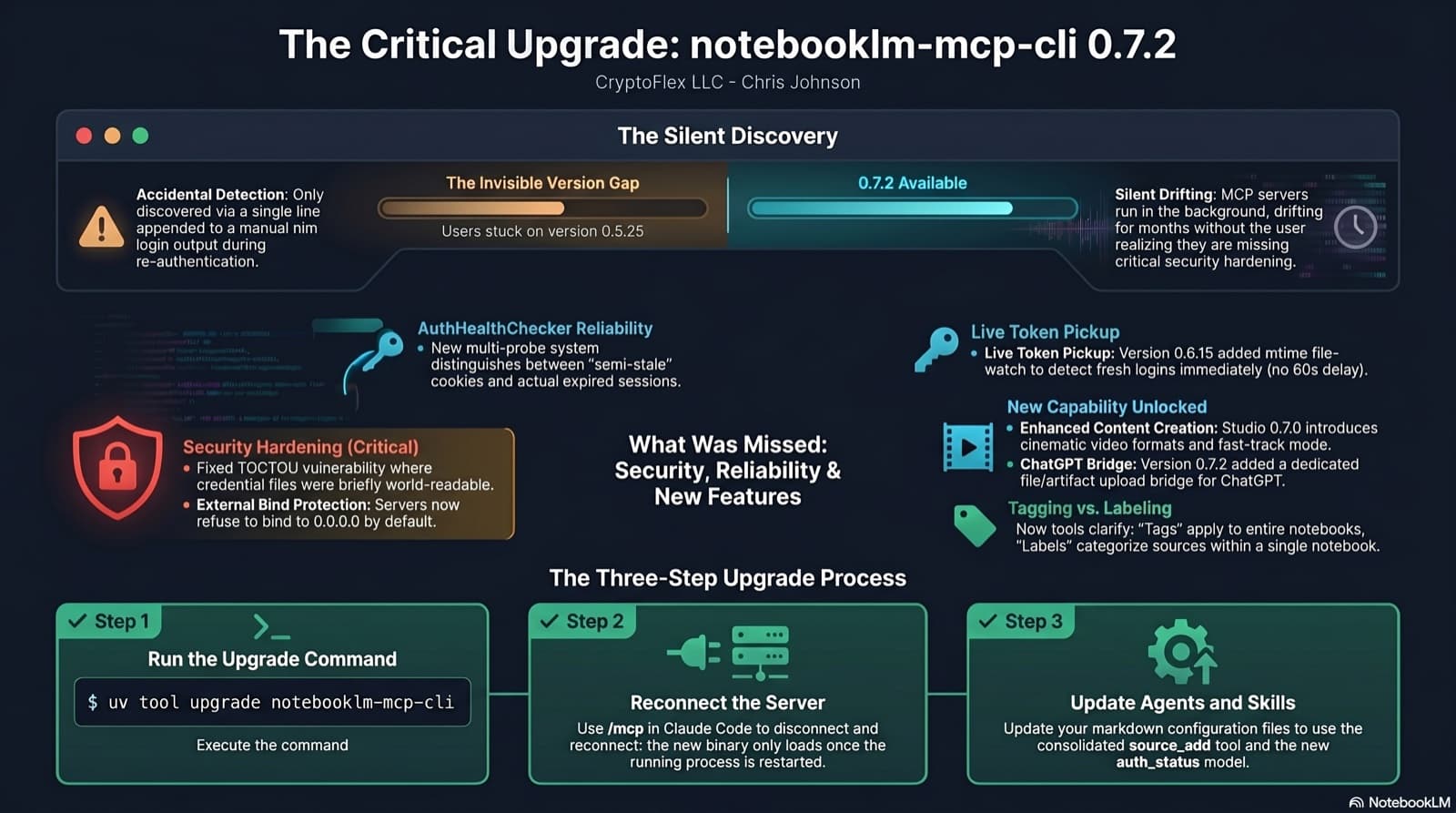
I was two minor versions behind on notebooklm-mcp-cli and had no idea until a re-auth banner interrupted a session. The gap was 0.5.25 to 0.7.2. Security fixes, auth reliability improvements, and new features I was missing the whole time. Here is the three-part upgrade that most people stop after step one.
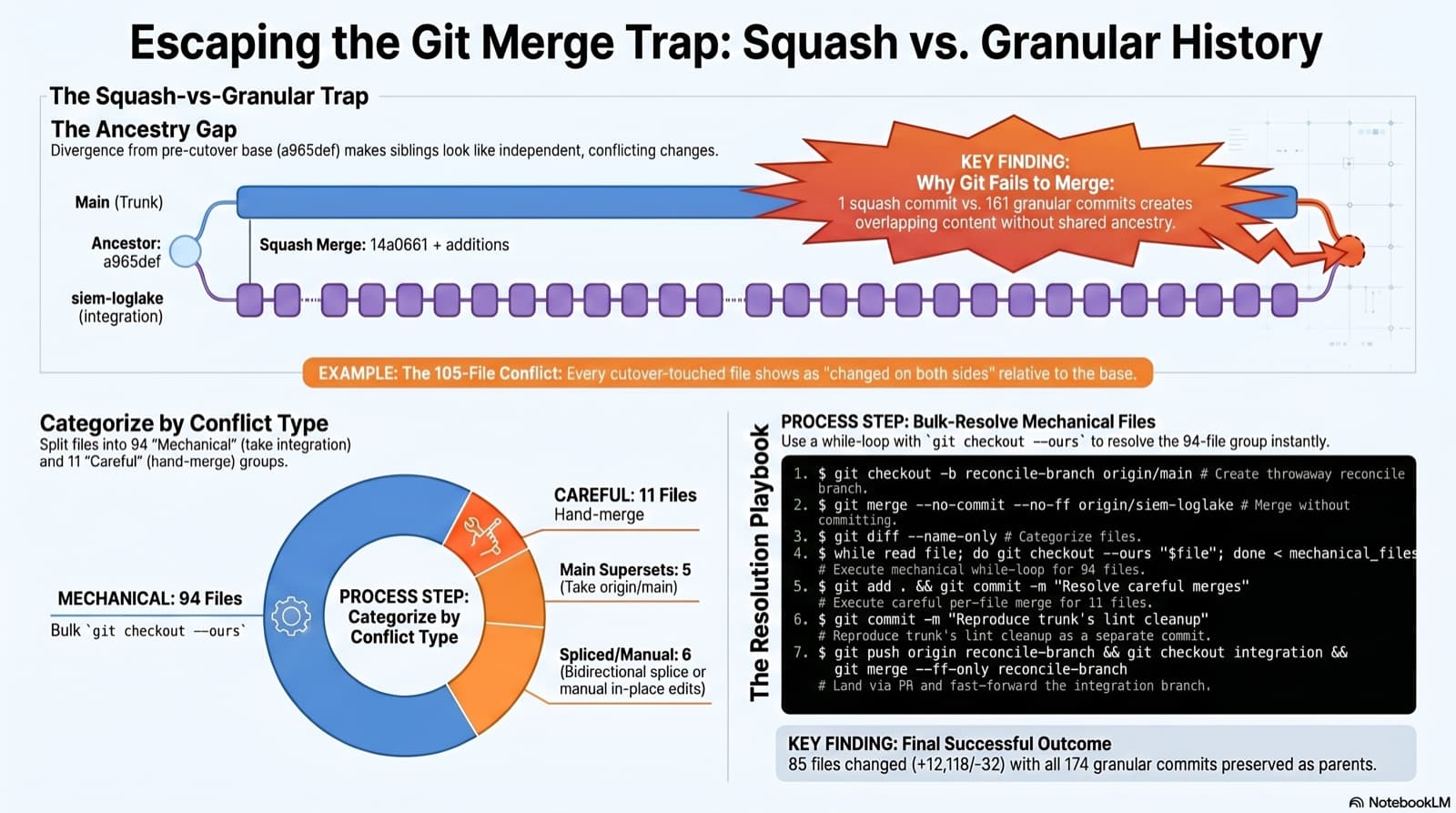
A long-lived integration branch went unmergeable two months after the trunk took its first big slice as a squash merge. Plain git merge spat 105 conflicted files. This post walks the playbook that landed it: how to spot the trap, how to categorize the conflicts, the exact commands that resolved 94 of them mechanically, and the three subtleties that bite you when you reach for `git checkout --ours`.
Comments
Subscribers only — enter your subscriber email to comment