
Getting Started with Claude Code: From Local AI to Cloud-Powered Development
My journey from running Ollama with Qwen locally (too slow) to setting up an Anthropic account and discovering Claude Code - the AI CLI tool that changed how I build software.
Before I ever touched Claude Code, I tried the local route. If you're thinking about AI-assisted development, you've probably considered running a model locally too. Here's what happened when I did - and why I ended up going a different direction.
The Local AI Experiment: Ollama + Qwen#
The idea was appealing: run an AI model on my own hardware, no cloud dependency, no API costs, complete privacy. I installed Ollama and pulled the Qwen 3.4B model - a smaller, faster model that should theoretically run fine on consumer hardware.
The Reality
It was too slow to be useful. Response times of 30+ seconds made it impractical for development work. When you're in the middle of writing code and you need to ask "how does this Next.js API work?" or "refactor this function," waiting that long kills your flow.
And the smaller model meant the answers weren't always accurate enough for production code - I'd spend more time verifying the output than I saved by using AI in the first place.
There are absolutely valid use cases for local models. Privacy-sensitive work, offline environments, or if you have serious GPU hardware. But for day-to-day development on a normal workstation? The cloud models are just better right now.
Setting Up an Anthropic Account#
After the Ollama experiment, I decided to try Anthropic's Claude directly. The setup is straightforward:
- Go to console.anthropic.com and create an account
- Add a payment method (API usage is pay-as-you-go)
- Generate an API key
The pricing is reasonable for individual use. Sonnet 4.5 handles most development tasks well, and you only pay for what you use. No monthly subscription required.
Installing VS Code#
If you don't already have a code editor, VS Code is the standard choice for web development:
- Download from code.visualstudio.com
- Run the installer - accept defaults
- Open it and install a few essential extensions:
- ESLint - catches JavaScript/TypeScript errors
- Tailwind CSS IntelliSense - autocomplete for Tailwind classes
- Prettier - auto-formats your code on save
VS Code has a built-in terminal (Ctrl+`), which is where you'll run Claude Code. You can see your file tree, edit code, and interact with Claude all in one window.
Installing Claude Code#
Claude Code is Anthropic's command-line tool that gives Claude direct access to your project - it can read files, write code, run commands, and manage your codebase. It's not a chatbot with copy-paste snippets. It's more like pair programming with an AI that has context about your entire project.
Prerequisites#
You need Node.js installed first. Check with:
node --version  # Should be 18+
npm --version   # Comes with Node.js
If Node.js isn't installed, download it from nodejs.org.
Windows Gotcha
After installing Node.js, you might need to restart your terminal (or VS Code) for the PATH changes to take effect. If node --version still doesn't work, try opening a brand new terminal window.
Install Claude Code#
npm install -g @anthropic-ai/claude-code
This installs the claude command globally. Verify it worked:
claude --version
First Launch#
Navigate to your project directory and run:
claude
The first time, it'll ask you to authenticate with your Anthropic account. Follow the prompts - it opens a browser window for authentication. Once authenticated, you're in.
What Claude Code Actually Does#
Here's what surprised me coming from the Ollama experiment: Claude Code doesn't just answer questions. It operates on your codebase.
When you start a session, Claude Code indexes your project. It knows your file structure, your dependencies, your configuration. When you ask it to do something, it:
- Reads the relevant files to understand context
- Plans what needs to change (and often tells you before doing it)
- Writes the code - creating new files or editing existing ones
- Runs commands if needed (npm install, git operations, build verification)
The key difference from a chatbot: you don't copy-paste code snippets. Claude Code writes directly to your files. You review the changes, approve or reject them, and iterate.
My First Real Test#
I asked Claude Code to build a website. Not a hello-world - a real production site with multiple pages, a blog system, responsive design, and SEO metadata. I described what I wanted in plain English:
"Build a personal tech blog and portfolio site. Dark theme with a cyan accent. Next.js with Tailwind CSS and shadcn/ui. MDX for blog posts. Pages for about, services, portfolio, and contact."
In one session, it:
- Scaffolded a Next.js 15 project
- Set up shadcn/ui with the right components
- Built 7 pages with responsive layouts
- Created an MDX-based blog system
- Configured dark mode with a custom color palette
- Added SEO metadata and Open Graph tags
- Got the production build to pass with zero errors
That's the site you're reading right now.
Lessons Learned#
1. Be specific about what you want
"Make it look good" gives you generic results. "Dark background, cyan accent color, generous whitespace, Geist fonts, glassmorphism nav with backdrop blur" gives you exactly what you pictured.
2. Review everything
AI-generated code works, but you need to understand it. Read every file. Ask "why did you do it this way?" if something looks unfamiliar. The learning happens in the review, not the generation.
3. The iteration speed is the real value
The first draft is rarely perfect. But going from "add a mobile hamburger menu" to done takes seconds, not an hour. The fast feedback loop is where Claude Code shines compared to coding alone.
4. Local models aren't there yet (for most people)
If you have a 4090 or better, local models might work for you. For the rest of us, the cloud models are dramatically faster and more capable. The cost is minimal for individual use.
5. Don't fight the tooling
I initially tried to build custom infrastructure around Claude Code (a Rust binary to intercept conversations - it didn't work). Then I discovered Claude Code has a built-in hooks system for exactly that kind of automation. Use the platform's extension points instead of building around them. I cover the full hooks setup in Configuring Claude Code.
What's Next#
If you're just getting started with Claude Code, my recommendation:
- Install it and authenticate
- Start with a small project - something you'd normally build yourself
- Describe what you want in detail, then watch what Claude Code does
- Review every change, ask questions, iterate
- Once you're comfortable, explore the configuration system: rules, hooks, MCP servers, and plugins
I've documented my entire Claude Code configuration journey in a separate post if you want to go deeper.
Want the visual version? Check out the Getting Started with Claude Code infographic for a quick-reference guide.
Written by Chris Johnson and edited by Claude Code (Opus 4.6). The source code for this site is at github.com/chris2ao/cryptoflexllc. This post is part of a series about AI-assisted development. Previous: Building This Site with Claude Code. Next up: Configuring Claude Code - rules, hooks, MCP servers, and the plugin ecosystem.
Weekly Digest
Get a weekly email with what I learned, summaries of new posts, and direct links. No spam, unsubscribe anytime.

Related Posts
A beginner-friendly guide to the features that make Claude Code powerful: CLAUDE.md, directory structure, permissions, plan mode, checkpoints, skills, hooks, MCP, plugins, context, slash commands, compaction, agents, and rules. Everything you need to know to get started successfully.
A detailed, hour-by-hour account of my first day with Claude Code - starting with Ollama frustrations, discovering Opus 4.6, building a complete website, and deploying to production. 30 commits, 4 repositories, and one very long day.
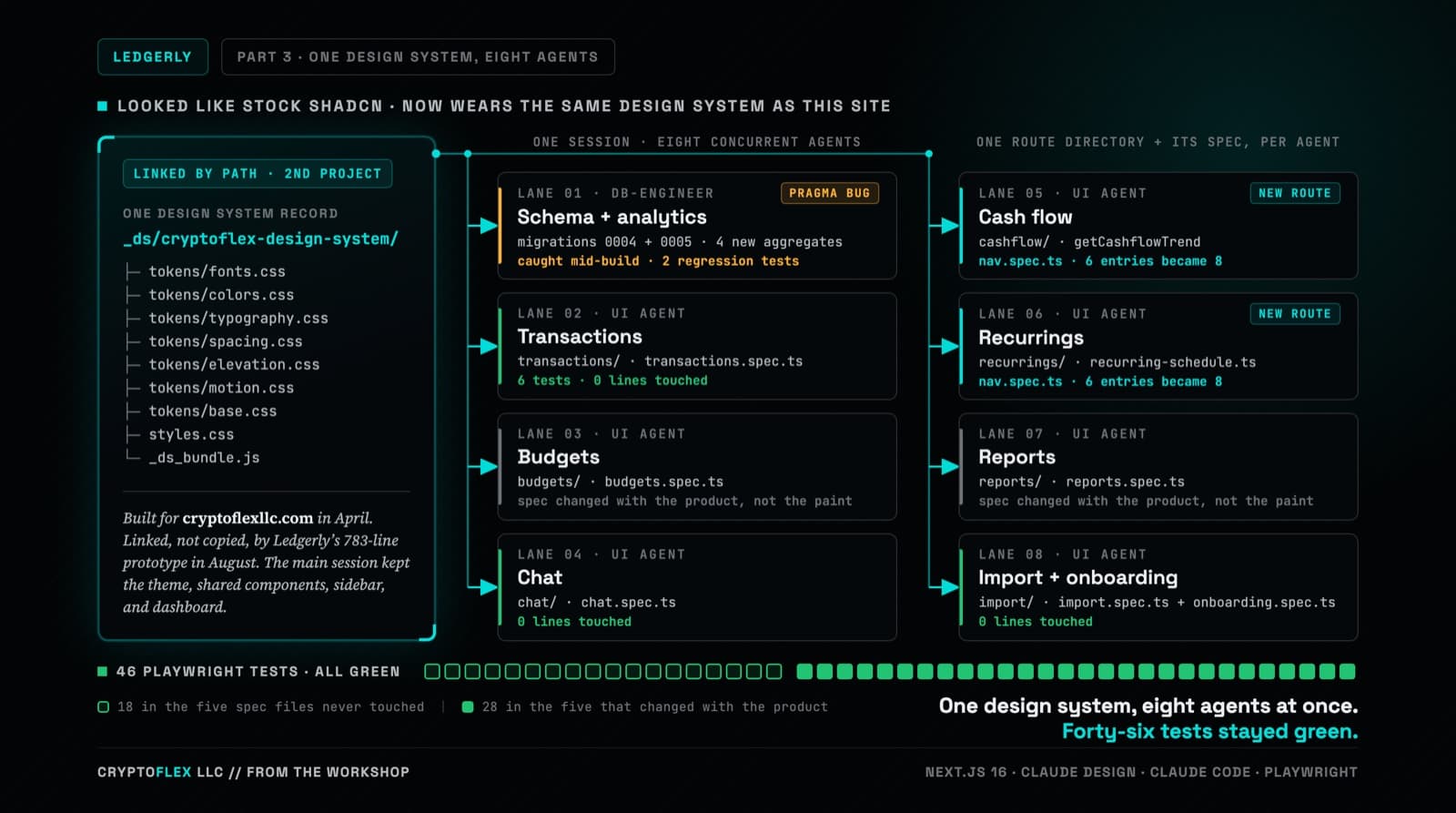
Ledgerly's UI still worked but looked like stock shadcn, so the whole thing went through Claude Design and came back wearing CryptoFlex's Cyber Editorial system, the same one from April's site rebuild. Eight parallel agents rebuilt every screen against real backend constraints while 46 Playwright tests stayed green, one of them written to prove a SQLite migration bug on purpose.
Comments
Subscribers only — enter your subscriber email to comment