Google Workspace in Claude Code: Why I Replaced Three MCP Servers with a CLI Skill
How I replaced three separate Google Workspace MCP integrations with a single gws CLI skill, why CLI beats MCP for large API surfaces, and the four-tier safety system that keeps destructive operations from running without confirmation.
If you have ever tried to connect Claude Code to Google Workspace, you have probably reached for MCP servers first. It is the obvious move: MCP is how Claude gets external tools. There are community MCP servers for Gmail, Calendar, Drive. There is even an official Google one.
But I ended up going a different direction. Today I want to walk through why I replaced three separate MCP integrations with a single CLI-based skill, how the gws CLI works, and the safety system I built around it so Claude cannot trash my Drive without asking first.
The Problem with MCP for Large API Surfaces#
Let me start with what changed my thinking on this.
Google built an official MCP server for Google Workspace. It was 1,151 lines of TypeScript, exposing dozens of tools covering Gmail, Calendar, Drive, Docs, and more. Then they deleted it. The whole thing. Not deprecated, not archived. Removed.
Why? Because 100+ tool definitions cause problems. When you load that many tools into Claude's context, you are burning a significant chunk of the context window on tool definitions that the model has to parse and reason about on every single call. The more tools you have, the harder it is for the model to select the right one, and the more your reasoning quality degrades.
The Context Window Cost of Tools
Every MCP tool you add contributes its name, description, and parameter schema to your context window. For a small focused server (4-8 tools), this is negligible. For a large API surface like Google Workspace with 14 services and hundreds of methods, it becomes a serious tax on the reasoning budget available for actual work.
The community has largely landed in the same place: CLI-first for large API surfaces, MCP for small focused tools. The pattern makes sense. A CLI is just a subprocess call. You describe what you want in the prompt, Claude figures out the right command, executes it, and gets back structured output. No tool definitions consuming context. No MCP process to keep alive. No custom server to maintain.
What the gws CLI Is#
gws is @googleworkspace/cli, a Node.js command-line tool that wraps the full Google Workspace API surface. Install it once globally and you have CLI access to:
- Drive, Gmail, Calendar
- Docs, Sheets, Slides
- Tasks, People, Forms
- Meet, Chat, Keep
- Admin, Classroom
The command pattern is straightforward:
gws <service> <resource> <method> --params '<JSON>'
For example, listing your upcoming calendar events:
gws calendar events list --params '{"calendarId": "primary", "maxResults": 10, "timeMin": "2026-03-11T00:00:00Z"}'
Searching Gmail:
gws gmail messages list --params '{"userId": "me", "q": "from:someone@example.com is:unread"}'
Creating a Google Doc:
gws docs documents create --params '{"title": "Meeting Notes - March 11"}'
The output is JSON. Always. Which means Claude can parse it directly without any post-processing step.
One feature worth calling out: gws schema. You can ask for the API schema for any service at runtime:
gws schema calendar events
This returns the full parameter definitions for the events resource. Instead of baking all that schema information into a system prompt, Claude can look it up on demand. Zero context overhead until you actually need it.
gws --dry-run for Safe Testing
Every gws command that modifies state accepts a --dry-run flag. It shows you exactly what API call would be made without making it. This is invaluable when Claude is building a complex operation and you want to verify the parameters before anything actually happens.
What I Replaced#
Before the gws skill, I had three separate Google integrations:
claude.ai Gmail MCP (7 tools): gmail_read_message, gmail_read_thread, gmail_search_messages, gmail_list_labels, gmail_list_drafts, gmail_create_draft, gmail_get_profile. Seven tools for a subset of what the Gmail API can do.
claude.ai Calendar MCP (9 tools): gcal_list_events, gcal_get_event, gcal_create_event, gcal_update_event, gcal_delete_event, gcal_list_calendars, gcal_find_meeting_times, gcal_find_my_free_time, gcal_respond_to_event. Nine tools for a subset of Calendar.
blog-content-generator MCP server (custom): This one I built myself to automate Google Slides infographic generation. It used the Slides API through a Python server with service account credentials and domain-wide delegation. It worked, but it required maintaining a separate Python server, managing OAuth credentials in a specific format, and the whole setup was fragile.
All three are now gone. One gws skill covers the full API surface of all 14 services, with better coverage than any of the three MCP servers combined.
What gws Does NOT Replace
Two things stayed as separate integrations: Imagen for AI image generation (not a Workspace CLI concern) and Gemini for document analysis (also not CLI territory). These are AI model endpoints, not Workspace API calls. The distinction matters. gws is for CRUD operations on Workspace data, not for AI inference.
The Setup#
Getting gws working requires a GCP project and an OAuth client. Here is the flow I went through.
1. Install the CLI#
npm install -g @googleworkspace/cli
Version 0.11.1 at time of writing. Verify:
gws --version
2. Create a GCP Project and Enable APIs#
You need a GCP project with the APIs enabled for the services you want to use. I used an existing project (CryptoFlexGemini) rather than creating a new one. Enable each API you need in the GCP Console under "APIs & Services > Library."
For a general-purpose Workspace setup, you will want at minimum:
- Gmail API
- Google Calendar API
- Google Drive API
- Google Docs API
- Google Sheets API
- Google Slides API
Wrong Project Means 403 Errors
The OAuth client must be created in the same GCP project where the APIs are enabled. I initially tried to use a client from a different project and got consistent 403 errors on every API call. The error message was not helpful. If you are getting 403s after authentication succeeds, check that your OAuth client and your enabled APIs are in the same project.
3. Create an OAuth Desktop App Client#
In GCP Console, go to "APIs & Services > Credentials > Create Credentials > OAuth client ID." Choose "Desktop app" as the application type.
Download the JSON credentials file. This is your OAuth client, not your service account. The gws CLI handles the OAuth flow for personal Workspace access, which is different from the service account approach used for server-side integrations.
You Cannot Create OAuth Clients Programmatically
I tried to automate this step with gcloud commands. It cannot be done for OAuth Desktop App clients through the CLI. You have to do it manually in the GCP Console. There is no workaround. Budget five minutes for the manual steps.
4. Run gws auth setup#
gws auth setup
This walks you through providing the client credentials and opens a browser for the OAuth consent flow. If your browser opens with a URL that seems truncated or you get a "missing response_type" error, do not try to fix the URL in the browser. Copy the full URL from the terminal output and paste it manually.
# The URL in the terminal is the canonical one. Use this:
gws auth setup
# Output includes something like:
# Open this URL in your browser:
# https://accounts.google.com/o/oauth2/auth?client_id=...&response_type=code&...
# Copy that full URL. Do not use whatever the browser auto-opened.
After authentication, gws stores encrypted credentials using AES-256-GCM in your macOS Keychain. The config directory gets chmod 700 automatically. I also added the config directory to my global gitignore as an extra layer of protection.
5. Verify#
Run a quick read-only test:
gws calendar calendars list
If you get back a JSON array of your calendars, you are set.
The Four-Tier Safety System#
Here is where things get interesting. Raw CLI access to Gmail and Drive means one confused delete command could permanently trash something important. I needed a safety system before letting Claude run gws freely.
The skill file at ~/.claude/skills/google-workspace.md defines four tiers:
Tier 1: Safe (Auto-Execute)#
Operations that only read data. No confirmation needed, Claude runs these immediately.
Reads: list, get, search, schema
Examples:
gws gmail messages list(search inbox)gws calendar events list(check schedule)gws drive files list(browse Drive)gws schema docs documents(look up API schema)
Tier 2: Create (Confirm with User)#
Operations that create new content. Claude presents the planned command, waits for approval, then executes.
Creates: create, insert, draft, copy
Examples:
gws gmail users drafts create(create email draft)gws docs documents create(create new document)gws calendar events create(add calendar event)
The confirmation step looks like this in practice: Claude shows you the exact gws command with its --params JSON, explains what it will do, and waits for you to say "go ahead."
Tier 3: Modify (Dry-Run First, Then Confirm)#
Operations that change existing content. Claude runs --dry-run first to show what would happen, presents the dry-run output, then asks for confirmation before the real call.
Modifies: update, patch, move, share, send
Examples:
gws gmail users messages send(send email)gws calendar events update(modify event)gws drive files update(rename or move file)
The dry-run output makes the confirmation meaningful. Instead of "do you want me to update this event?" you see exactly which fields would change and to what values.
Tier 4: Destroy (Explicit User Request Only)#
Operations that delete or revoke access. Claude will not initiate these without explicit user instruction in the current turn.
Destroys: delete, trash, revoke, cancel
Examples:
gws gmail users messages trash(move to trash)gws drive files delete(permanent delete)gws calendar events delete(remove event)
"Explicit user request" means the user said something like "delete that event" or "trash those emails" in this conversation turn. Claude cannot infer that a delete is intended from context alone.
Why These Tiers Matter
The difference between Tier 1 and Tier 4 is the difference between "show me my emails" and "delete these emails permanently." The tiered system means that even if Claude misinterprets an ambiguous request, the worst case is a confirmation dialog rather than data loss. Destructive operations require you to explicitly ask for them by name.
Here is a condensed view of the tier system as it appears in the skill file:
| Tier | Operations | Behavior |
|---|---|---|
| 1 - Safe | list, get, search, schema | Auto-execute |
| 2 - Create | create, insert, draft, copy | Confirm with user |
| 3 - Modify | update, patch, move, share, send | Dry-run first, then confirm |
| 4 - Destroy | delete, trash, revoke, cancel | Explicit request only |
What Actually Works#
After setup, I ran a verification sweep across all 14 services. Results:
Working (10 of 12 covered services):
- Gmail: messages, threads, labels, drafts, profile
- Calendar: events, calendars, settings, free/busy
- Drive: files, permissions, about
- Docs: documents, read, write
- Sheets: spreadsheets, values
- Slides: presentations, pages
- Tasks: tasklists, tasks
- People: people, contactGroups
- Forms: forms, watches
- Admin: users, groups (with Workspace admin scopes)
Needs Workspace-Specific Scopes (2 services):
- Chat: returns 403, requires additional scope configuration for Google Chat API
- Keep: returns 403, Google Keep API has restricted access for third-party apps
The 403 responses for Chat and Keep are not configuration errors. Chat requires a Workspace subscription with the Chat API specifically enabled for third-party access. Keep has limited public API access by design. Both are documented limitations, not bugs in the setup.
Checking Your Scope Coverage
Run gws auth scopes to see which OAuth scopes were granted during setup. If a service returns 403, compare the required scopes from the API documentation against what you actually authorized. Re-running gws auth setup with an expanded scope list fixes most permission issues.
How the Skill Works in Practice#
The skill file (~/.claude/skills/google-workspace.md) gives Claude a reference document it can read at the start of any Workspace task. It covers:
- The command pattern (
gws <service> <resource> <method> --params '<JSON>') - The safety tier table
- Common examples for each service
- How to use
gws schemafor API discovery - What requires confirmation and what does not
When you ask Claude to do something Workspace-related, it reads the skill file, identifies the appropriate tier, constructs the command, and follows the tier protocol before executing.
A typical session flow for calendar management:
User: What do I have going on this week?

Claude: [Tier 1 - auto-execute]
gws calendar events list --params '{"calendarId": "primary", "timeMin": "2026-03-11T00:00:00Z", "timeMax": "2026-03-17T23:59:59Z", "singleEvents": true, "orderBy": "startTime"}'

[Returns 6 events. Claude summarizes them.]

User: Move the 3pm standup to 4pm.

Claude: [Tier 3 - dry-run first]
I'll dry-run the update first:
gws calendar events update --dry-run --params '{"calendarId": "primary", "eventId": "abc123", "start": {"dateTime": "2026-03-12T16:00:00", "timeZone": "America/New_York"}, "end": {"dateTime": "2026-03-12T16:30:00", "timeZone": "America/New_York"}}'

Dry-run output shows: event "Team Standup" would move from 15:00 to 16:00 on March 12.
Confirm to proceed?
The interaction model is natural. The safety gates are invisible until you actually need them.
Lessons Learned#
Google deleted their own MCP server for a reason. When the team that built the API decides a large MCP server degrades agent reasoning, that is worth taking seriously. The context window cost of 100+ tool definitions is not theoretical.
CLI output is already structured. The thing that makes MCP valuable is getting structured data back from external APIs. gws already returns JSON. The benefit of MCP disappears when your CLI does the job as well.
Skills match your existing patterns. If you already have skills for wrap-up scripts, blog post generation, and config sync, adding a gws skill fits naturally. Everything follows the same pattern: a markdown file Claude reads, a defined interface, consistent behavior.
Tier 3 dry-runs are genuinely useful. I initially thought the dry-run step would feel like friction. It does not. Seeing the exact parameters before a modify operation runs has caught at least two cases where the event ID or parameter format was not quite right. The dry-run is not a bureaucratic checkpoint, it is a debugging tool.
Set up the credentials with proper permissions from the start. chmod 700 on the config directory, global gitignore entry for the credentials path, and understanding where the Keychain entry lives. Do this before you start using the tool, not after.
The Right Mental Model
Think of gws as bash with Google Workspace superpowers, not as a replacement for understanding the API. You still need to know roughly what resource and method you want. But you do not need to manage auth headers, handle pagination manually, or deal with OAuth flows in your code. The CLI handles all of that. Your job is to describe what you want, and gws handles the mechanics.
The Configuration Summary#
For anyone who wants to replicate this setup:
Installation:
npm install -g @googleworkspace/cli
GCP prerequisites:
- GCP project with APIs enabled
- OAuth Desktop App client (created manually in GCP Console)
- OAuth client and APIs must be in the same project
Auth setup:
gws auth setup
# Use full URL from terminal output if browser auth fails
Skill file location: ~/.claude/skills/google-workspace.md
What to include in the skill file:
- The command pattern
- The four safety tiers as a table
- Service-specific examples for the services you use
- Notes on which services need special scopes
Security basics:
chmod 700on~/.config/gws/- Add
~/.config/gws/to global gitignore - Never commit credential files
The full configuration is in the claude-code-config public repository if you want to see the actual skill file format.
This is part 9 of the Claude Code Workflow series. The previous post covered persistent memory for Claude Code using a two-tier approach with vector search. Up next: smart compact and context preservation before compaction.
Weekly Digest
Get a weekly email with what I learned, summaries of new posts, and direct links. No spam, unsubscribe anytime.

Related Posts
Claude Code's /compact command frees up context but destroys in-progress session state. Smart-compact is a custom skill that saves everything before you compact, so you can pick up exactly where you left off.
A practical walkthrough of the 5 Node.js MCP servers I run with Claude Code: sequential-thinking, memory, context7, github, and project-tools. What they do, how to configure them on Windows, and what I learned testing each one.
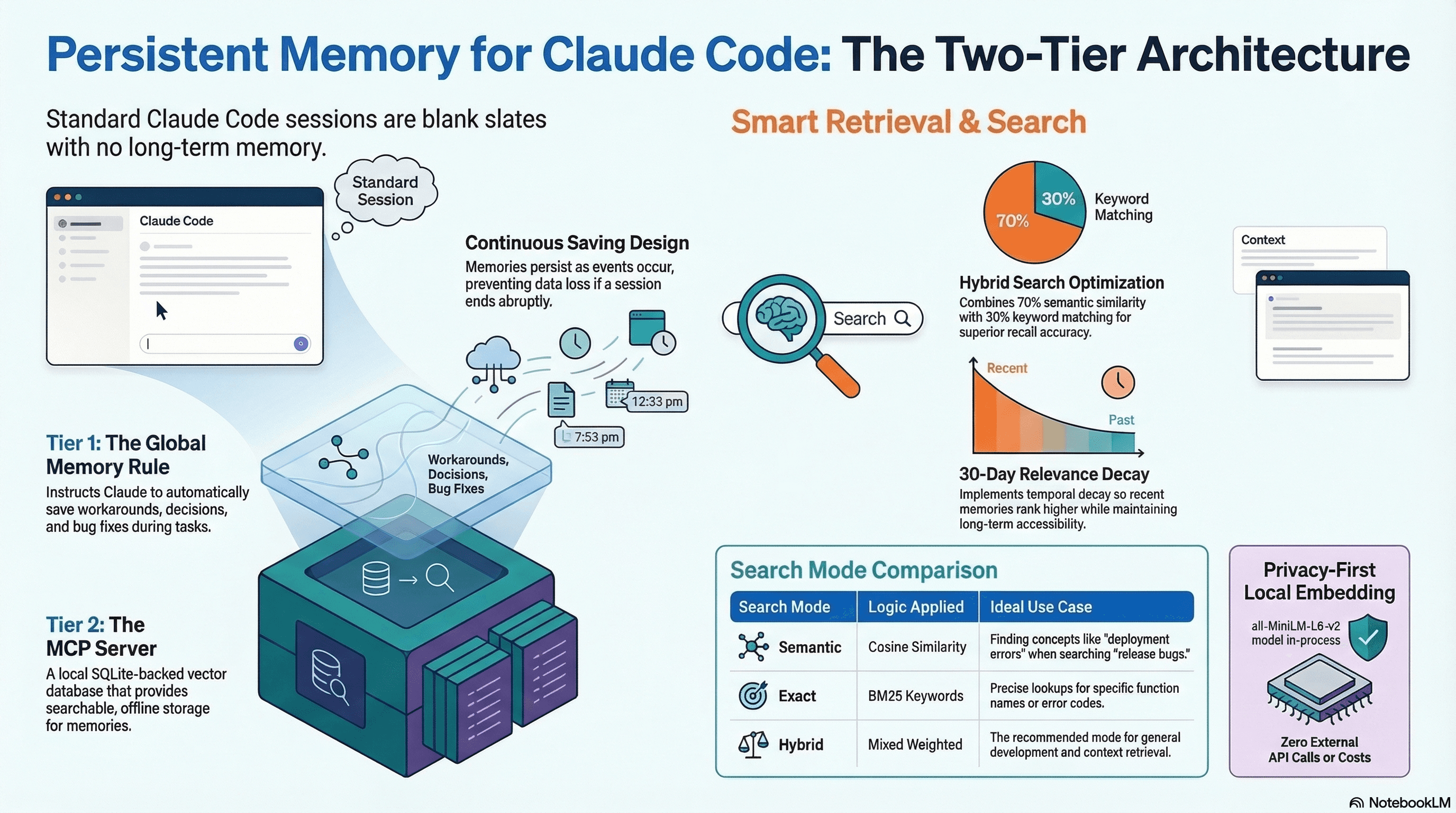
How to give Claude Code real persistent memory using a global rule file and a vector database MCP server, so context survives across sessions without any manual effort.
Comments
Subscribers only — enter your subscriber email to comment