Remote Access for Claude Code: Dispatch, Channels, and Remote Control
Three ways to run Claude Code remotely. I tried Dispatch, Channels, and Remote Control. Here's what broke, what worked, and why I landed on Remote Control with Warp terminal on my always-on Mac Mini.
I run a headless Mac Mini that's on 24/7. It's got my full Claude Code setup: local MCP servers, vector memory, Gmail and Calendar access, a gmail assistant agent, and all the configuration I've built up over months. When I'm away from my desk and want to kick off a task, I want to reach that machine from my phone.
Claude Code has three options for that: Dispatch, Channels, and Remote Control. I tried all three. This post covers what each one actually does, where I hit walls, and why I landed on Remote Control.
The Options at a Glance#
| Dispatch | Channels | Remote Control | |
|---|---|---|---|
| Execution | Cloud sandbox | Local terminal | Local terminal |
| MCP servers | No | Yes | Yes |
| Interaction | Interactive | Async (Telegram/Discord DM) | Interactive (app/browser) |
| Always-on machine needed | No | Yes (tmux/persistent session) | Yes |
That table tells most of the story, but the details matter.
Dispatch: The Cloud Sandbox Problem#
Dispatch is Claude Code's hosted execution environment. You kick off a task from your phone or browser, and it runs in Anthropic's cloud. No always-on machine required. Sounds ideal.
The dealbreaker for me: Dispatch runs in a cloud sandbox, not on your local machine. That means no access to local MCP servers.
I found this out the hard way while trying to use Dispatch to run my gmail assistant agent. The agent is built around local MCP tools: gmail_search_messages, gmail_read_thread, gcal_list_events, and vector memory for context about people and projects. These are all local processes running on my Mac Mini. Dispatch has no way to reach them.
Dispatch has no local MCP access
If your Claude Code setup relies on local MCP servers (Gmail, Calendar, memory, custom tools), Dispatch cannot use them. The cloud sandbox is isolated from your local machine. This is a fundamental architecture constraint, not a configuration issue.
If your workflows are purely file-based (write code, run tests, commit to git), Dispatch might work fine. But the moment you depend on local MCP servers, you're out.
Channels: Async is Not What I Needed#
Channels lets you connect Claude Code to Telegram or Discord. You DM a bot, Claude Code picks up the message and runs a task, then posts the result back. Full local execution, full MCP access.
This sounds great for async use cases: "go summarize my unread emails and post back when done." And for that pattern, it works. But it has an important constraint: Channels runs as a subprocess of an existing Claude Code session. You need to keep that terminal session open. In practice, that means a tmux session or equivalent.
The bigger constraint for me is the interaction model. Channels is async and trigger-based. You send a message, something happens, you get a reply. It's not interactive. You can't steer a task mid-execution, ask a follow-up question, or course-correct when Claude takes a wrong turn.
Channels is a good fit for async workflows
If you want to fire off autonomous tasks from your phone (summarize emails, check calendar, run a nightly digest) and don't need to interact with the execution, Channels is solid. It's genuinely useful for that pattern. It just wasn't the right fit for my interactive use case.
Remote Control: This Is the One#
Remote Control lets you connect to an active Claude Code session from the Claude mobile app or claude.ai/code in a browser. The session runs locally on your machine, with full access to your MCP servers and file system. You interact with it in real time, see every tool call and response, and can steer the conversation just like you would from the terminal.
This is what I wanted. A session running on my Mac Mini that I can pick up from my phone, ask a question, watch it use my local MCP tools, and respond to what it finds.
The setup is straightforward. You run a command in your terminal that registers the session and gives you a pairing code. Open the Claude Code app on your phone, enter the code, and you're connected. From that point, the terminal, the browser at claude.ai/code, and the phone app all show the same session in real time. You can start something on the terminal and pick it up on your phone. You can ask a question from your phone and see the file edits appear in the terminal.
Real-time sync across all surfaces
The terminal, browser, and mobile app stay in sync. Start a task at your desk, step away, continue from your phone. Everything you'd see in the terminal is visible in the app.
The Warp Terminal Connection#
My Mac Mini runs Warp. If you haven't used Warp yet, it's a modern terminal that actually feels like it was designed in the last decade: command palette, AI features, block-based output that you can select and share, clean UI. I switched from the default macOS Terminal a while back and haven't looked back.
The workflow I landed on is simple. I open Warp on the Mac Mini (via another remote session when I'm setting up, or just leave it open), run the Remote Control command, and the session is up and registered. Since the Mac Mini is always on, that session is always available from the Claude Code app.
Warp + always-on machine = persistent Remote Control
Once you start a Remote Control session in Warp and leave the terminal open, it's there whenever you need it. No tmux gymnastics, no startup scripts. Just open the Claude app and your session is waiting.
There's something genuinely nice about having a proper terminal app on the other end. Warp's block-based output makes it easy to see what Remote Control sessions are doing, and the AI features layer on top of Claude Code rather than conflicting with it. It's a combination that feels intentional.
Why I Was Using Dispatch (And Why I Stopped)#
Before I found Remote Control, I had been using Dispatch to run my gmail assistant agent. The agent reads emails, checks calendar context, and drafts replies. I thought Dispatch would let me trigger it from my phone without keeping a session open.
It worked for exactly one task: tasks that required only what was available in the cloud sandbox. As soon as I needed the Gmail MCP tools, Dispatch fell flat. The agent would try to call gmail_search_messages, fail because the MCP server wasn't accessible, and either error out or hallucinate results from its training data.
Switching to Remote Control fixed this immediately. The session runs on my Mac Mini, which has the Gmail MCP server running locally. The agent works exactly as it does from the terminal.
Dispatch works well for cloud-native tasks
Dispatch is not broken. If your workflow is writing code, analyzing files that you push to the sandbox, or anything that doesn't depend on local services, it works fine. The limitation only bites you if your setup is MCP-heavy.
The Decision Matrix#
Here's how I think about which option to reach for:
Use Dispatch if: You want cloud execution with no always-on machine, and your tasks don't depend on local MCP servers. Great for pure coding tasks or anything you'd want to run in a clean environment.
Use Channels if: You have async, fire-and-forget tasks that don't need interactive steering. You want to DM a Telegram bot and get a result back. You're already comfortable with tmux and persistent sessions.
Use Remote Control if: You have an always-on machine with local MCP servers. You want interactive sessions. You want to pick up work from your phone exactly where you left it on your desktop.
For my setup (always-on Mac Mini, MCP-dependent workflows, preference for interactive over async), Remote Control is the clear winner.
Setup Notes#
Getting Remote Control running takes a few minutes. The Claude Code docs cover the pairing flow, but the short version:
- In your terminal, run the Remote Control command (check
claude remote --helpfor current syntax) - You'll get a pairing code or QR code
- Open the Claude Code mobile app or go to claude.ai/code
- Connect with the code
- The session is now accessible from all three surfaces
For the always-on use case, I recommend starting the session in Warp and leaving it running. The Mac Mini's energy settings keep it from sleeping (I use pmset -a sleep 0 to disable sleep entirely on a headless machine), so the session stays alive.
Keep the session alive on macOS
On a headless Mac Mini, disable sleep with sudo pmset -a sleep 0. Combine that with disksleep 0 and autorestart 1 to keep the machine and session running reliably. Details in my earlier post on headless Mac Mini setup.
Lessons Learned#
MCP access is the first question
Before choosing a remote access option, ask: does my workflow depend on local MCP servers? If yes, Dispatch is off the table immediately. Remote Control or Channels are your options, and the choice comes down to interactive vs. async.
Remote Control is the most flexible option
Full MCP access, interactive sessions, real-time sync across terminal and mobile. If you have an always-on machine, this is the right default. Start here and only consider Channels if you specifically want the async Telegram/Discord pattern.
Channels and Remote Control are complementary
You can run both. Use Remote Control for interactive sessions where you want to steer work in real time, and Channels for background tasks you want to trigger with a quick DM and forget about until the result comes back.
The remote access story for Claude Code is still evolving. Dispatch will likely gain MCP support at some point. Channels may get richer interaction models. But right now, for a developer with local MCP servers and an always-on machine, Remote Control is the one that actually works end to end.
Open Warp, start a session, walk away. Your Mac Mini handles the rest.
Weekly Digest
Get a weekly email with what I learned, summaries of new posts, and direct links. No spam, unsubscribe anytime.

Related Posts
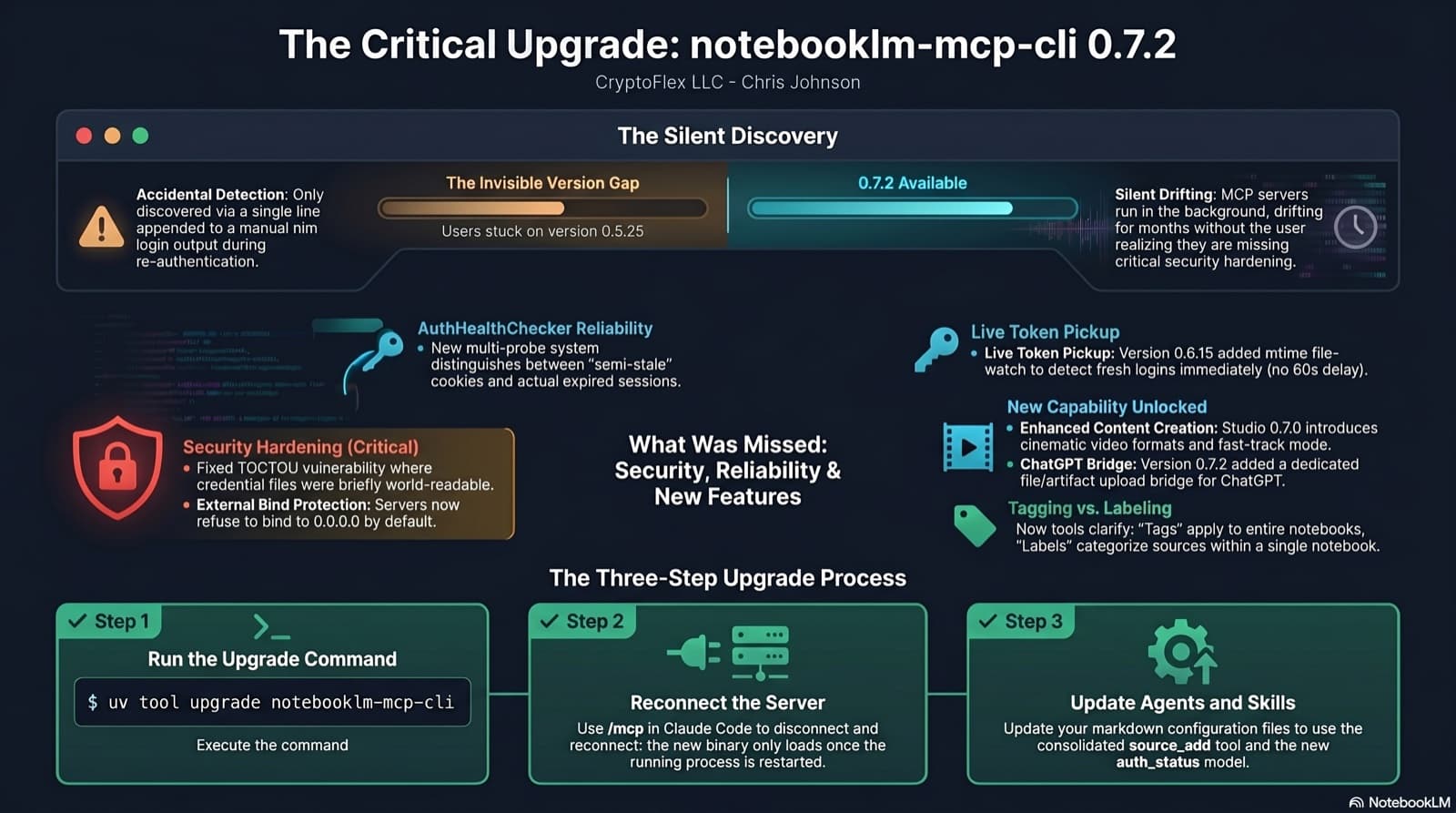
I was two minor versions behind on notebooklm-mcp-cli and had no idea until a re-auth banner interrupted a session. The gap was 0.5.25 to 0.7.2. Security fixes, auth reliability improvements, and new features I was missing the whole time. Here is the three-part upgrade that most people stop after step one.
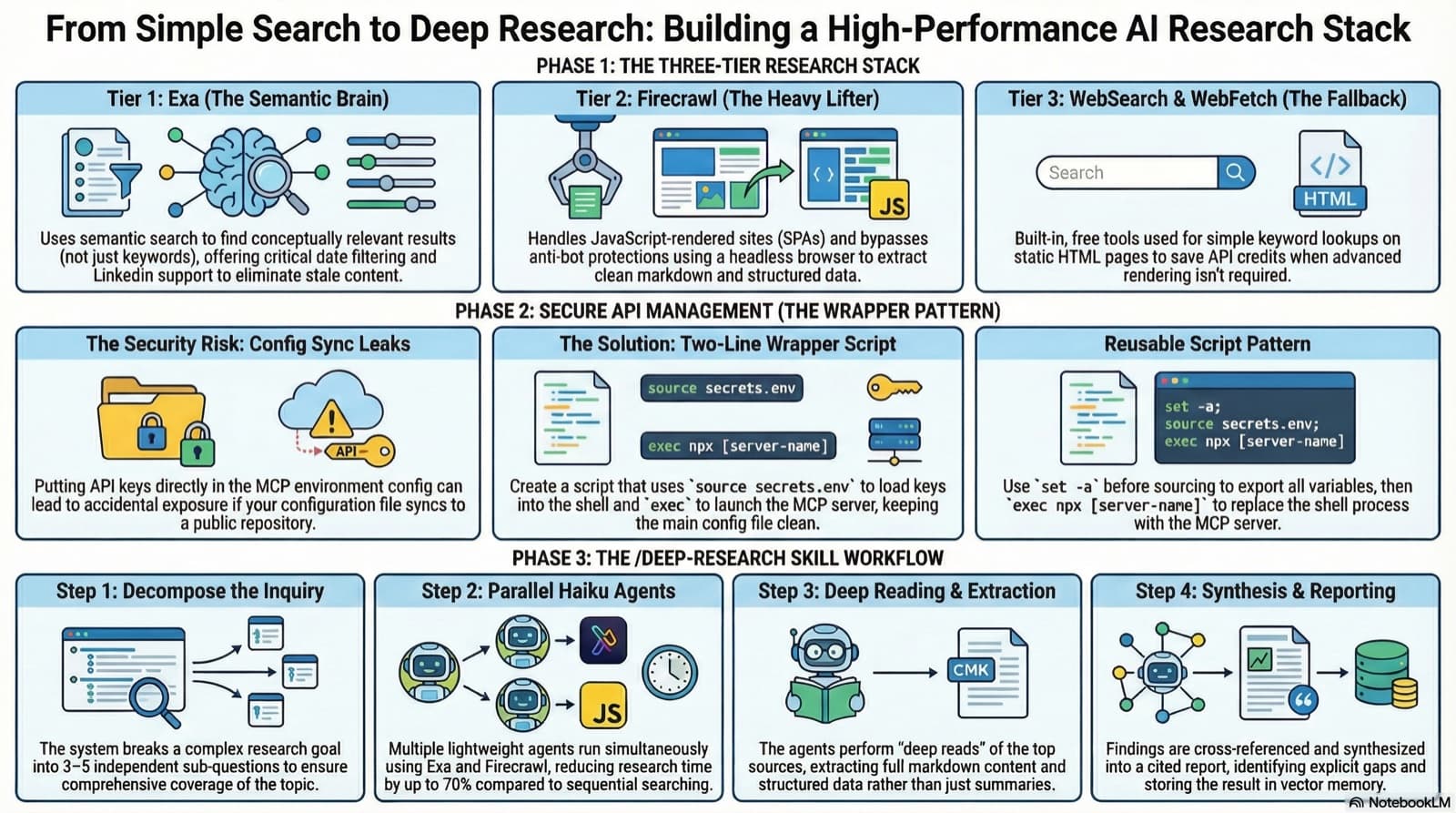
3 test sessions, 2 MCP servers, 1 wrapper script fix. How I added Exa and Firecrawl to Claude Code for semantic search, JS-rendered scraping, and proper deep research capability.
35 MCP tools, 7 implementation tasks, 2 platforms, 1 session. How I used the superpowers brainstorming, writing-plans, and subagent-driven-development pipeline to integrate NotebookLM into Claude Code as a first-class MCP server.
Comments
Subscribers only — enter your subscriber email to comment