
Smart Compact: Never Lose Context When Claude Code Runs Out of Room
Claude Code's /compact command frees up context but destroys in-progress session state. Smart-compact is a custom skill that saves everything before you compact, so you can pick up exactly where you left off.
You are deep in a session. You have been debugging a gnarly issue for 45 minutes. Claude knows exactly which files you were editing, why you rejected the first three approaches, which error message you finally cracked, and what the next two steps are. The context bar is red. You type /compact.
The conversation compresses. The token counter drops. Claude is refreshed.
And then you ask "what were we working on?" and Claude says something like "I don't have context about the earlier part of our session."
That's the compaction trap. The context window needed clearing, but in the process you lost everything that mattered: the thread of reasoning, the file paths you were tracking, the exact state of the thing you were building. You spend the next 10 minutes reconstructing what you already knew.
What /compact Actually Does#
The /compact command is Claude Code's built-in escape valve for context pressure. When your context window fills up, it compresses the conversation history, replacing the full transcript with a summary. This frees up space for more work.
What it keeps: a high-level summary of the conversation.
What it loses:
- Nuanced details about in-progress work
- The specific reasoning chain that led to the current approach
- The exact state of files being modified
- Error context that took time to build
- The explicit list of what to do next
Summaries Are Lossy
The compaction summary is good at capturing what topics were discussed. It is bad at capturing where exactly you were in the middle of executing a plan, why you ruled out certain approaches, and what the next concrete steps are. That operational state evaporates.
For finished work, this is fine. For in-progress work, it is genuinely painful.
The Two-Layer Safety Net#
Before you run /compact, you want two things preserved:
-
Durable context in vector memory: the decisions made, files touched, architectural choices, gotchas discovered. Searchable. Survives across sessions. Relevant when the topic comes up again.
-
Working state in a scratchpad file: the exact current status, what you are actively editing, what comes next. Not searchable. Purely ephemeral. But immediately available the moment Claude checks for it after compaction.
Neither layer alone is sufficient.
Vector memory is durable and searchable, but it is optimized for storing the results of work, not the moment-to-moment working state. Searching it after compaction might surface relevant memories from three sessions ago, but it will not tell you "you were on line 47 of auth.ts fixing the token refresh logic, and the next step is to update the test in auth.test.ts."
The scratchpad is perfect for that exact working state. But it is ephemeral: it gets overwritten each session, and it is not designed to be a long-term knowledge store.
Together, they cover every case.
The Memory System Recap
If you read Persistent Memory for Claude Code, you already know about the five memory systems: auto memory (MEMORY.md), vector memory (MCP), knowledge graph (MCP), homunculus (hooks), and session archive. Smart-compact writes to vector memory and the session scratchpad. It does not touch the others. Each system has its lane.
Enter Smart-Compact#
/smart-compact is a custom Claude Code skill that does the pre-compact preservation work for you. The workflow is:
- You type
/smart-compact - It ensures the session-state directory exists with restricted permissions
- It saves a comprehensive session summary to vector memory (and warns you if the save fails)
- It writes a detailed working-state scratchpad to
~/.claude/session-state/{project-name}-{timestamp}.md - It tells you to run
/compact
That last point is worth explaining: skills cannot trigger built-in CLI commands. /compact is a built-in, not a tool call. So smart-compact does everything except the actual compaction, then hands off to you.
Two keystrokes (or one if you have the discipline to read the output first): /smart-compact, then /compact. The 10 seconds you spend on that is worth the 10 minutes you save reconstructing context.
Threat Model
Scratchpad files and vector memory entries can contain sensitive session context: file paths, architecture details, error messages, and references to credentials. Smart-compact explicitly instructs Claude to never include secret values (API keys, tokens, passwords) in either store, referencing only env var names. But you should still treat these files as sensitive. The session-state directory is created with chmod 700, and scratchpad files are only useful to the current user. Vector memory is a local SQLite database, not access-controlled beyond file permissions. This system is designed for single-user personal machines, not shared or team environments.
The Skill Definition#
Skills in Claude Code live in ~/.claude/commands/<name>.md. Here is the full skill:
---
platform: portable
description: "Pre-compact context preservation"
---

# /smart-compact

Preserve session context before running /compact.

## Security: Secret Scrubbing

CRITICAL: NEVER include secret values in vector memory or the scratchpad. This means:
- No API keys, tokens, passwords, or credentials (reference env var NAMES only, never values)
- No connection strings containing embedded passwords
- No private keys, certificates, or auth headers
- If error context involves a credential, describe the error pattern without the credential value

## Steps

1. **Ensure session-state directory exists**: Run `mkdir -p ~/.claude/session-state && chmod 700
   ~/.claude/session-state` via Bash to ensure the directory exists with restricted permissions.

2. **Store to vector memory**: Save a comprehensive summary of the current session to vector
   memory using `mcp__vector-memory__memory_store`. Include:
   - What task(s) you are working on
   - Key decisions made
   - Current progress and what remains
   - Important file paths and patterns
   - Tags: `session-context`, project name, relevant technology keywords

   If vector memory is unavailable (MCP server down, timeout, or error), warn the user
   explicitly: "Vector memory save failed. Only the scratchpad will be written. Durable
   context will not be preserved." Do not silently skip.

3. **Write scratchpad**: Write a detailed scratchpad to
   `~/.claude/session-state/{project-name}-{timestamp}.md` containing:
   - Project name and working directory
   - Task description and current status
   - Files being actively modified
   - Key context that would be lost in compaction
   - Exact next steps to resume
   - `vector_memory_saved: true/false` as a header field

   Use the project/repo directory name and a timestamp (YYYY-MM-DDTHHMM) for the filename.
   This prevents collisions when running multiple sessions across different projects.

4. **Confirm to user**: Tell the user: "Context preserved to vector memory and scratchpad.
   Run /compact now."

You cannot trigger /compact directly (it is a built-in CLI command). This skill acts as a
pre-compact step that ensures nothing is lost.
A few things worth noting about the design. The skill creates the session-state directory defensively on every invocation, so it works even on a fresh machine. Scratchpad filenames include the project name and timestamp, preventing collisions when multiple sessions are open. And the vector_memory_saved field in the scratchpad lets the recovery side know if durable context was captured or if only the ephemeral layer is available.
The Recovery Side#
Saving context before compaction is only half the system. You also need Claude to retrieve it after.
This is where the context-preservation rules come in. In ~/.claude/rules/operations/context-preservation.md (a global rule that applies to every project), the key behavior is: after compaction, Claude reads the most recent scratchpad matching the current project, queries vector memory for broader context, and then presents the recovered state to you for confirmation before acting on it.
That confirmation step matters. Without it, Claude would autonomously execute next steps from the scratchpad. If the wrong scratchpad was loaded (multiple sessions, different project) or if the scratchpad was stale, Claude would be acting on bad instructions. The confirmation takes two seconds and prevents that class of error entirely.
Global Rules vs Project Rules
This rule belongs in your global rules directory (~/.claude/rules/), not in a project-local .claude/rules/ directory. Context preservation should apply to every project automatically. A project-local rule only fires when you are working in that specific project.
Scratchpad Location Matters
~/.claude/session-state/ is the standard path for this system. The context-preservation rule tells Claude to look there specifically. If you put scratchpad files somewhere else, update the rule to match. Consistency is what makes the automatic recovery work.
Hook-Triggered Scratchpad Updates#
Smart-compact is a manual trigger: you run it when you feel compaction approaching. But you can also get automatic scratchpad updates throughout the session via a hook.
A PostToolUse hook can send a "SESSION CONTEXT: please update your scratchpad" reminder every N file edits or bash commands. Claude Code passes hook output into Claude's context as tool result content, so Claude sees the reminder, updates the scratchpad, and continues working. The hook is a bash script that counts tool calls and outputs the reminder text when a threshold is crossed.
For a simpler setup, skip the hook and just run /smart-compact manually when the context bar turns orange. Manual is fine. The point is doing it before you have to compact, not having the perfect automation. The claude-code-config repo has the full hook implementation if you want it.
The Durable vs Ephemeral Split#
One thing worth being explicit about: smart-compact writes to two places, and they have different purposes.
Vector memory is for information that should outlast the session. If you discovered that a particular SQLite migration pattern causes issues with your schema, that is worth storing in vector memory. It will surface in future sessions when you are working on similar things. The tag "session-context" is used in the smart-compact template, but the memory will live on long after this session's scratchpad is gone.
The scratchpad is for information that is only useful right now. Which line you were editing. Which approach you just tried. What the output of the last command was. After compaction, this data gets Claude back on track. Two sessions from now, it is noise.
Do not confuse the two. Stuffing operational state into vector memory creates clutter that degrades search quality over time. Trying to use the scratchpad as a knowledge store means it balloons past 80 lines and becomes slower to parse.
The Scratchpad Is Disposable
Treat the session-state directory as a temp folder. Old scratchpad files from previous sessions should be cleaned up periodically. They have served their purpose once the session is over. A cron job or a wrap-up hook that deletes files older than 7 days keeps it from accumulating debris: find ~/.claude/session-state -name "*.md" -mtime +7 -delete
Getting Started#
The minimum viable setup is three files and two commands:
-
Write the skill file to
~/.claude/commands/smart-compact.md(the full definition is above) -
Create the session-state directory with restricted permissions:
mkdir -p ~/.claude/session-state && chmod 700 ~/.claude/session-state
-
Add the context-preservation rule to
~/.claude/rules/operations/context-preservation.md(available in the claude-code-config repo) -
Install the vector memory MCP server if you have not already. Pin to a specific version and review the package before installation:
pip install mcp-memory-service==0.3.2
If you followed Persistent Memory for Claude Code, you already have this configured.
Auto-Approve Carefully
You can auto-approve memory_search (read-only) in ~/.claude/settings.json to reduce friction during recovery. Be more cautious with memory_store (write). Auto-approving write tools means any instruction Claude receives during a session, including from malicious content in files being edited, can trigger a memory write without confirmation. If you auto-approve both, understand that this is a global permission, not scoped to smart-compact. It applies to every tool call in every session.
What a Good Scratchpad Looks Like#
Here is a realistic example from a session where the smart-compact skill was run mid-way through a feature implementation:
# Session Context - 2026-03-10T14:32
vector_memory_saved: true

## Project
cryptoflexllc (/Users/chris/GitProjects/cryptoflexllc)

## Current Task
Adding rate limiting to the API endpoints in the cryptoflexllc Next.js app.
Using upstash/ratelimit with Redis.

## Status
Completed:
- Installed @upstash/ratelimit and @upstash/redis packages
- Created src/lib/rate-limit.ts with a sliding window limiter (10 req/min)
- Added middleware wrapper in src/middleware.ts

In progress:
- Adding the rate limit check to src/app/api/subscribe/route.ts
- Currently on the error response section (line 47)

## Files Being Actively Modified
- src/app/api/subscribe/route.ts - Adding rate limit check, mid-edit
- src/app/api/unsubscribe/route.ts - Not started yet, same pattern needed

## Key Decisions Made
- Sliding window over fixed window: more accurate, prevents burst at window reset
- 10 req/min per IP: conservative but the subscribe endpoint has no legitimate
  reason to be called faster than this
- Upstash over Vercel KV: cheaper for low volume, same SDK pattern

## Error Context
Hit a TypeScript error on the rate limit response type - the `remaining` field
is optional in the type but we were treating it as required. Fixed by null-checking.

## Exact Next Steps
1. Finish the error response in subscribe/route.ts (429 status + retry-after header)
2. Copy same pattern to unsubscribe/route.ts (3 lines of change)
3. Add UPSTASH_REDIS_REST_URL and UPSTASH_REDIS_REST_TOKEN to .env.example
4. Test with curl in a loop to verify limiting triggers
5. Commit: "feat: add rate limiting to subscription endpoints"
Note the vector_memory_saved: true header, the project identifier, and the fact that next steps reference env var names, not values. After compaction, Claude reads this, presents the recovered context for confirmation, and continues at step 1. The rate limiting feature ships without losing the thread. The whole round-trip (save, compact, recover, confirm) adds about 45 seconds.
Lessons Learned#
The problem is not compaction itself. Compaction is a feature, not a bug. The context window has limits, and the limits exist for good reasons. The problem is compacting without preserving in-progress state. Smart-compact solves that, not compaction.
Skills cannot call built-in commands. This means /smart-compact cannot trigger /compact on your behalf. It has to stop and ask you to do it manually. This is a CLI architecture thing, not something you can work around with clever prompting.
Scratchpad quality matters more than scratchpad length. A 40-line scratchpad with clear "Exact Next Steps" is more useful than a 90-line one that buries the steps under detailed status updates. Write for the reader who will pick this up cold, not for completeness.
Vector memory and the scratchpad are not redundant. They look similar because both contain session information. But they solve different problems. The scratchpad is operational state for immediate recovery. Vector memory is a knowledge store for long-term recall. If you only had one, you would either have context that evaporates when the session-state file is cleaned up, or a growing knowledge store full of "was on line 47 of auth.ts" entries that nobody should ever have to search.
The recovery rule needs to be global. If you add context-preservation as a project-local rule, it only fires for that project. Compaction can happen in any project. Make it global.
What If You Already Ran /compact?
If you compacted before running smart-compact, the in-progress working state is gone. Your best option: query vector memory with keywords related to the current task. If Claude was saving durable context throughout the session (as the memory-management rules instruct), some of the decisions and file paths will surface. The exact "you were on line 47" state is unrecoverable. Build the habit: orange bar means /smart-compact, then /compact.
The Bigger Picture#
This post is about smart-compact, but it is really about the broader context-management problem that every Claude Code user hits once sessions get long.
The context window is finite. Compaction is necessary. The question is how much you lose each time you compact.
With the right infrastructure (vector memory for durable context, scratchpad for working state, recovery rules for automatic retrieval), compaction becomes a maintenance operation rather than a productivity cliff. You compact, you recover, you continue. The session state that mattered is preserved. The transcript bloat that did not is gone.
This is the eighth post in the Claude Code Workflow series. If you have been following along, the system now has session wrap-up, persistent memory, MCP servers, and now pre-compact context preservation. Each layer builds on the last. The full configuration is in the claude-code-config repo.
Written by Chris Johnson and edited by Claude Code (Opus 4.6). The full configuration including the smart-compact skill, context-preservation rules, and memory management setup is available at github.com/chris2ao/claude-code-config.
Weekly Digest
Get a weekly email with what I learned, summaries of new posts, and direct links. No spam, unsubscribe anytime.

Related Posts
How I replaced three separate Google Workspace MCP integrations with a single gws CLI skill, why CLI beats MCP for large API surfaces, and the four-tier safety system that keeps destructive operations from running without confirmation.
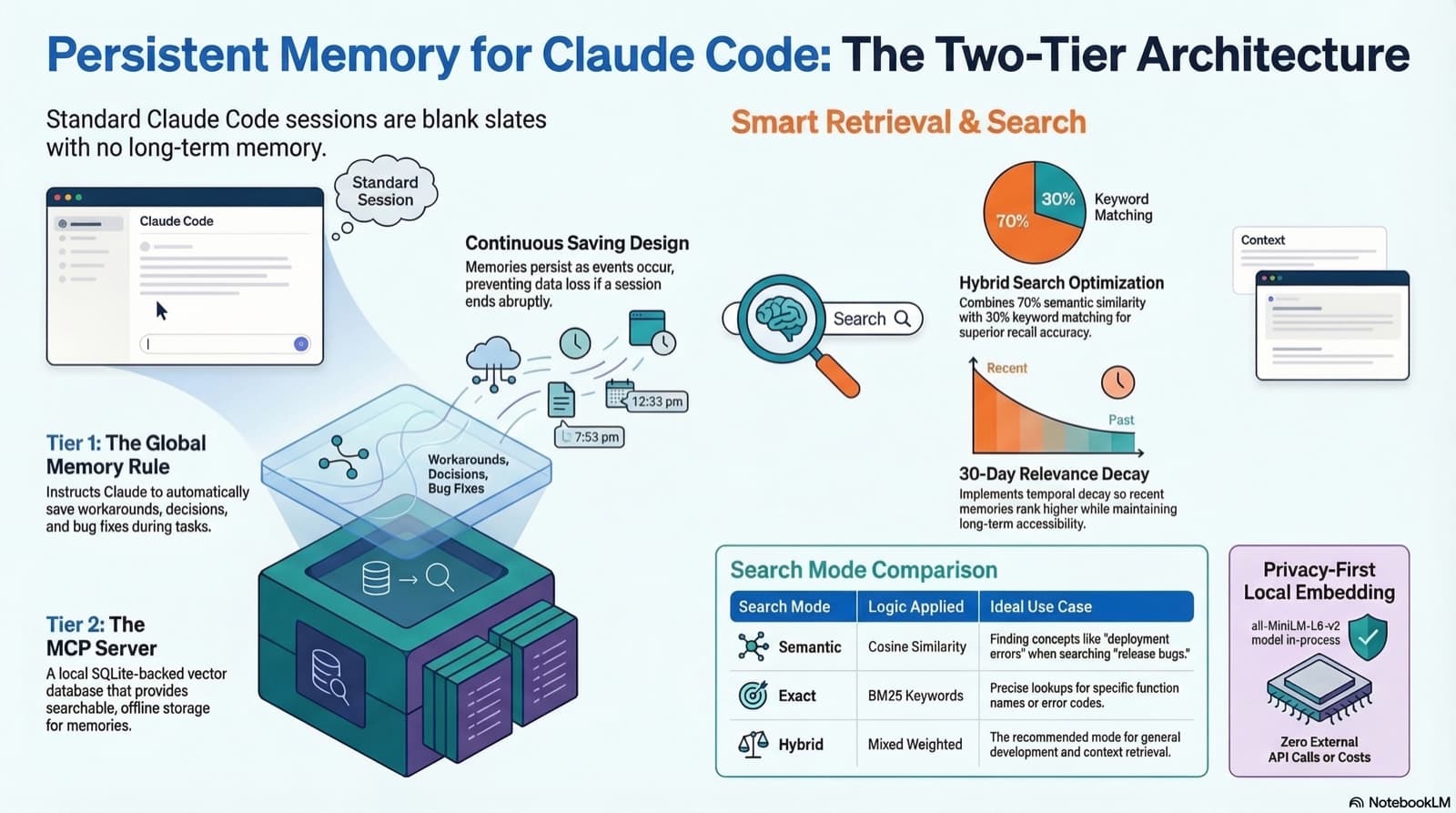
How to give Claude Code real persistent memory using a global rule file and a vector database MCP server, so context survives across sessions without any manual effort.
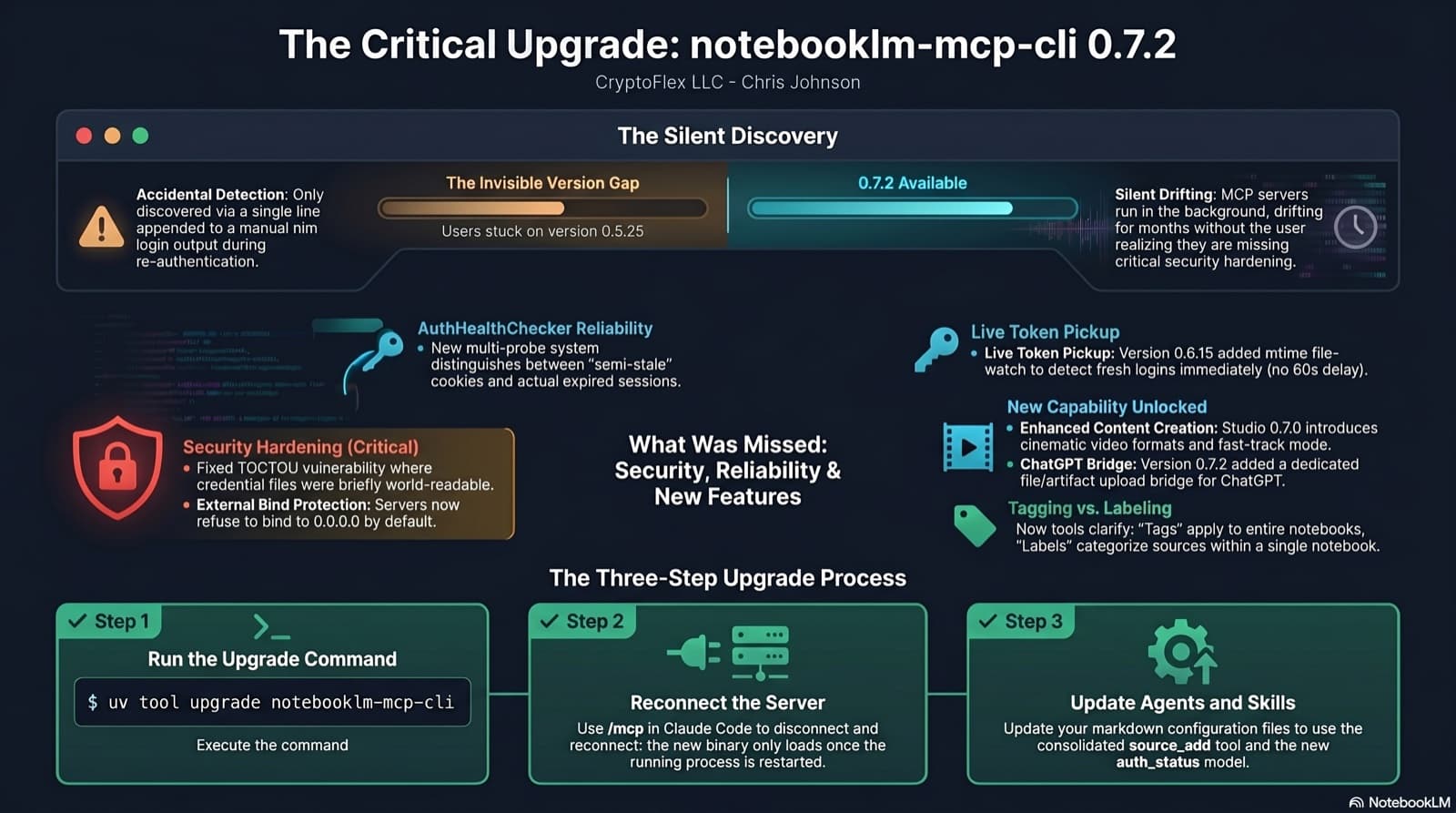
I was two minor versions behind on notebooklm-mcp-cli and had no idea until a re-auth banner interrupted a session. The gap was 0.5.25 to 0.7.2. Security fixes, auth reliability improvements, and new features I was missing the whole time. Here is the three-part upgrade that most people stop after step one.
Comments
Subscribers only — enter your subscriber email to comment