
From Page Views to Full Telemetry: Rebuilding the Analytics Dashboard
How a basic page-view tracker evolved into a 9-section, 26-component analytics command center with heatmaps, scroll depth tracking, bot detection, and API telemetry. Includes the reasoning behind every upgrade and enough puns to make a data scientist groan.
You know that moment when you look at something you built a week ago and think, "Oh no. Oh no no no. We can do better"?
That was me, staring at my analytics dashboard. A week ago, it was a page-view counter with a world map and some bar charts. Functional? Sure. Impressive? About as impressive as a calculator app at a hackathon. It answered one question: "Did anyone visit my site today?" But it couldn't tell me how far they scrolled, what time they showed up, whether they were a human or a bot, or how fast my API was responding.
In other words, it was the analytics equivalent of checking your bank balance but never looking at the transactions.
Today? It's a 9-section, 26-component command center with heatmaps, scroll depth tracking, engagement metrics, bot detection, API telemetry, and Core Web Vitals. It sparks joy. It also sparks questions like "why did I spend an entire session on tooltips?" but we'll get to that.
The Starting Point: What We Had#
Let's set the scene. Before this session, the analytics dashboard already existed (I wrote a whole post about building it and then another one about all the security holes I found in it). It tracked page views, had a Leaflet world map with visitor pins, showed top pages, browsers, devices, and operating systems. It even had IP intelligence lookups.
But it was flat. One long page. No categories. No tooltips explaining what anything meant. If you weren't me, you'd have no idea what half the charts were showing.
What is an analytics dashboard?
Think of it like the instrument panel in your car. Instead of showing speed, fuel, and engine temperature, it shows who's visiting your website, where they're from, what they're reading, and whether anything looks suspicious. The fancier the dashboard, the more questions it can answer at a glance, without you having to dig through raw data.
Here's what the dashboard looked like, section by section:
| What We Had | What Was Missing |
|---|---|
| Page views over time | No heatmap showing when visitors arrive |
| Top pages by views | No scroll depth (do they actually read it?) |
| Browser/device/OS charts | No new vs. returning visitor breakdown |
| Visitor map | No referrer tracking (where did they come from?) |
| Basic auth | No auth attempt monitoring |
| Page view counts | No time-on-page metrics |
| N/A | No API response time tracking |
| N/A | No bot traffic trends |
| N/A | No Core Web Vitals |
That right column? That's the to-do list that kept me up at night. Metaphorically. (Okay, literally.)
The Reasoning: Why Upgrade?#
Before I walk you through the how, let me explain the why. Because adding 13 new metrics to a dashboard isn't a decision you make lightly. Each one has to earn its spot.
What are metrics?
Metrics are specific measurements that help you understand what's happening. "Page views" is a metric. "Bounce rate" is a metric. "Number of times Chris refreshed the dashboard to see if it looked cool" is also technically a metric, but we don't track that one. Yet.
Reason 1: You can't optimize what you can't see#
Knowing someone visited your site is great. Knowing they bounced after reading 25% of the page? That's actionable. Maybe the intro is too long. Maybe there's a wall of text that scares people off. Maybe the GIFs aren't funny enough. (Impossible, but hypothetically.)
Reason 2: Security is a spectator sport (for the defender)#
I'm a cybersecurity professional. Watching bot traffic trends and auth attempt patterns isn't just interesting, it's literally my job description applied to my own site. If someone is brute-forcing my analytics login, I want to know about it before they get in, not after.
Reason 3: Performance matters more than you think#
What are Core Web Vitals?
Core Web Vitals are Google's way of measuring how fast and smooth your website feels. There are five key metrics: LCP (how fast the main content loads), INP (how quickly buttons respond when clicked), CLS (whether things jump around while loading), FCP (when the first thing appears on screen), and TTFB (how fast the server responds). Google uses these to help rank your site in search results, so if they're bad, fewer people find you.
What is an API endpoint?
An API (Application Programming Interface) is a way for different pieces of software to talk to each other. An endpoint is a specific URL that accepts requests and sends back data. Think of it like a restaurant: the API is the menu, and each endpoint is a specific dish you can order. You send a request ("I'd like the page view data, please") and the endpoint sends back a response ("Here are 500 rows of visitor data"). Your browser talks to dozens of API endpoints every time you load a webpage.
If my API endpoints are responding slowly, I need to catch that before visitors do. If my Core Web Vitals are tanking, Google will quietly bury my search rankings while I sit here thinking everything is fine.
The Upgrade: 13 New Metrics in One Session#
Here's where it gets fun. In a single Claude Code session, we added 13 new analytics metrics, reorganized the entire dashboard into 9 categorized sections, added tooltips to every panel, and created a consistent component architecture.
Let me walk you through each section and why it exists.
Section 1: Overview (The Executive Summary)#
Every dashboard needs a "glance and go" section. Ours has four KPI stat cards at the top:
- Total Page Views (the big number that makes you feel good)
- Unique Visitors (the slightly smaller number that keeps you honest)
- Bounce Rate (the humbling number)
- New vs. Returning (the "are people coming back?" number)
What is a bounce rate?
A bounce rate measures the percentage of visitors who land on your site and leave without clicking anything else. A high bounce rate isn't always bad (if someone reads an entire blog post and leaves satisfied, that's technically a "bounce"). But if people are leaving your homepage immediately, that's a sign something isn't working.
Below the cards: a Page Views Over Time area chart and the star of this section, the Peak Hours Heatmap.
// Peak Hours Heatmap: 7 days × 24 hours
// Each cell's color intensity reflects traffic volume
<PeakHoursHeatmap data={hourlyHeatmap} />
The heatmap is a 7-day-by-24-hour grid where each cell's color intensity shows how much traffic that time slot gets. It answers questions like: "Should I publish blog posts in the morning or evening?" and "Why is there a traffic spike at 3 AM?" (Spoiler: bots. It's always bots.)
Why heatmaps beat line charts
A line chart can show you traffic over time, but it compresses an entire day into a single data point. A heatmap shows you the texture of your traffic. Tuesday at 2 PM looks different from Saturday at midnight, and that difference matters when you're deciding when to publish content or schedule maintenance.
Section 2: Audience & Geography#
This section answers the "who" questions. The world map was already here, but we added two new charts:
New vs. Returning Visitors tracks how many first-time visitors you get compared to returning ones. If nobody comes back, your content might not be sticky. If everyone is returning but nobody new is showing up, you might have a discovery problem.
Referrer Breakdown shows where your traffic comes from. Direct visits, Google searches, Twitter links, Hacker News, that one Reddit post that blew up for 20 minutes.
What is a referrer?
When you click a link on one website that takes you to another, the browser sends along a note saying "this person came from [URL]." That's the referrer. It's how website owners know whether their traffic is coming from Google, social media, email campaigns, or that Slack message your coworker shared. Some browsers and privacy tools strip this information, so referrer data is always a lower bound, not an exact count.
Section 3: Content & Engagement (The Good Stuff)#
This is the section I'm most proud of. Page views tell you that someone showed up. Engagement metrics tell you what they did when they got there.
Scroll Depth tracks how far visitors scroll on each page. We fire tracking events at 25%, 50%, 75%, and 100% scroll milestones:
// Client-side scroll tracking via IntersectionObserver
const SCROLL_THRESHOLDS = [25, 50, 75, 100];

// When a visitor crosses a threshold, fire a beacon
navigator.sendBeacon('/api/analytics/track-engagement', JSON.stringify({
  type: 'scroll',
  path: window.location.pathname,
  depth: threshold
}));
What is sendBeacon()?
sendBeacon() is a browser API designed for sending small bits of data without slowing down the page. Unlike a regular network request, it runs in the background and doesn't block the user from navigating away. It's perfect for analytics because you want to record that someone scrolled to 75% of the page even if they close the tab immediately after. The beacon fires and the browser handles the rest, even after the page is gone.
Time on Page measures how long visitors actually spend reading. Combined with scroll depth, you can figure out if someone speed-scrolled to the bottom (looking for a TL;DR) or actually sat there and read all 3,000 words.
Scroll depth + time on page = reading behavior
If someone scrolls to 100% in 15 seconds on a 15-minute post, they skimmed. If they hit 100% in 12 minutes, they read it. This combination reveals reading behavior that neither metric shows alone. It's like the difference between someone walking through a museum and someone actually stopping to look at the paintings.
Section 4: Technology#
Browsers, devices, and operating systems. This was mostly already built, but we cleaned up the components and added consistent tooltips. Every panel now has a little info icon that explains what the data means and where it comes from.
User-agent parsing is a wild ride
We parse browser, OS, and device type from the User-Agent string with regex. This works for about 95% of real traffic, but User-Agent strings are not standardized. Chrome on iOS sends a Safari-like User-Agent. Some bots claim to be Chrome. Edge literally pretends to be every browser that ever existed. It's chaos, but functional chaos.
Section 5: Server Telemetry (New!)#
This section is entirely new and answers a question most dashboards ignore: "How is my backend performing?"
What is telemetry?
Telemetry is the practice of collecting measurements from a remote system and sending them somewhere for analysis. In our case, we're measuring how long each API endpoint takes to respond and whether any requests are failing. Think of it like a health monitor for your server: pulse rate (response times), blood pressure (error rates), and whether the patient is conscious (uptime).
The API Response Chart shows per-endpoint latency with three percentile breakdowns:
| Percentile | What It Means |
|---|---|
| p50 | Half of requests are faster than this (the "normal" speed) |
| p75 | 75% of requests are faster (catching the slower ones) |
| p95 | 95% of requests are faster (catching the outliers) |
What are percentiles?
Imagine you timed 100 pizza deliveries. The p50 (median) is the delivery time where half were faster and half were slower. The p95 is the time that only 5 deliveries exceeded, your "worst realistic case." Averages are misleading because one 2-hour delivery disaster can make your average look terrible even if 99 deliveries were fast. Percentiles tell you what the experience is actually like for most people.
// Per-endpoint cards with p50/p75/p95 + error rate
<ApiResponseChart metrics={apiMetrics} dailyMetrics={apiMetricsByDay} />
We also track error rates per endpoint. If /api/analytics/track suddenly has a 15% error rate, something is wrong and I want to know before my visitors do.
Section 6: Performance (Core Web Vitals)#
This section integrates with Vercel Speed Insights to display real-user Core Web Vitals data with color-coded rating bars:
- Green = Good (meeting Google's thresholds)
- Yellow = Needs Improvement (borderline)
- Red = Poor (Houston, we have a problem)
Each metric shows a distribution bar so you can see not just the average, but how many visitors had a good, okay, or bad experience.
Why distribution bars matter more than averages
If your average LCP is 2.3 seconds, that sounds fine. But what if 40% of visitors have a 4-second LCP? The average was hiding a bimodal distribution, some visitors have a great experience and some have a terrible one. Distribution bars expose this immediately.
Section 7: Security (Because I'm That Guy)#
Remember, I'm a cybersecurity professional. This section is my playground.
Bot Traffic Trend shows a stacked area chart of human vs. bot traffic over time, with a percentage badge. If your bot traffic suddenly spikes from 15% to 60%, someone might be scraping your content or probing for vulnerabilities.
What is a bot?
A bot is an automated program that visits websites without a human controlling it. Some bots are helpful (Google's crawler indexes your site for search results). Some are neutral (SEO tools checking your rankings). And some are malicious (scrapers stealing your content, vulnerability scanners looking for weaknesses, credential stuffers trying to log in). Telling them apart is one of the fundamental challenges of web security.
Auth Attempts Chart tracks successful vs. failed login attempts to the analytics dashboard. This is the "is someone trying to break in?" detector.
Why track auth attempts?
A steady trickle of failed login attempts is normal (bots scanning for common endpoints). A sudden spike of failures from a single IP? That's a brute-force attack. By logging every attempt to the database and visualizing the trend, you can spot patterns that would be invisible in raw server logs. The rate limiter (5 attempts per 15 minutes per IP) handles the defense. The chart handles the awareness.
The Vercel Firewall Card pulls real-time data from Vercel's API to show:
- Active attack detection status
- OWASP Core Rule Set managed rulesets (SQL injection, XSS, scanner detection)
- Custom WAF rules
- Recent firewall events with timestamps
What is a WAF (Web Application Firewall)?
A WAF is like a bouncer at the door of your website. It inspects every incoming request and decides whether to let it through or block it. It looks for known attack patterns: SQL injection attempts, cross-site scripting (XSS), vulnerability scanners, and other nasty things. OWASP (the Open Web Application Security Project) maintains a standard set of rules that most WAFs use. Think of it as a spam filter, but for web attacks instead of emails.
Section 8: Newsletter#
Subscriber counts, active vs. inactive breakdown, and a full subscriber list table. This was already built but it now lives in its own section instead of being awkwardly shoved at the bottom.
Section 9: Recent Activity#
The raw data firehose. Last 50 page views with full visitor details, plus sortable data tables for every dimension (pages, countries, browsers, devices, OS, referrers).
The Component Architecture: Making It Maintainable#
One of the decisions I'm happiest about is the component architecture. Instead of one massive 2,000-line page, every visualization is its own component:
src/app/analytics/_components/
├── api-response-chart.tsx      # API latency + error rates
├── auth-attempts-chart.tsx     # Login attempt tracking
├── bot-trend-chart.tsx         # Human vs. bot traffic
├── browser-chart.tsx           # Browser distribution
├── countries-chart.tsx         # Geographic breakdown
├── device-chart.tsx            # Device type breakdown
├── new-vs-returning-chart.tsx  # Visitor loyalty
├── os-chart.tsx                # Operating system breakdown
├── page-views-chart.tsx        # Traffic over time
├── peak-hours-heatmap.tsx      # When visitors arrive
├── referrer-chart.tsx          # Traffic sources
├── scroll-depth-chart.tsx      # How far they read
├── time-on-page-chart.tsx      # How long they stay
├── panel-wrapper.tsx           # Consistent card frame
├── section-header.tsx          # Section dividers
├── stat-card.tsx               # KPI display cards
└── ... 9 more components
That's 26 components total. Each one:
- Takes typed props (TypeScript interfaces in
analytics-types.ts) - Uses Recharts for consistent visualization
- Wraps in a
PanelWrapperfor uniform card styling - Includes an info tooltip explaining what the metric means
What is a component?
In modern web development, a component is a self-contained piece of UI that handles its own display logic. Think of it like LEGO bricks: each one has a specific shape and purpose, and you snap them together to build something bigger. A "chart component" knows how to draw a chart. A "card component" knows how to draw a card. The dashboard page just arranges them in the right order.
PanelWrapper is the unsung hero
Every chart is wrapped in a PanelWrapper component that provides consistent styling, an info tooltip, and a title. This means adding a new metric is straightforward: build the visualization, wrap it in PanelWrapper, pass it some data, and it automatically looks like it belongs.
The Tooltip Decision (Yes, I'm Writing About Tooltips)#
I spent a non-trivial amount of time adding info tooltips to every single panel. This might seem like a cosmetic detail, but hear me out.
Dashboards have a dirty secret: they're only useful if the person looking at them understands what they're looking at. A chart labeled "p95 API Response Time" means nothing if you don't know what a percentile is. A "bounce rate" of 45% is meaningless without context about what's normal.
Every PanelWrapper now accepts an info prop with a plain-English explanation:
<PanelWrapper
  title="Scroll Depth"
  info="Shows how far visitors scroll on each page. Tracks 25%, 50%, 75%, and 100% milestones. Higher completion rates suggest more engaging content."
>
  <ScrollDepthChart data={scrollDepth} />
</PanelWrapper>
Design for your future confused self
You will forget what your own metrics mean. In three months, you'll look at the "Auth Attempts" chart and wonder, "Wait, does this count API key auth or just the login form?" The tooltip is a gift from present-you to future-you. Be generous.
The SQL Behind the Scenes#
What is a database?
A database is where your application stores information permanently. When someone visits your site, the page view data needs to live somewhere after the request is done. A database is like a giant spreadsheet that your code can read from and write to at high speed. We use Neon Serverless Postgres, which is a cloud-hosted database that starts up on demand (no server running 24/7) and speaks SQL, the universal language for asking databases questions.
All this data has to come from somewhere. The dashboard runs 20+ SQL queries in parallel using Promise.all() against a Neon Serverless Postgres database.
What is Promise.all()?
JavaScript is single-threaded, meaning it normally does one thing at a time. Promise.all() is a way to say "start all of these tasks at once and wait for all of them to finish." Instead of running 20 database queries one after another (which would take 20x as long), we fire them all simultaneously. The dashboard loads in the time it takes for the slowest query, not the sum of all queries. It's like ordering at a restaurant where the kitchen starts cooking all your dishes at once instead of waiting for the appetizer to finish before starting the main course.
What is SQL?
SQL (Structured Query Language, pronounced "sequel") is the language you use to ask a database for information. It reads almost like English: "SELECT all page views WHERE the country is 'US' and the date is today." Instead of scrolling through millions of rows by hand, you write a query and the database does the searching for you. It's been around since the 1970s and is still the backbone of almost every application that stores data.
Here's a taste of the new vs. returning visitors query:
SELECT
  date_trunc('day', created_at) AS day,
  COUNT(*) FILTER (WHERE is_first_visit) AS new_visitors,
  COUNT(*) FILTER (WHERE NOT is_first_visit) AS returning_visitors
FROM page_views
WHERE created_at > NOW() - INTERVAL '${days} days'
GROUP BY 1
ORDER BY 1
SQL injection is always lurking
Even with parameterized queries and Neon's tagged template literals, you have to be careful with dynamic values in SQL. The days parameter is validated and clamped (1-365 range) on the server side before it ever touches a query. Never trust client input, even when it's your own client. Especially when it's your own client.
The Engagement Tracking Pipeline#
Getting scroll depth and time-on-page data required building a new client-side tracking system and a corresponding API endpoint.
Client side (analytics-tracker.tsx):
- Track scroll position with an event listener
- Fire a beacon at each 25% milestone (deduped, only fires once per threshold per page)
- Track elapsed time on the page
- Send time-on-page via
sendBeacon()on page navigation or tab close
Server side (/api/analytics/track-engagement):
- Validate input with Zod schemas
- Deduplicate by IP + page + threshold (1 record per combo per hour)
- For time-on-page, keep only the longest duration per session (people don't un-read a page)
- Rate limit to prevent abuse
What is rate limiting?
Rate limiting is putting a speed limit on how often someone can do something. If your login page allows unlimited password attempts, an attacker can try thousands of passwords per second until they guess right. Rate limiting says "you get 5 tries per 15 minutes, then you're locked out temporarily." It's one of the simplest and most effective defenses against brute-force attacks, and it protects your server from being overwhelmed by automated traffic.
What is Zod?
Zod is a TypeScript validation library that checks whether data matches an expected shape. When someone sends data to your API, you can't trust that it's formatted correctly. Maybe they sent a string where you expected a number. Maybe they sent an empty object. Zod catches these problems at the door before they cause chaos deeper in your code. Think of it as a bouncer for your API: "Your name's not on the list, you're not coming in."
Deduplication prevents data inflation
Without deduplication, a single visitor refreshing the page 50 times would create 50 scroll depth records and make your engagement metrics look incredible. Too incredible. The IP + page + threshold + hourly window deduplication ensures each real interaction is counted once, keeping the data honest.
The Recharts Experience#
All the charts use Recharts, a React charting library built on D3. It's composable (you build charts from smaller pieces like <AreaChart>, <XAxis>, <Tooltip>), plays nicely with server components via dynamic imports, and looks great with Tailwind CSS colors.
What is Recharts?
Recharts is a library that turns data into visual charts (bar charts, line charts, area charts, pie charts) in React applications. Instead of drawing graphics pixel by pixel, you describe what you want: "Here's my data, make it a bar chart with these colors." Recharts handles the rendering, animations, tooltips, and responsiveness. It's built on top of D3.js, the gold standard for data visualization on the web, but with a much friendlier API.
The peak hours heatmap was the most fun to build. It's not a standard Recharts component. It's a custom SVG grid where each cell's opacity maps to the traffic volume for that hour-of-day and day-of-week:
// Color intensity scales with traffic volume
const opacity = maxViews > 0 ? (views / maxViews) * 0.8 + 0.1 : 0.05;
Minimum opacity of 0.05 so empty cells are still visible, max of 0.9 so the grid doesn't turn into a solid block of color. These tiny design decisions make the difference between a chart that's informative and one that's beautiful and informative.
Lessons Learned#
1. Tooltips are not optional
Every metric on a dashboard should explain itself. If a new team member (or your future self) can't understand a panel without reading documentation, the panel has failed at its job.
2. Categories create scanability
A flat list of 20 charts is overwhelming. Grouping them into sections (Overview, Audience, Content, Technology, Security) turns a wall of data into a narrative. The user's eye can jump to the section they care about.
3. Client-side tracking needs deduplication
Without server-side deduplication, your engagement metrics will lie to you. A single power-user refreshing 50 times inflates every metric. Always deduplicate on the server, never trust the client to self-limit.
4. Parallel queries are essential
Running 20+ SQL queries sequentially would make the dashboard unbearably slow. Promise.all() is your best friend for data-heavy server-rendered pages.
5. Track your auth attempts
If your dashboard has a login form, log every attempt (success and failure). It costs almost nothing to store and gives you early warning of brute-force attacks. The chart makes patterns visible that raw logs hide.
6. User-Agent parsing is best-effort
Don't invest in pixel-perfect browser detection. The User-Agent string is a mess of lies and legacy compatibility hacks. Get 95% accuracy with regex and accept the remaining 5% as the cost of doing business on the internet.
7. Component architecture pays for itself immediately
26 components sounds like a lot. But when you need to tweak the scroll depth chart, you open one file. When you need to add a new metric, you copy the pattern. The 10 minutes spent extracting a component saves hours of future debugging.
The Final Dashboard: By the Numbers#
| Metric | Count |
|---|---|
| Dashboard Sections | 9 |
| Visualization Components | 26 |
| New Metrics Added | 13 |
| SQL Queries (parallel) | 20+ |
| TypeScript Interfaces | 16 |
| Tooltips Added | Every. Single. Panel. |
| API Endpoints | 4 (track, track-engagement, auth, vitals) |
| Times I Refreshed to Admire the Heatmap | More Than I'll Admit |
What's Next?#
The dashboard is comprehensive, but there's always more data to track. Some ideas for the future:
- Search query analytics (what are people searching for on the blog?)
- Reading completion rate (scroll depth + time on page combined into a single metric)
- Alerting (get notified when bot traffic spikes or error rates climb)
- A/B testing integration (which post titles get more clicks?)
But for now? I'm going to sit here and watch the heatmap update in real time. It's oddly meditative.
Like a lava lamp, but with data.
Previous in series: 7 Days, 117 Commits: Building a Production Website with AI
Written by Chris Johnson and edited by Claude Code (Opus 4.6). 26 components, 13 new metrics, 9 sections, 1 deeply satisfying heatmap. If your dashboard can't tell you what's happening at 3 AM on a Tuesday, you're not done building it.
Weekly Digest
Get a weekly email with what I learned, summaries of new posts, and direct links. No spam, unsubscribe anytime.

Related Posts
A security professional audits his own code: blog posts leaking private repo names, query-string secrets in browser history, SSRF vectors, and error messages handing attackers the database schema. 19 findings and the journey to fix every one.
How I built a custom analytics system with interactive visualizations, IP intelligence, and a Leaflet world map, using Next.js, Neon Postgres, and Claude Code. Includes the full Vercel Analytics integration and why custom tracking fills the gaps.
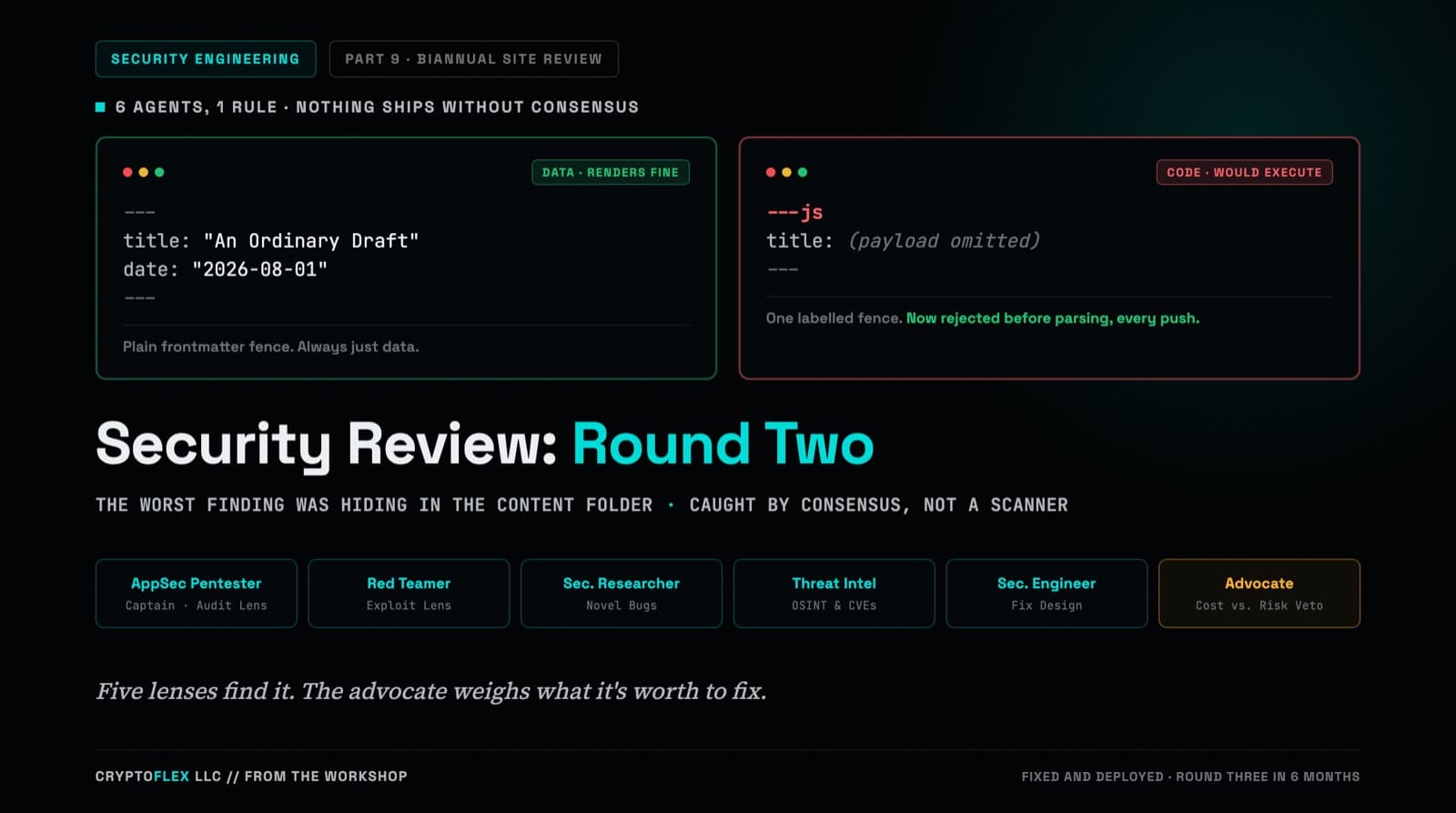
A team of six agents, five security specialists plus an advocate representing the site owner, ran a consensus-driven security review of cryptoflexllc.com. The standout finding: an ordinary-looking blog draft that could have been parsed as executable code instead of data.
Comments
Subscribers only — enter your subscriber email to comment