
I Built an AI Agent to Clean My Inbox. Now It Runs Itself Every 5 Hours.
Building a Gmail cleanup agent in Claude Code, evolving it from a manual 5-step script to a fully autonomous v3 with VIP detection, delta sync, auto-labeling, and follow-up tracking. Then making it run unattended every 5 hours via scheduled triggers and a remote-control daemon on a Mac Mini.
My inbox had 369 unread emails.
Not a badge-of-honor "I'm so busy and important" kind of 369. A shameful "I've been ignoring these for days and now I'm afraid to open the app" kind of 369. Dollar Shave Club. Medium Digest. A credit score notification from a site I don't remember signing up for. Three VFW newsletters. Seventeen promotions from ButcherBox.
I could have spent an afternoon clicking the delete button. Or I could spend that afternoon building an AI agent to do it for me and then write a blog post about it. The math wasn't hard.
Here's what I built, how it works, why the GCP OAuth setup was a small nightmare, and what happened when I finally let it loose on my inbox.
The Plan: Five Steps (Now Eight), No Human Required#
The agent lives at ~/.claude/agents/gmail-assistant.md. If you've read my post on the GWS CLI skill, you know I replaced the Gmail and Calendar MCPs with a local CLI tool that authenticates properly and doesn't require an active MCP server per session. This agent is built on top of that.
The original workflow had five steps. It has since grown to eight (plus a pre-flight step), with VIP detection, follow-up tracking, and a combined attention email. The full v3 pipeline is covered in Part 2 below. Here's where it started:
The Original Five-Step Pipeline
- Promotions purge - trash promotions older than 7 days
- Social purge - trash social notifications older than 7 days
- Newsletter detection - trash anything with "unsubscribe" language older than 7 days
- Primary inbox classification - review remaining primary emails and sort into KEEP, ARCHIVE, TRASH, or FLAG
- Draft report - create a draft email with a summary table of what was done
The first three steps are blunt: Gmail's own categorization already does most of the work for Promotions and Social. The agent just applies a time filter and pulls the trigger. Older than a week and you haven't opened it? Gone.
Step 4 is where the agent has to actually think. Primary inbox emails are legitimate enough that Gmail didn't auto-categorize them, which means they could be anything: bills, receipts, your kid's school notifications, a Udemy course sale you actually care about, or marketing that slipped past Gmail's filters.
Step 5 creates a draft email (not sent, just a draft) with a table breaking down everything that happened. So you can review before anything gets permanently deleted.
The Classification Rules#
The KEEP/ARCHIVE/TRASH/FLAG taxonomy is only as useful as the rules driving it. I spent some time writing out what actually matters in my inbox:
KEEP (stays in the primary inbox):
- Bills, utility notices, bank statements
- Purchase receipts and shipping confirmations
- Government mail (IRS, VA, anything official)
- School communications from Broward County
- USAA (insurance, banking)
- Security alerts from services I actually use
- Financial alerts (transactions, balance notifications)
- Emergency alerts of any kind
ARCHIVE (out of the inbox, but saved):
- Stargard (car GPS tracking app) notifications
- VFW newsletters (I'm a member, but I don't need these in my face)
- SANS Advisory Board updates
- Vet Tix (veteran concert tickets, I'll look when I have time)
- Udemy course announcements and sales
TRASH (gone):
- Social media notifications (LinkedIn likes, Twitter mentions, etc.)
- Dollar Shave Club, ButcherBox, Medium Digest (I never open these)
- Credit score notifications from random sites
- Marketing that slipped into Primary despite Gmail's best efforts
FLAG (uncertain, needs human review):
- Anything the agent isn't confident about
- Anything that could be KEEP but the agent isn't sure
- Edge cases and unfamiliar senders
The FLAG category is important. This agent is not trying to be clever. When in doubt, flag it for me. I'd rather have ten false positives in a flag queue than accidentally trash a Broward County school emergency notice because the subject line looked like a newsletter.
Don't Skip the FLAG Category
Any inbox automation that doesn't include a human-review escape hatch will eventually delete something important. Build the uncertainty bucket first. You can always tighten the rules later when you trust the agent's judgment.
Phishing and Malware Detection#
Gmail catches most phishing, but not all of it. The agent adds a second layer of defense by scanning every primary inbox email for threat indicators before classification. If two or more signals are present, the email gets trashed and flagged in the attention email.
The signals the agent checks for:
- Sender domain mismatch: the display name says "PayPal" but the actual sender domain is
paypa1-security@randomdomain.com - Urgency + action demand: "your account will be suspended in 24 hours, click here to verify"
- Credential harvesting: any request for passwords, SSN, credit card numbers, or login credentials via email
- Misspelled brand names: "Arnazon," "Micros0ft," "App1e" in the sender address or subject
- Reply-to mismatch: the Reply-To header points to a completely different domain than the From header
- Risky attachments: .exe, .scr, .bat, .ps1, .vbs, .js, .msi, or password-protected archives
- Suspicious link patterns: URLs using IP addresses instead of domains, URL shorteners, or typosquatted domains
When a threat is detected, the agent trashes the email, applies an Auto/Security-Threat label, and includes it in both the draft report and the combined attention email. You get notified about every threat that bypassed Gmail's filters without having to open it yourself.
Legitimate vs. Fake Security Alerts
The tricky part is distinguishing a real fraud alert from your bank versus a phishing email pretending to be your bank. The agent checks the actual sender domain against known legitimate domains before flagging. A password reset from accounts.google.com is a real security alert. A password reset from accounts-google.security-verify.com is phishing. The domain is the ground truth.
Writing the Agent File#
The agent lives in ~/.claude/agents/gmail-assistant.md. Here's the structure:
---
platform: portable
description: "Gmail personal assistant: classify and clean inbox using GWS CLI"
model: sonnet
tools: [Bash]
---

# Gmail Personal Assistant

## Mission
Process unread Gmail emails in 5 steps using the GWS CLI tool.
Use GOOGLE_WORKSPACE_CLI_CONFIG_DIR env var to switch accounts.

## Step 1: Trash Old Promotions
...

## Step 4: Classify Primary Inbox
For each remaining primary email, classify as:
- KEEP: bills, receipts, government, school (Broward County), ...
- ARCHIVE: Stargard, VFW, SANS Advisory Board, Vet Tix, Udemy
- TRASH: social media, Dollar Shave Club, ButcherBox, Medium Digest, ...
- FLAG: anything uncertain

## Step 5: Create Draft Report
Create a draft email with subject "Inbox Cleanup Report - [date]"
containing a markdown table: Category | Count | Examples
Sonnet-level is plenty for this task. It's reading email subjects and senders, applying rule-matching logic, and calling CLI commands. No architectural reasoning required.
The tools: [Bash] constraint is intentional. The agent only needs to run shell commands. No file editing, no web fetching, no glob patterns. Limiting tools keeps the agent focused and prevents it from wandering.
The GWS CLI and Multi-Account Setup#
Here's where things got spicy.
I built this agent to work against my personal Gmail account (myemail@gmail.com), but the GWS CLI I set up previously was authenticated against my work account (chrisjohnson@cryptoflexllc.com). Same tool, different credentials, and those credentials live in ~/.config/gws/.
What Is the GWS CLI?
The Google Workspace CLI is a local tool that wraps the Google APIs (Gmail, Calendar, Drive, etc.) with proper OAuth authentication. I wrote about the setup in detail in a previous post. Short version: it's a replacement for the Gmail and Calendar MCPs that authenticates once per account and stays authenticated via refresh tokens stored in your system keychain.
The tool supports multiple account profiles via the GOOGLE_WORKSPACE_CLI_CONFIG_DIR environment variable. So in theory, I just point it at a different config directory:
# Work account (default)
gws gmail list-messages --unread

# Personal account
GOOGLE_WORKSPACE_CLI_CONFIG_DIR=~/.config/gws-personal gws gmail list-messages --unread
Simple. Except I had to actually set up the personal account config first, and that's where the afternoon went sideways.
Attempt 1: Add Gmail to the CryptoFlex GCP Project#
My first instinct was efficiency: I already have a Google Cloud Project for the work account. Why not just add myemail@gmail.com as an authorized test user in the same OAuth consent screen?
I went into the CryptoFlex GCP project, navigated to APIs & Services > OAuth consent screen > Test users, and tried to add the Gmail address.
Error: Domain restriction policy prevents adding users
outside the organization's approved domains.
Right. The CryptoFlex GCP project is under Google Workspace for Business, which has a Domain Restricted Sharing org policy active by default. That policy blocks OAuth test user additions from outside the approved domain (cryptoflexllc.com).
Attempt 2: Update the Org Policy#
I'm the org admin. I can change org policies. How hard could it be?
I navigated to IAM & Admin > Organization Policies, found the constraints/iam.allowedPolicyMemberDomains constraint, and edited it to add the Gmail domain (C03hz1a1t is Google's internal identifier for gmail.com in the Workspace org policy system).
The policy saved. I went back to the OAuth consent screen. Added the Gmail test user. It accepted.
Then I waited for IAM to propagate.
And waited.
And waited.
IAM Propagation Is Not Instant
Google says org policy changes can take up to 15 minutes to propagate across their systems. In practice, especially for OAuth consent screen changes, it can be longer. I got tired of waiting and moved on to a better solution.
Attempt 3: Separate GCP Project (The Right Answer)#
The cleanest solution was also the most obvious one: create a separate GCP project under the personal Google account, with its own OAuth credentials. No org policy complications, no cross-domain issues, no waiting for IAM propagation.
Steps:
# 1. Go to console.cloud.google.com (logged in as myemail@gmail.com)
# 2. Create new project: "personal-gws-cli"
# 3. Enable Gmail API
# 4. Create OAuth Desktop App credentials
# 5. Download credentials.json
# 6. Initialize gws with the personal config dir
GOOGLE_WORKSPACE_CLI_CONFIG_DIR=~/.config/gws-personal gws auth login
The OAuth flow has some friction when you're using a non-verified app:
- Google shows you the "unverified app" warning screen
- You click "Advanced" then "Go to personal-gws-cli (unsafe)"
- You grant the Gmail scopes
- A refresh token gets written to
~/.config/gws-personal/tokens.json
After that initial dance, the tool authenticates silently using the refresh token. You don't see the warning again unless you revoke access or the token expires.
Test Users for Desktop OAuth Apps
Even for Desktop App OAuth (not Web App), you need to add your own account as a test user in the OAuth consent screen if your app is in testing mode (not published). It's counterintuitive since you're authenticating as yourself, but Google requires it. Add your Gmail address to the test users list before trying to authenticate.
Once both accounts were configured, the agent's account-switching pattern was clean:
# In the agent, when working with personal Gmail:
export GOOGLE_WORKSPACE_CLI_CONFIG_DIR="$HOME/.config/gws-personal"

# Then all subsequent gws commands use personal account:
gws gmail list-messages --label UNREAD --category PROMOTIONS --max-results 100
Running the Agent#
With the agent file written and both GWS CLI accounts configured, I launched the agent:
/agents gmail-assistant
And then I waited. Processing 369 unread emails takes a while, even for Sonnet.
The agent worked methodically through the five steps. I could see it calling the GWS CLI commands in sequence: listing promotions, trashing batches, listing social, trashing those, searching for newsletter indicators, classifying the survivors.
The primary inbox classification step was the slowest. The agent read each email's subject, sender, and snippet, matched it against the classification rules, and took the appropriate action. For the FLAG category, it wrote down the sender and subject so I'd have context in the report.
The Results#
369 emails. Here's the breakdown:
| Category | Action | Count |
|---|---|---|
| Promotions (>7 days) | Trashed | 171 |
| Social (>7 days) | Trashed | 2 |
| Newsletters | Trashed | 48 |
| Primary: Trash | Trashed | 31 |
| Primary: Archive | Archived | 28 |
| Primary: Flag | Flagged (starred) | 9 |
| Primary: Keep | Left in inbox | 79 |
| Total processed | 368 |
One email was apparently in a quantum superposition between categories and couldn't be counted. (More likely I miscounted somewhere. The agent didn't error.)
171 promotions trashed. Dollar Shave Club, ButcherBox, Medium Digest, twelve months of credit score notifications from a site I signed up for once. Gone.
48 newsletters, caught by the "unsubscribe" heuristic. The agent searched for emails containing language like "unsubscribe," "opt out," "email preferences," and "manage subscriptions" in the body. Older than 7 days and you didn't open it? Trash.
The 9 flagged emails were interesting. Most of them were edge cases: an email from an unfamiliar sender that looked like it could be legitimate, a few marketing emails that arrived in the primary inbox without obvious newsletter markers. Exactly what the FLAG category was designed for.
Zero errors. The agent ran to completion on the first try.
The Draft Report Feature Is Worth It
Before I ran the agent, I almost skipped the draft report step. It felt like extra work. But seeing the summary table in a Gmail draft, organized by category with example subjects, gave me confidence that the agent did what I expected. It also serves as an audit trail. For automation that touches hundreds of emails, audit trails matter.
The Draft Report#
The agent created a draft with the subject "Inbox Cleanup Report - 2026-03-13" (it ran the day before I'm writing this). Here's a simplified version of what it looked like:
Subject: Inbox Cleanup Report - 2026-03-13
Summary#
| Category | Count |
|---|---|
| Promotions trashed | 171 |
| Social trashed | 2 |
| Newsletters trashed | 48 |
| Primary trashed | 31 |
| Primary archived | 28 |
| Flagged for review | 9 |
| Kept in inbox | 79 |
| Total processed | 368 |
Flagged for Review#
- "Claim your account - [unfamiliar sender]" from noreply@...
- "Important update to your service agreement" from ...
Trashed: Primary#
- Dollar Shave Club promotional emails (8)
- ButcherBox seasonal sale (3)
- Credit score notification from CreditKarma (5)
The flagged section is the most useful part. Nine emails I need to actually look at. Everything else is handled.
Running It Again#
After the first run, my inbox was down to 79 unread emails. All of them legitimate. I reviewed the 9 flagged items (confirmed 7 were trash, 2 were actually important), and now the primary inbox contains only things that need attention.
The second run, a day later, processed 23 new emails: 11 promotions trashed, 4 newsletters trashed, 6 kept, 2 flagged. Runtime: under 3 minutes.
That's the point where automation becomes a habit. The first run is satisfying. The tenth run is infrastructure.
Scheduling This (Update: Done)
When I first wrote this section, the agent was manual-only. I wanted to run it a few more times before trusting it unattended. That trust has been earned. The agent now runs on a 5-hour schedule via Claude Code's scheduled triggers and a remote-control daemon. Full details below.
Lessons Learned#
Separate GCP Projects for Separate Accounts
When adding personal Google accounts to automation that started on a Workspace account, create a brand new GCP project under the personal account instead of trying to share the existing Workspace project. Org policies, domain restrictions, and IAM propagation delays make cross-domain OAuth more trouble than it's worth.
The Unverified App Warning Is Expected
Desktop OAuth apps in testing mode will always show the "unverified app" warning for non-Gmail domains. For personal use automation, click through it once, get your refresh token, and you're done. Don't spend time trying to get the app "verified" unless you're distributing it to other users.
The FLAG Category Is Not Optional
Build a human-review escape hatch into any automation that takes destructive or hard-to-reverse actions. In this case, "trash" is recoverable for 30 days. But the habit of building in uncertainty handling will save you when the stakes are higher.
Test on a Small Batch First
I probably should have run the agent against the last 50 emails before unleashing it on 369. I was lucky the results were clean. If you're building something similar, add a --dry-run mode or a --max-emails 50 limit and validate the classification output before running at full scale.
Watch Your OAuth Scopes
The GWS CLI for Gmail needs read and modify scopes. Be explicit about what your agent is allowed to do. If you only need to read emails, request readonly scopes. If you need to trash emails, request modify. Never request broader scopes than you need, even for personal use automation.
The Agent File (Full)#
For reference, here's the core structure of the agent. I've simplified the classification rules for readability, but the actual file has the full sender/subject patterns:
---
platform: portable
description: "Gmail personal assistant - classify and clean inbox"
model: sonnet
tools: [Bash]
---

# Gmail Personal Assistant

## Setup
Set GOOGLE_WORKSPACE_CLI_CONFIG_DIR for account selection:
- Personal: export GOOGLE_WORKSPACE_CLI_CONFIG_DIR="$HOME/.config/gws-personal"
- Work: (default, no env var needed)

## Step 1: Trash Old Promotions
gws gmail list-messages --label UNREAD --category PROMOTIONS
For each email older than 7 days: gws gmail trash-message --id {id}

## Step 2: Trash Old Social
Same pattern with --category SOCIAL

## Step 3: Trash Old Newsletters
Search: gws gmail search-messages "unsubscribe OR opt-out OR email-preferences"
Filter to >7 days old, trash each.

## Step 4: Classify Primary Inbox
List remaining unread primary emails.
For each, read subject + sender + snippet.

KEEP if: bill, invoice, receipt, confirmation, government, VA, USAA,
         school (Broward), security alert, bank alert, emergency
ARCHIVE if: Stargard, VFW, SANS Advisory Board, Vet Tix, Udemy
TRASH if: social media notification, Dollar Shave Club, ButcherBox,
          Medium Digest, credit score notification, unknown marketing
FLAG if: uncertain - star the email and add to report

## Step 5: Create Draft Report
gws gmail create-draft with subject "Inbox Cleanup Report - {date}"
Include: summary table (category | count), flagged emails list,
         examples of what was trashed
What I'd Build Next (Original List)#
The agent handles the cleanup well. A few extensions that would make it genuinely powerful:
Unsubscribe handling: For newsletters I've chosen to archive rather than trash, the real fix is unsubscribing. An extension to the agent that finds the unsubscribe link in the email body and opens it (or fires the List-Unsubscribe header if present) would handle this at the source.
Sender learning: After a few runs, I could extract the senders that consistently get trashed and add them to a blocklist. Gmail's "Block sender" feature applied proactively, rather than reactively.
Scheduled runs: A daily launchd job on the Mac Mini that runs the agent at 6 AM so my inbox is clean before I look at it. This is probably the highest-ROI next step.
Multi-account view: The agent currently runs against one account at a time. A wrapper that runs it against both personal and work accounts in sequence and consolidates the report would be useful.
For now, though, 369 emails down to 79 in one run is a good first day for a new agent.
The inbox is clean. Dollar Shave Club has been silenced. And I have a blog post to show for the afternoon I spent not clicking the delete button myself.
That was where this post originally ended on March 15. Eleven days later, everything above still works. But the agent has changed significantly. Here's what happened next.
Part 2: The Agent Grows Up#
The original five-step pipeline was a solid proof of concept. But running it manually every day felt like a chore. And after a few runs, I noticed gaps: emails from people I'd recently replied to were getting trashed, threads with multiple messages were classified inconsistently, and there was no way to know if someone was waiting on a reply from me.
So I rewrote the agent. The file at ~/.claude/agents/gmail-assistant.md is now version 3, and it's a different beast.
The v3 Pipeline#
The original had 5 steps. The current version has 9 steps (0 through 8), including a substantial pre-flight phase that didn't exist before. Here's what changed.
Pre-Flight Checks (Step 0)#
The original agent just started processing. The new version runs seven sub-steps before touching a single email:
Pre-Flight Sub-Steps
- 0.1 Auth verification - confirm GWS CLI credentials are valid before proceeding
- 0.2 Label discovery - fetch all Gmail labels and record their IDs
- 0.3 Auto-label creation - create nine Auto/* labels if they don't exist
- 0.4 Processed label creation - create a hidden
gmail-assistant/processedtracking label - 0.5 VIP set from reply history - scan 90 days of sent mail to build a set of addresses the user has replied to
- 0.6 Delta sync state - load the last history ID for incremental processing
- 0.7 Circuit breaker - record the start time for the 10-minute timeout
Three of these deserve deeper explanation.
VIP Detection (Step 0.5)#
This was the biggest classification improvement. The original agent had no concept of "important sender." It classified purely on content: subject line, sender domain, snippet text. That meant an email from someone I'd been actively corresponding with could get trashed if the subject line looked promotional.
The fix: before classifying anything, the agent queries the last 90 days of sent mail and extracts every email address from the To and Cc headers. Anyone I've replied to is a VIP. VIP senders get special treatment throughout the pipeline:
- Never trashed, regardless of content or category
- Rescued from Promotions, Social, and Newsletters if miscategorized there
- Flagged for attention if unread for more than 3 days
- Logged in a "VIP Emails Kept" section of the report with the original classification that was overridden
The VIP set is rebuilt on every run. It's not a permanent allowlist. If I stop replying to someone, they naturally fall out of the VIP set after 90 days. No maintenance required.
VIP Detection Is Cheap
Building the VIP set costs about 200 API calls (listing sent messages, then reading headers from each). That sounds like a lot, but it runs once per session and the metadata-only reads are fast. The classification accuracy improvement is worth it.
Delta Sync (Step 0.6)#
The original agent did a full scan every run: list all unread emails in each category, process everything. For a daily run on a clean inbox, that's fine. For a run every 5 hours, it's wasteful.
The v3 agent uses Gmail's history API for incremental sync. At the end of each run, it saves the current history ID to ~/.cache/gmail-assistant/last-history-id. On the next run, it loads that ID and asks Gmail "what changed since then?" via history.list. Only new messages get processed.
If the saved history ID is stale (Gmail returns a 404), the agent falls back to a full search silently. No errors, no manual intervention. The delta sync is an optimization, not a dependency.
Circuit Breaker (Step 0.7)#
The agent records date +%s at startup and checks elapsed time after every batch operation. If the run exceeds 10 minutes, it stops processing immediately, generates a partial report noting "Circuit breaker triggered: 10-minute limit reached," and exits cleanly.
This exists because of scheduled runs. A manual session can take as long as it needs. An unattended scheduled session that runs for 45 minutes because it hit a rate limit loop is a problem. The circuit breaker ensures predictable resource usage.
Thread-Level Classification (Step 4)#
The original agent classified individual messages. The v3 agent groups messages by thread ID and classifies the thread based on its most recent message. This matters for threads where the initial email looks like marketing but a later reply from a real human changes the context.
When messages in the same thread give conflicting classification signals, the agent flags the thread with the reason "Thread has conflicting signals, classified by most recent message." Conservative by default.
Attachment Awareness#
While reading message payloads, the agent now checks for attachments. Any attachment larger than 10 MB gets logged in a "Large Attachments" section of the report with the sender, subject, filename, and size. This isn't about classification. It's about visibility. I want to know when someone sends me a 25 MB file that I might need to download before Gmail auto-deletes the thread in 30 days.
Follow-Up Tracking (Step 5)#
Entirely new. The agent scans sent messages from 3 to 7 days ago and checks whether the recipient replied. If I sent someone an email 5 days ago and haven't heard back, it appears in the "Pending Replies" section of the report.
This replaces the mental overhead of remembering who I'm waiting on. The agent surfaces it automatically.
Combined Attention Email (Step 6)#
The original agent created a draft report. The v3 agent still does that (Step 7), but it also sends a single self-to-self email when items need attention. This email combines three categories:
- Urgent items (security alerts, financial deadlines, time-sensitive requests)
- Flagged items (uncertain classifications from any step)
- Pending replies (unanswered sent messages from 3+ days ago)
The subject line is severity-aware: URGENT: Inbox Alert - 3 items need your attention versus Inbox Alert - 5 items for review. If nothing needs attention, no email is sent.
The Send Override
This is the one place where the agent sends email rather than creating a draft. The GWS CLI skill has a rule: "NEVER auto-send email." The agent overrides this rule explicitly in its instructions, with documented rationale: it runs unattended, there's no interactive user to approve a draft, and the email goes only to the same account being cleaned. Self-to-self, once per run, only when something needs attention.
Auto-Labeling#
The v3 agent applies Gmail labels based on email content. Nine categories, all under the Auto/ namespace:
| Label | Applied When |
|---|---|
| Auto/Financial | Bills, invoices, bank alerts, receipts, statements |
| Auto/Security | Password resets, 2FA codes, new device sign-ins, fraud alerts |
| Auto/Shipping | Order confirmations, delivery notifications, tracking info |
| Auto/Social | Real human messages rescued from Social category |
| Auto/Newsletters | Newsletters that were kept or archived |
| Auto/School | Broward County Public Schools, Hollywood Hills HS, Beachside Montessori |
| Auto/Home | FPL/utility, mortgage, contractors, HOA, hollywoodfl.org |
| Auto/Medical | Medical, health, or VA correspondence |
| Auto/Work | CryptoFlex LLC related |
Labels are created in the pre-flight phase if they don't exist (a 409 response means the label already exists, which is fine). An email can receive multiple labels. The labels persist even after the email is archived, so searching by label works as a lightweight filing system.
Batch Operations#
The original agent called trash-message individually for each email. With 171 promotions to trash, that's 171 API calls. The v3 agent uses batchModify to process up to 50 messages per call, cutting API usage by an order of magnitude.
The batch logic also handles a subtle edge case: starred or important spam. If a promotional email somehow has the STARRED or IMPORTANT label (usually from an accidental tap on mobile), the agent strips those labels in the same batchModify call that adds TRASH. These get logged in a "Spam That Bypassed Filters" report section.
Rate Limit Retry#
All API calls now have exponential backoff: wait 2 seconds, then 5, then 15. After 3 consecutive failures on the same call, the agent logs the error and moves on. If multiple messages in a batch hit 429, the agent halves the batch size (minimum 5) and increases the inter-batch pause.
Additional Report Sections#
The draft report has grown from 3 sections to 12:
- Summary table (expanded with rescued, VIP, and urgent counts)
- Flagged for review
- Spam that bypassed filters
- Urgent items
- VIP emails kept
- Pending replies
- Unsubscribe opportunities (sender + List-Unsubscribe header value)
- Suggested filters (senders trashed 3+ times in one run)
- Large attachments
- Draft replies generated
- Errors
- Classification staleness footer (warns if the rules haven't been reviewed in 30+ days)
The unsubscribe opportunities and suggested filters sections are the agent's way of nudging me toward permanent fixes. If Dollar Shave Club shows up in the suggested filters section three runs in a row, maybe I should actually create the Gmail filter.
Making It Run Itself#
With the v3 agent working reliably in manual runs, the scheduled run from the original "What I'd Build Next" list became the obvious next step. Claude Code has a scheduled tasks feature (remote triggers) that runs on a cron schedule. Perfect, I thought.
Attempt 1: Scheduled Triggers (Cloud Execution)#
Claude Code's scheduled triggers work like this: you create a trigger with a cron expression, it fires on schedule, and it runs your prompt. I set one up:
claude trigger create \
  --name "Gmail Cleanup" \
  --schedule "0 */5 * * *" \
  --prompt "/agents gmail-assistant -- Clean myemail@gmail.com"
The trigger got an ID (trig_018km7FBZka2JcYuD5SMQvzf) and a cron schedule of every 5 hours. Clean. Easy.
Then the first scheduled run fired. And immediately failed.
Scheduled Triggers Run in the Cloud
This is the critical detail that isn't obvious from the documentation. Claude Code's scheduled triggers execute on Anthropic's cloud infrastructure, not on your local machine. The trigger fires, a session spins up on a remote server, and it tries to run your prompt. But the remote server doesn't have your local CLI tools, config files, auth tokens, or filesystem. It's a clean environment with no access to anything on your machine.
My agent needs the gws CLI binary (installed via Homebrew on my Mac Mini). It needs ~/.config/gws-personal/tokens.json for OAuth credentials. It needs the agent file at ~/.claude/agents/gmail-assistant.md. None of these exist in the cloud environment. The session started, couldn't find gws, and died.
Attempt 2: Remote Control (The Hybrid Solution)#
The solution is claude remote-control. This is a Claude Code feature where your local machine registers as an "environment" that can receive and execute sessions routed to it. The architecture looks like this:
- Scheduled trigger fires on Anthropic's cloud on the cron schedule
- Instead of executing in the cloud, the trigger routes to a registered environment ID
- That environment ID maps to a
claude remote-controlprocess running on your local machine - The local process accepts the session and executes it with full access to your filesystem, CLI tools, and auth tokens
The key command is:
claude remote-control --name "Mac Mini Bridge"
This starts a persistent process that registers with Anthropic's infrastructure and waits for incoming sessions. When a scheduled trigger fires, the session gets routed here and runs locally. The agent can call gws, read config files, and do everything it does in a manual session.
The launchd Daemon#
A claude remote-control process that dies when the terminal closes isn't useful for unattended operation. I needed it to run as a system daemon that starts on boot and restarts if it crashes. On macOS, that's launchd.
Here's the plist at ~/Library/LaunchAgents/com.anthropic.claude-remote-control.plist:
<?xml version="1.0" encoding="UTF-8"?>
<!DOCTYPE plist PUBLIC "-//Apple//DTD PLIST 1.0//EN"
  "http://www.apple.com/DTDs/PropertyList-1.0.dtd">
<plist version="1.0">
  <dict>
    <key>Label</key>
    <string>com.anthropic.claude-remote-control</string>

    <key>Comment</key>
    <string>Claude Code remote-control server for scheduled triggers</string>
    <key>RunAtLoad</key>
    <true/>
    <key>KeepAlive</key>
    <true/>
    <key>ThrottleInterval</key>
    <integer>10</integer>

    <key>ProgramArguments</key>
    <array>
      <string>/Users/yourname/.local/bin/claude</string>
      <string>remote-control</string>
      <string>--name</string>
      <string>Mac Mini Bridge</string>
    </array>

    <key>WorkingDirectory</key>
    <string>/Users/yourname/.claude/gmail-assistant-workspace</string>

    <key>StandardOutPath</key>
    <string>/Users/yourname/.claude/logs/remote-control.log</string>
    <key>StandardErrorPath</key>
    <string>/Users/yourname/.claude/logs/remote-control.err.log</string>

    <key>EnvironmentVariables</key>
    <dict>
      <key>HOME</key>
      <string>/Users/yourname</string>
      <key>PATH</key>
      <string>/Users/yourname/.local/bin:...:/opt/homebrew/bin:...</string>
    </dict>
  </dict>
</plist>
The important settings:
- RunAtLoad: starts immediately when the user logs in (or when the plist is loaded)
- KeepAlive: restarts the process if it exits for any reason
- ThrottleInterval: waits 10 seconds between restart attempts to avoid a crash loop
- WorkingDirectory: points to a dedicated workspace (more on this below)
- EnvironmentVariables: launchd agents don't inherit your shell environment, so PATH must be set explicitly to include Homebrew and the Claude CLI
Load it with:
launchctl load ~/Library/LaunchAgents/com.anthropic.claude-remote-control.plist
And verify it's running:
launchctl list | grep claude
launchd vs. cron on macOS
macOS has cron, but Apple has been pushing launchd as the preferred scheduler since OS X Tiger (2005). For daemons that need to stay alive, launchd's KeepAlive and crash recovery are significantly better than a cron job that re-launches a process. Use launchd for persistent services and cron (or Claude Code's scheduled triggers) for periodic tasks.
Scoped Workspace Permissions#
Here's a security consideration that took some thought. The Gmail agent needs Bash(*) permission because it runs arbitrary shell commands (calling gws, piping through python3, running date and cat). In Claude Code's permission model, Bash(*) means "allow any bash command without prompting."
I don't want that permission in my global settings. My global ~/.claude/settings.json has a carefully scoped list of allowed tools, and blanket bash access isn't on it.
The solution: a dedicated workspace directory with its own permissions. I created ~/.claude/gmail-assistant-workspace/ and gave it a local .claude/settings.json:
{
  "permissions": {
    "allow": [
      "Bash(*)",
      "Read",
      "Write",
      "Edit",
      "Glob",
      "Grep"
    ]
  }
}
The launchd plist's WorkingDirectory points to this workspace. When the remote-control daemon starts, it picks up the workspace-local settings. Sessions spawned by scheduled triggers inherit these permissions. Broad bash access is scoped to only the sessions that need it.
Permission Scoping Pattern
If you need broad permissions for an automated agent but want to keep your global settings locked down, create a dedicated workspace directory with its own .claude/settings.json. Point your daemon or scheduled task at that directory. Permissions in the workspace-local settings apply only to sessions running in that workspace. Your interactive sessions elsewhere remain restricted.
The Environment ID Gotcha#
Environment IDs in Claude Code are tied to the working directory. When claude remote-control registers with Anthropic's infrastructure, it generates an environment ID based on (among other things) the directory it's running in. The scheduled trigger is configured to route to a specific environment ID.
This means: if you change the daemon's WorkingDirectory in the plist, a new environment ID gets generated. The trigger is still pointed at the old one. Sessions go nowhere.
The fix is to update the trigger after any working directory change:
# Check current environment ID
claude remote-control --list-environments

# Update the trigger to point to the new environment
claude trigger update trig_018km7FBZka2JcYuD5SMQvzf \
  --environment <NEW_ENV_ID>
Environment IDs Are Directory-Bound
If you move or rename the workspace directory that your remote-control daemon uses, you must update any triggers that reference its environment ID. The old ID becomes invalid immediately. There's no automatic migration.
Multiple Remote-Control Instances#
One concern I had: would the scheduled-task daemon conflict with interactive claude remote-control sessions I might run from other directories? The answer is no. Each remote-control instance gets its own environment ID based on its working directory. The daemon in ~/.claude/gmail-assistant-workspace/ and an interactive session in ~/GitProjects/some-project/ are separate environments with separate IDs. Triggers route to specific environment IDs, so there's no collision.
The Read Tool Token Limit#
One operational quirk: the agent file (gmail-assistant.md) is about 11,147 tokens. Claude Code's Read tool has a 10,000-token limit per read. When the scheduled session starts and needs to load the agent instructions, it reads the file in 200-line chunks (5 reads total). This is a minor inefficiency, not a bug. The agent loads correctly, it just takes a few extra API calls at the start of each session.
The Current State#
The Gmail assistant now runs every 5 hours, unattended, on my Mac Mini. Here's the full flow:
- Anthropic's cron infrastructure fires the trigger at the scheduled time
- The trigger routes to the Mac Mini's environment ID
- The
claude remote-controldaemon (running as a launchd service) accepts the session - The session loads the agent instructions from
~/.claude/agents/gmail-assistant.md - The agent runs the full v3 pipeline: pre-flight checks, VIP detection, delta sync, classification, follow-up tracking, attention email, and draft report
- If anything needs my attention, I get a self-to-self email with color-coded tables
- A draft report sits in my drafts folder for audit purposes
- The session exits, and the daemon goes back to waiting
Average run time for a 5-hour window is 3 to 6 minutes, depending on email volume. The circuit breaker has never triggered in normal operation.
What I'd Build Next (Updated)#
Looking at the original list:
Scheduled runs- Done. Every 5 hours via remote-control daemon.- Unsubscribe handling - The agent now surfaces unsubscribe links in the report (List-Unsubscribe header extraction), but doesn't act on them. The next step would be automated unsubscribe for senders that appear in 5+ consecutive reports. I'm still cautious about this one. Some "unsubscribe" links are phishing vectors.
- Sender learning - Partially done. The "Suggested Filters" section in the report identifies senders trashed 3+ times in a single run. The next step is persisting these suggestions across runs and auto-creating Gmail filters after a configurable threshold.
- Multi-account view - Not started. The agent still runs against one account at a time. A wrapper that queues runs for both personal and work accounts back-to-back would be straightforward.
New items on the list:
Classification rule versioning: The agent file has a CLASSIFICATION_LAST_REVIEWED comment that drives a staleness warning in the report. But the classification rules themselves aren't versioned. If I change a rule and the agent starts making different decisions, I want a diff, not just a date.
Metrics dashboard: After a month of automated runs, I have enough data in draft reports to build a simple dashboard: emails processed per run, classification distribution over time, VIP override frequency, circuit breaker triggers. The data is there. It just needs extraction.
Dry-run mode: The agent should support a --dry-run flag that classifies everything but takes no action. Useful for validating rule changes before deploying them to the automated schedule.
Lessons Learned (Part 2)#
Cloud Triggers Need Local Bridges
Claude Code's scheduled triggers are powerful, but they run in the cloud. If your agent depends on local tools, files, or auth tokens, you need claude remote-control as a bridge between the cloud trigger and your local machine. Plan for this from the start.
Test Your Daemon's Environment
launchd agents don't inherit your shell environment. They get a minimal PATH, no Homebrew, no custom exports. Specify every environment variable your process needs in the plist's EnvironmentVariables dictionary. If something works in your terminal but fails under launchd, the environment is almost certainly the problem.
Scope Permissions to Workspaces
Don't grant Bash(*) globally just because one agent needs it. Create a workspace directory with local permissions and point your daemon at it. This is the principle of least privilege applied to AI agent execution.
Delta Sync Saves API Quota
Gmail's history API is dramatically more efficient than full scans for frequent runs. A full scan lists all unread emails every time. Delta sync only fetches what changed since the last run. For a 5-hour cycle on a moderately active inbox, that's the difference between 200+ API calls and 20.
VIP Detection Is Not Optional
If your email agent doesn't know who you've been talking to, it will eventually trash something from someone important. Reply history is a cheap signal with high value. Build it into your classification pipeline before you schedule unattended runs.
Written by Chris Johnson and edited by Claude Code. Originally published 2026-03-15, updated 2026-03-26 with Part 2 covering the v3 agent evolution and scheduled task setup. The Gmail assistant agent is in a private config repo (CJClaudin_Mac). The GWS CLI skill is covered in a previous post on this blog. All email counts and trigger IDs are real. The Mac Mini is still running. Dollar Shave Club is still being trashed.
Weekly Digest
Get a weekly email with what I learned, summaries of new posts, and direct links. No spam, unsubscribe anytime.

Related Posts
My Gmail assistant ran clean for two months, then quietly died for a full week before I noticed. The bridge daemon that drove it had pinned itself to a stale Claude CLI version, every scheduled fire failed within seconds, and no transcript was ever written. This post walks through why I migrated the agent off Claude Routines and onto the Claude Agent SDK, what the new stack looks like on launchd, and the parity gate that has to pass before the old agent gets decommissioned.
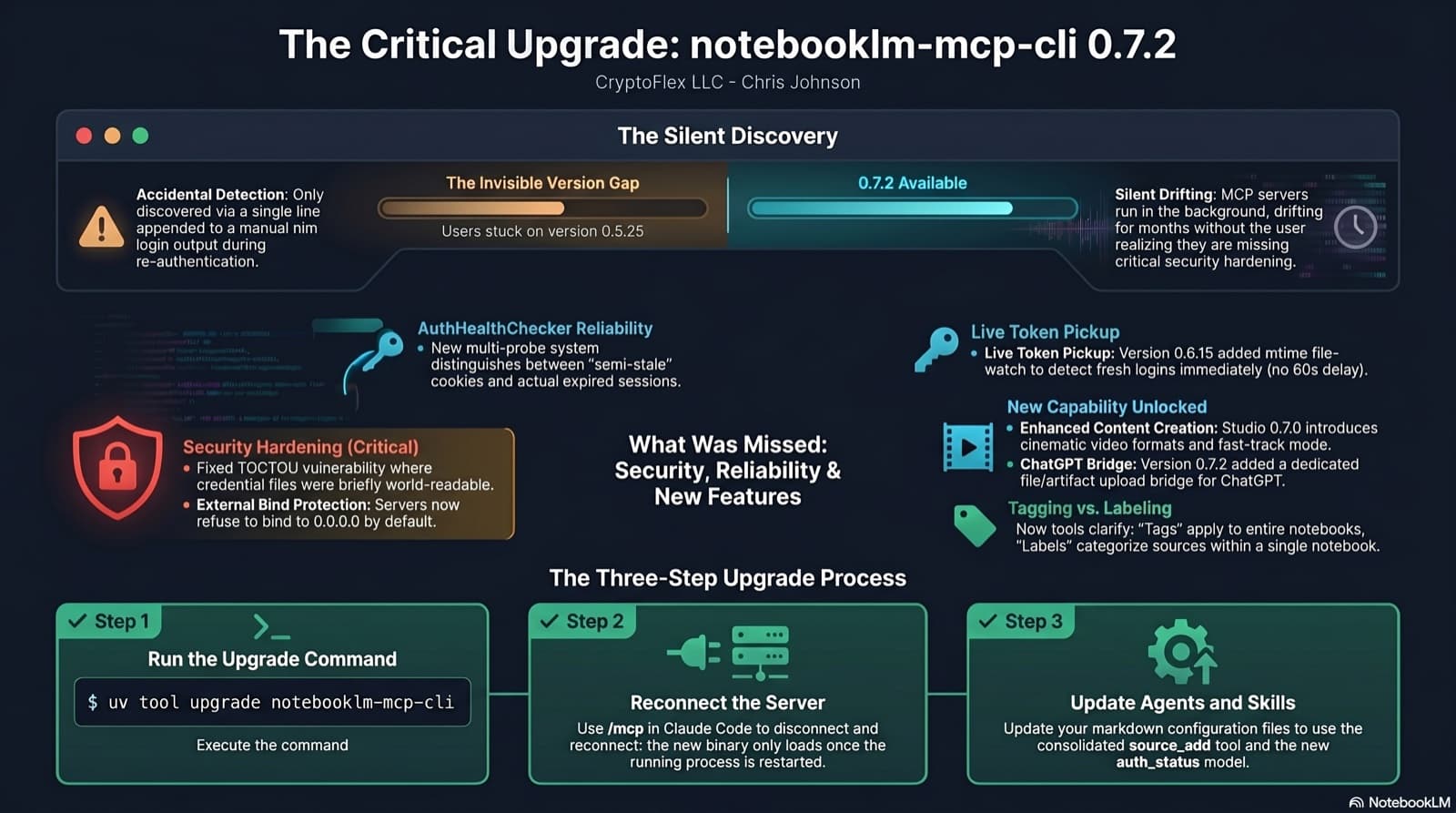
I was two minor versions behind on notebooklm-mcp-cli and had no idea until a re-auth banner interrupted a session. The gap was 0.5.25 to 0.7.2. Security fixes, auth reliability improvements, and new features I was missing the whole time. Here is the three-part upgrade that most people stop after step one.
35 MCP tools, 7 implementation tasks, 2 platforms, 1 session. How I used the superpowers brainstorming, writing-plans, and subagent-driven-development pipeline to integrate NotebookLM into Claude Code as a first-class MCP server.
Comments
Subscribers only — enter your subscriber email to comment