
Mac Storage Cleanup: From 92% Full to 68% Full in One Session
14 GB free on a 180 GB Mac. Parallel storage scans, a 4-tier classification system, deep research into iMessage's 29 GB local cache, and a reusable /storage-cleanup command. Total reclaimed: 43 GB.
14 GB free on a 180 GB internal drive. That's 92% full, and macOS was starting to complain.
I'd been ignoring the "Your disk is almost full" warnings for weeks, doing the usual quick fixes: emptying Trash, clearing Downloads, deleting a stale Docker image. But quick fixes don't work when the real consumers are buried three levels deep in ~/Library. I needed a systematic approach, not another round of whack-a-mole.
One Claude Code session later, I went from 14 GB free to 58 GB free. From 92% full to 68% full. 43 GB reclaimed without losing a single file I actually need.
Here's the full story: what was consuming space, what was safe to delete, what got moved, and the reusable command I built so I never have to do this manually again.
The Discovery Phase#
The first step was understanding what was actually using the space. Not guessing, not opening About This Mac and staring at the color-coded bar. Actually measuring.
I ran three parallel scan agents simultaneously, each targeting a different area of the filesystem:
# Agent 1: System overview
du -sh ~/Library ~/GitProjects ~/Downloads ~/Desktop 2>/dev/null | sort -rh

# Agent 2: Library deep dive
du -sh ~/Library/Application\ Support/* 2>/dev/null | sort -rh | head -15
du -sh ~/Library/Caches/* 2>/dev/null | sort -rh | head -15
du -sh ~/Library/Messages/Attachments 2>/dev/null

# Agent 3: Developer artifacts
find ~/GitProjects -name "node_modules" -type d -maxdepth 3 -exec du -sh {} \;
find ~/GitProjects -name ".next" -type d -maxdepth 3 -exec du -sh {} \;
du -sh ~/Library/Developer/Xcode/DerivedData 2>/dev/null
The parallel approach matters. Running these sequentially would take minutes as du walks deep directory trees. Three agents running at the same time cut the discovery phase to about 30 seconds.
Parallel Scans Save Time
Storage scanning is I/O-bound, but macOS handles concurrent reads from different directory trees reasonably well on SSDs. Three parallel du operations across ~/Library, ~/GitProjects, and ~/Library/Developer finish faster than running them one after another.
The results painted a clear picture:
| Location | Size | Notes |
|---|---|---|
| ~/Library/Messages/Attachments | 29 GB | Biggest single consumer |
| ~/Library/Developer (Xcode) | 10.7 GB | DerivedData + DeviceSupport + Simulators |
| ~/GitProjects (all repos) | 8.4 GB | node_modules, .next caches, source |
| ~/Library/Caches | 3.2 GB | Homebrew, Playwright, pnpm |
| ~/.claude/session_archive | 2.6 GB | Session transcripts |
| Everything else | ~8 GB | App Support, Containers, misc |
The 29 GB iMessage number stopped me cold. That's more than everything else combined.
The Classification System#
Raw numbers aren't actionable. "Your Library is 55 GB" doesn't tell you what to do about it. I needed a classification system that mapped each finding to a specific action.
Four categories emerged:
Swipe to see the full diagram · Tap to enlarge
Category A: Safely Deletable (Regeneratable)#
These are files that a simple command recreates. Deleting them costs nothing except the time to regenerate.
| Item | Size | Regeneration |
|---|---|---|
.next build caches (3 projects) | 1.9 GB | npm run build |
Inactive node_modules (4 repos) | 1.9 GB | npm install |
| Xcode DerivedData | 739 MB | Xcode rebuilds on next open |
| Homebrew cache | 914 MB | Packages already installed |
| Playwright browsers | 969 MB | npx playwright install |
| pnpm store | ~400 MB | pnpm install |
| Subtotal | ~7 GB |
The key distinction: "inactive" node_modules means projects I haven't touched in weeks. Active projects keep their dependencies.
Don't Delete Active node_modules
Only delete node_modules for projects you're not actively working on. Reinstalling takes time, and if you're mid-feature with local patches or linked packages, you'll lose that state. Check git status first.
Category B: Safe to Move to External Drive#
These files have value but don't need to live on the internal drive. An external drive (or NAS) is the right home.
| Item | Size | Notes |
|---|---|---|
| Claude session_archive | 2.6 GB | Historical transcripts for analysis |
| Xcode iOS DeviceSupport | 5.5 GB | Re-downloads when a device connects |
| CoreSimulator Devices | 4.5 GB | Recreatable from Xcode |
| Subtotal | ~13 GB |
The session archive was the easiest call. Those are historical transcripts that I occasionally mine for patterns (the Homunculus ingestion pipeline reads them), but they don't need SSD-speed access. An external USB drive is fine.
Xcode's iOS DeviceSupport and CoreSimulator directories are interesting. DeviceSupport contains debug symbols for every iOS version you've connected a physical device with. CoreSimulator stores full simulator disk images. Both are large, both are recreatable, and both are only needed when you're actively doing iOS development.
Category C: Settings-Based (iMessage)#
This is where the investigation got interesting.
Category D: Active/Required#
Everything else: running app data, active project files, system caches, Homebrew itself. Left untouched.
The iMessage Deep Dive#
29 GB of iMessage attachments demanded investigation. I couldn't just delete them without understanding what they were and whether deleting them was safe.
I launched two parallel research agents: one using Exa for semantic web search, one using Firecrawl to scrape Apple support pages and community forums. The question was simple: if Messages in iCloud is enabled, is ~/Library/Messages/Attachments/ a local cache that can be safely deleted?
The research came back clear.
When "Messages in iCloud" is turned on (Settings > Apple ID > iCloud > Messages), your full message history lives in iCloud. The ~/Library/Messages/Attachments/ directory is a local cache of attachments that macOS downloads on demand. Deleting files from this directory in Finder does not delete them from iCloud, does not delete them from your iPhone, and does not affect your message history.
macOS will re-download attachments when you scroll to them in the Messages app.
# Verify Messages in iCloud is enabled before touching anything
defaults read ~/Library/Preferences/com.apple.iChat 2>/dev/null | grep -i cloud
Verify iCloud Sync First
Before deleting anything from ~/Library/Messages/Attachments/, confirm that "Messages in iCloud" is enabled in System Settings. If it's disabled, those local files are the only copy of your attachments. Deleting them means losing them permanently.
Here's the part that surprised me: macOS has no "Optimize Mac Storage" toggle for Messages. Photos has it. Mail has it. Messages does not. Apple gives you no built-in way to reduce the local Messages cache. Your only options are:
- Delete files manually from Finder (what I did)
- Change "Keep Messages" to 1 year or 30 days in Messages preferences
- Accept 29 GB of cached attachments forever
Why No Optimize Storage for Messages?
Apple's "Optimize Mac Storage" feature for Photos works by replacing full-resolution images with thumbnails locally and keeping originals in iCloud. Messages doesn't have an equivalent mechanism. The local attachment cache grows without bound unless you intervene manually or limit message retention. This has been a known gap in macOS storage management for years.
The research agents found this information across Apple support documents, Stack Exchange threads, and Mac power user forums. Multiple independent sources confirmed the same behavior: Finder deletion of the Attachments directory is safe when iCloud sync is active. The Messages app recreates the directory structure automatically.
I deleted the contents of ~/Library/Messages/Attachments/ from Finder. 29 GB, gone. Messages on my iPhone: unchanged. Messages on my Mac: still there, with attachments re-downloading as I scroll to them.
The Execution#
With classification done, execution followed a strict protocol: verify before deleting, never delete without a backup for Category B items.
Category A: Delete#
Straightforward. These are regeneratable caches.
# .next build caches
rm -rf ~/GitProjects/cryptoflexllc/.next
rm -rf ~/GitProjects/terry-website/.next
rm -rf ~/GitProjects/Openclaw_MissionControl/.next

# Inactive node_modules
rm -rf ~/GitProjects/terry-website/node_modules
rm -rf ~/GitProjects/inactive-project-1/node_modules
rm -rf ~/GitProjects/inactive-project-2/node_modules
rm -rf ~/GitProjects/inactive-project-3/node_modules

# Xcode DerivedData
rm -rf ~/Library/Developer/Xcode/DerivedData

# Caches
brew cleanup --prune=all
rm -rf ~/Library/Caches/ms-playwright
Seven gigabytes freed in under a minute.
Category B: Move to External#
This is where the protocol gets careful. Never delete originals until the copy is verified.
# Create timestamped backup directory
BACKUP_DIR="/Volumes/MacExternal/MacBackup/2026-04-12"
mkdir -p "$BACKUP_DIR"

# rsync with archive mode (preserves permissions, timestamps, symlinks)
rsync -a ~/.claude/session_archive/ "$BACKUP_DIR/claude-session-archive/"
rsync -a ~/Library/Developer/Xcode/iOS\ DeviceSupport/ "$BACKUP_DIR/xcode-ios-device-support/"
rsync -a ~/Library/Developer/CoreSimulator/Devices/ "$BACKUP_DIR/xcode-core-simulator/"

# Verify sizes match before deleting
du -sh "$BACKUP_DIR/claude-session-archive/"
du -sh ~/.claude/session_archive/
# Compare, then delete originals only if sizes match
Always Verify Before Deleting
The rsync-verify-delete pattern is non-negotiable. Compare source and destination sizes after the copy. If they don't match, the copy failed silently (disk full, permission error, interrupted transfer). Never rm -rf originals without verification.
After verification, I deleted the originals and created a manifest on the external drive with restore commands for each item:
| Item | Original Path | Size | Restore Command |
|---|---|---|---|
| Claude archives | ~/.claude/session_archive/ | 2.6 GB | rsync -a ".../claude-session-archive/" "~/.claude/session_archive/" |
| iOS DeviceSupport | ~/Library/Developer/Xcode/iOS DeviceSupport/ | 5.5 GB | rsync -a ".../xcode-ios-device-support/" "~/Library/Developer/..." |
| CoreSimulator | ~/Library/Developer/CoreSimulator/Devices/ | 4.5 GB | rsync -a ".../xcode-core-simulator/" "~/Library/Developer/..." |
Thirteen more gigabytes freed.
Category C: iMessage#
Already covered above. 29 GB deleted from Finder after confirming iCloud sync was active.
The Final Score#
$ df -h /
Filesystem     Size   Used  Avail Capacity
/dev/disk3s1  181Gi  117Gi   58Gi    68%
| Metric | Before | After |
|---|---|---|
| Disk usage | 92% | 68% |
| Free space | 14 GB | 58 GB |
| Total reclaimed | 43 GB |
Breakdown of the 43 GB:
| Category | Action | Space |
|---|---|---|
| A: Caches and deps | Deleted | 7 GB |
| B: Archives and dev artifacts | Moved to external | 13 GB |
| C: iMessage attachments | Deleted (local cache) | 29 GB |
| Total | 43 GB |
Building the /storage-cleanup Command#
I didn't want to repeat this investigation manually next time. The classification system, the safety rules, the rsync-verify-delete protocol: all of it should be codified into a reusable command.
I created /storage-cleanup as a Claude Code command at ~/.claude/commands/storage-cleanup.md. It's a 5-phase team agent that orchestrates the entire workflow:
Phase 1: Discovery. Three parallel Haiku agents scan system directories, Library subdirectories, and developer artifacts simultaneously. Same du and find commands from the manual investigation, but automated and parallel.
Phase 2: Classification. Each finding gets classified into one of the four categories (A through D) based on predefined rules. .next caches are always Category A. Active project node_modules are always Category D. The rules encode everything I learned during the manual cleanup.
Phase 3: Report. A formatted markdown table showing every finding, its category, its size, and the specific command to clean it up. The user reviews this before anything happens.
Phase 4: Execute. Only runs if the user explicitly passes the execute argument or approves after seeing the report. Category A items get deleted directly. Category B items follow the rsync-verify-delete protocol. Category C items get instructions (since they require manual action in Finder or System Settings).
Phase 5: Manifest. After execution, a manifest file is created (or updated) on the external drive with restore commands for everything that was moved.
Command, Not Script
The /storage-cleanup command is a Claude Code agent definition, not a bash script. That means it can reason about edge cases, ask clarifying questions, and adapt to unexpected findings. A bash script would need to handle every edge case upfront. An agent command handles them as they arise.
The command also includes safety rules that prevent common mistakes:
- Never delete without confirming a copy exists (Category B)
- Never modify iMessage/Mail databases (only attachment caches)
- Never delete active project files (check
git statusfirst) - Never remove Homebrew itself, only its download cache
- Always verify external drive is writable before moves
- Skip any item where
dureports Permission denied (SIP-protected) - Verify rsync completed before removing originals
Reusable Across Machines
The command works on any Mac with Claude Code installed. The discovery phase auto-detects what's present (no Xcode? skip those scans), the classification rules are generic (.next caches are regeneratable regardless of project), and external drive detection is automatic via df -h filtering.
What I Learned About Mac Storage#
A few observations from the investigation that might save you time.
iMessage Is the Silent Giant#
29 GB is not unusual for a Mac with years of messaging history and iCloud sync enabled. Every photo, video, voice memo, and document sent through iMessage gets cached locally with no automatic cleanup. If you haven't checked ~/Library/Messages/Attachments/ recently, you should.
Xcode Is Quietly Expensive#
If you've ever connected an iPhone to your Mac or run the iOS Simulator, Xcode has been accumulating debug symbols and simulator disk images. The combination of DerivedData, iOS DeviceSupport, and CoreSimulator Devices was 10.7 GB on my machine, and I'm not even an active iOS developer. I built one SwiftUI app months ago.
Developer Caches Compound#
No single cache was enormous. But .next at 1.9 GB, plus inactive node_modules at 1.9 GB, plus Homebrew at 914 MB, plus Playwright at 969 MB, plus pnpm at 400 MB adds up to 7 GB. These caches grow silently, and none of them clean themselves up automatically.
Schedule Periodic Cleanup
Storage pressure builds gradually. Consider running /storage-cleanup scan monthly (or whenever free space drops below 15%) to catch accumulation early. A 5-minute scan is cheaper than an emergency cleanup when the disk is 95% full and builds start failing.
The rsync-verify-delete Pattern#
This pattern applies to any data migration, not just storage cleanup:
- rsync -a to copy (preserves all metadata)
- Compare sizes between source and destination
- Delete originals only after size verification
- Log the operation with a restore command
It's one extra step compared to mv, but mv across volumes is a copy-and-delete anyway, and it doesn't give you the verification checkpoint. I've seen silent rsync failures from disk-full conditions on the target drive. The size comparison catches those.
The Bigger Picture#
Storage cleanup is a microcosm of the broader pattern I keep seeing with Claude Code: take a manual, ad-hoc process, decompose it into structured phases, run the independent parts in parallel, encode the lessons into a reusable tool, and never do it manually again.
The investigation took about an hour. The command definition took about 20 minutes. Every future cleanup will take about 5 minutes: run the command, review the report, approve the execution.
43 GB reclaimed. One reusable command created. Zero files lost.
Written by Chris Johnson and edited by Claude Code (Opus 4.6). The /storage-cleanup command and full configuration are available in the claude-code-config repo.
Weekly Digest
Get a weekly email with what I learned, summaries of new posts, and direct links. No spam, unsubscribe anytime.

Related Posts
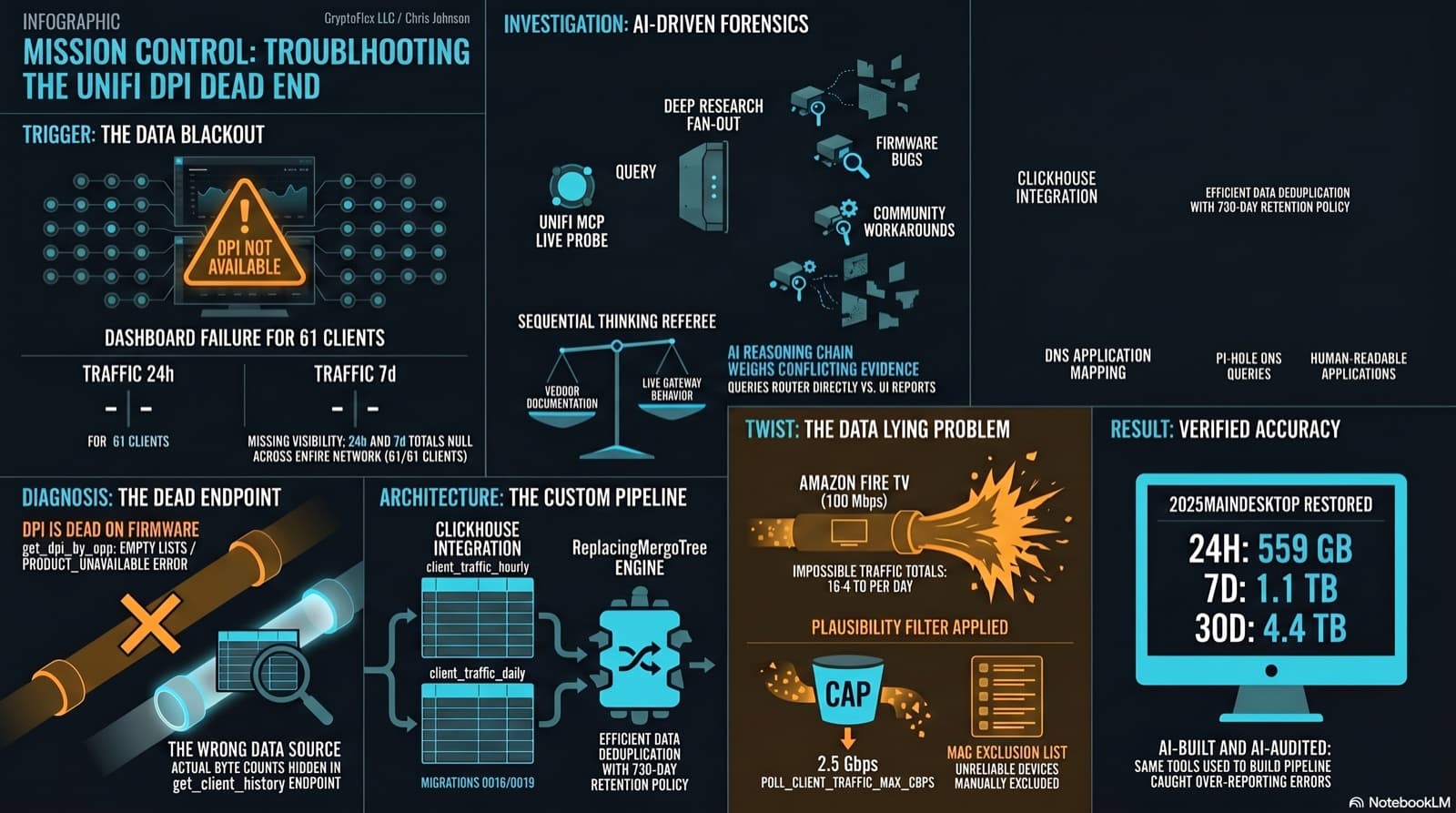
The Clients page showed "--" for traffic and "DPI not available for this device" for applications. The investigation found that per-app DPI is genuinely dead on this firmware, but per-client hourly byte buckets are alive and well in a different endpoint the dashboard was never reading. Fix the source, accumulate in ClickHouse, reconstruct Top Applications from Pi-hole DNS, and then discover that some clients are reporting physically impossible volumes. One afternoon, one commit (e07a8ac, 27 files), three confessional asides, and a plausibility cap that became load-bearing.
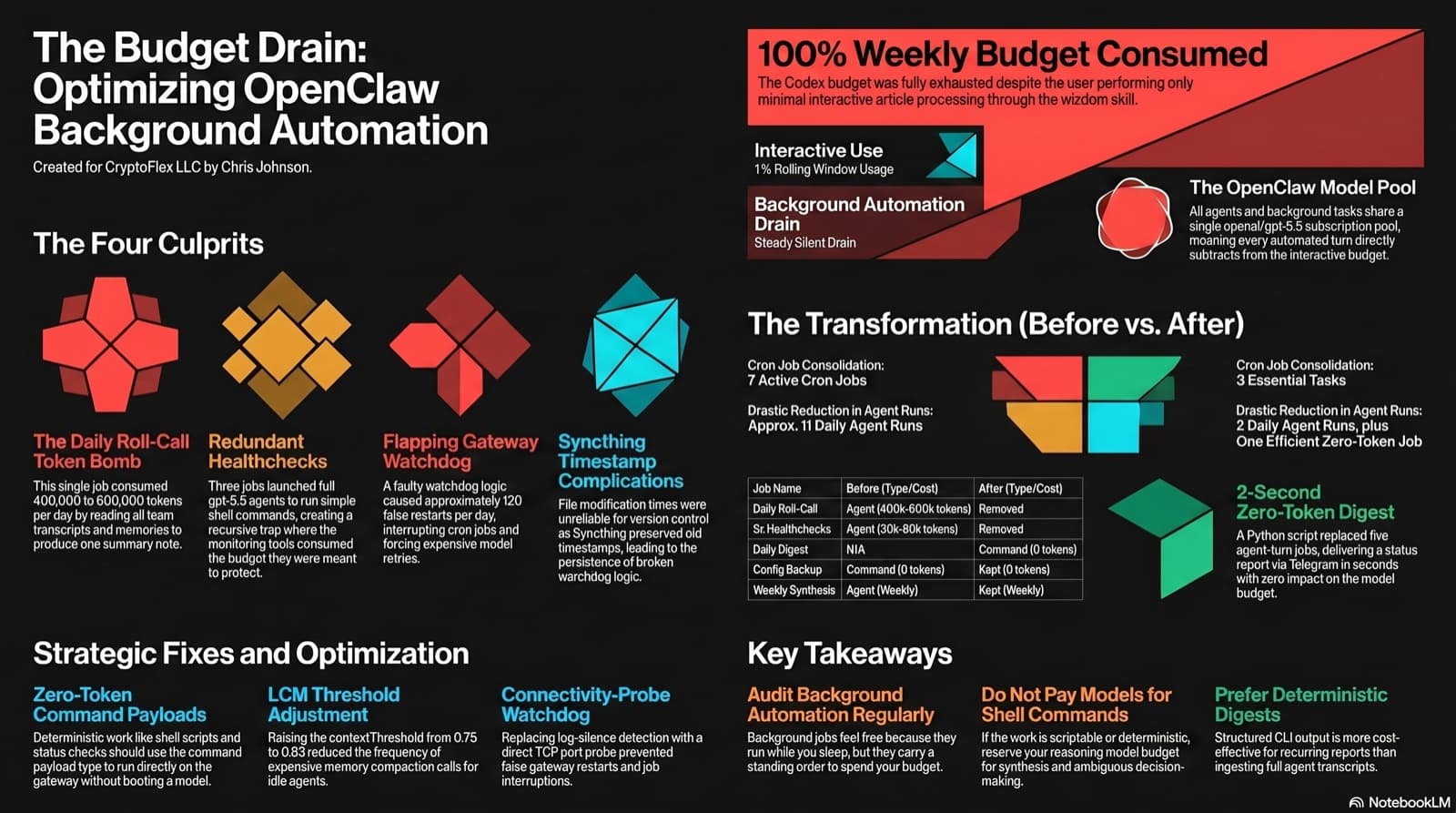
A weekly OpenAI Codex subscription cap hit 100% despite minimal interactive use. The culprit: 7 background cron jobs spinning up full gpt-5.5 agents for work a shell script could do, plus a roll-call job consuming 400,000-600,000 tokens per day. Fixing it meant a before/after cron inventory that went from 11 daily agent runs to 2, plus a zero-token digest command that works even when the cap is exhausted.
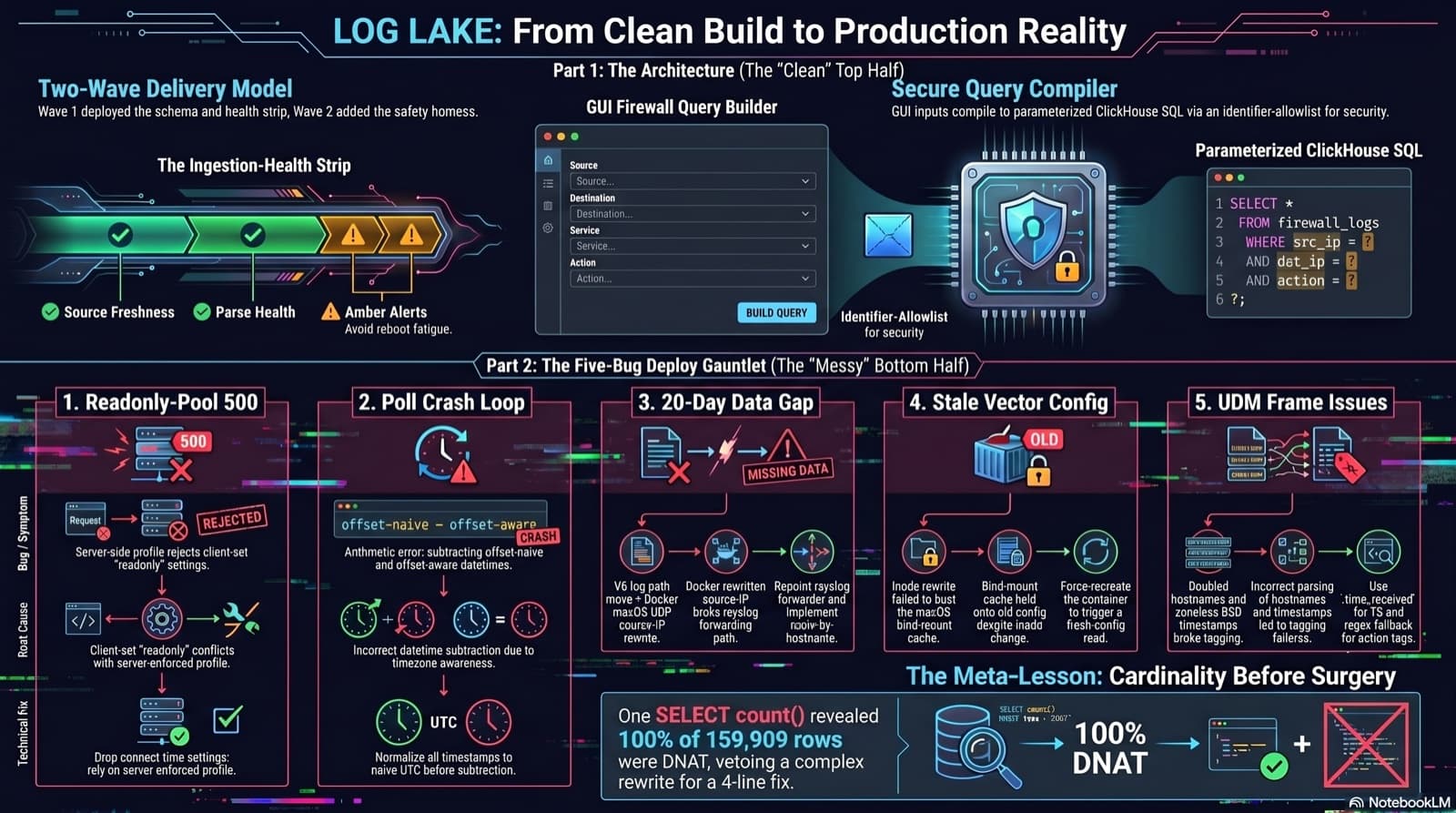
Home Network Mission Control: The LOG LAKE Panel, Five Deploy Bugs, and a Vetoed Bytes-Codec Rewrite
Part 6 of the home network dashboard build. The LOG LAKE panel ships a SIEM ingestion-health strip and a GUI firewall query builder that compiles to parameterized ClickHouse under the hood. One PR, two waves, 1193 backend tests at merge. Then deploy day on the live Mac mini produced five production-only bugs in a single afternoon: a readonly-pool 500, a timezone-mixed poll crash that had been firing every five minutes for hours, a 20-day-silent Pi-hole pipeline (two layers stacked), a Vector container reading a stale bind-mounted config, and a UDM doubled-hostname frame that silently broke action derivation for 159,909 rows. The meta-lesson is that the proposed fix for the last one was an invasive Vector source rewrite that the persona team vetoed in favor of an operator toggle and a four-line MV recreation.
Comments
Subscribers only — enter your subscriber email to comment